Adding fonts to a Font Library
Last updated: May 8, 2026
Font Libraries store fonts that shoppers can choose from when personalizing text.
They can be used with:
Text Box elements
Curved Text elements
Warped Text elements
Adding fonts
Open the Font Library. If your library uses categories, open the category first before adding the fonts. Fonts added inside a category will belong to that category.
Click Add font
Select one or multiple fonts from your font list.
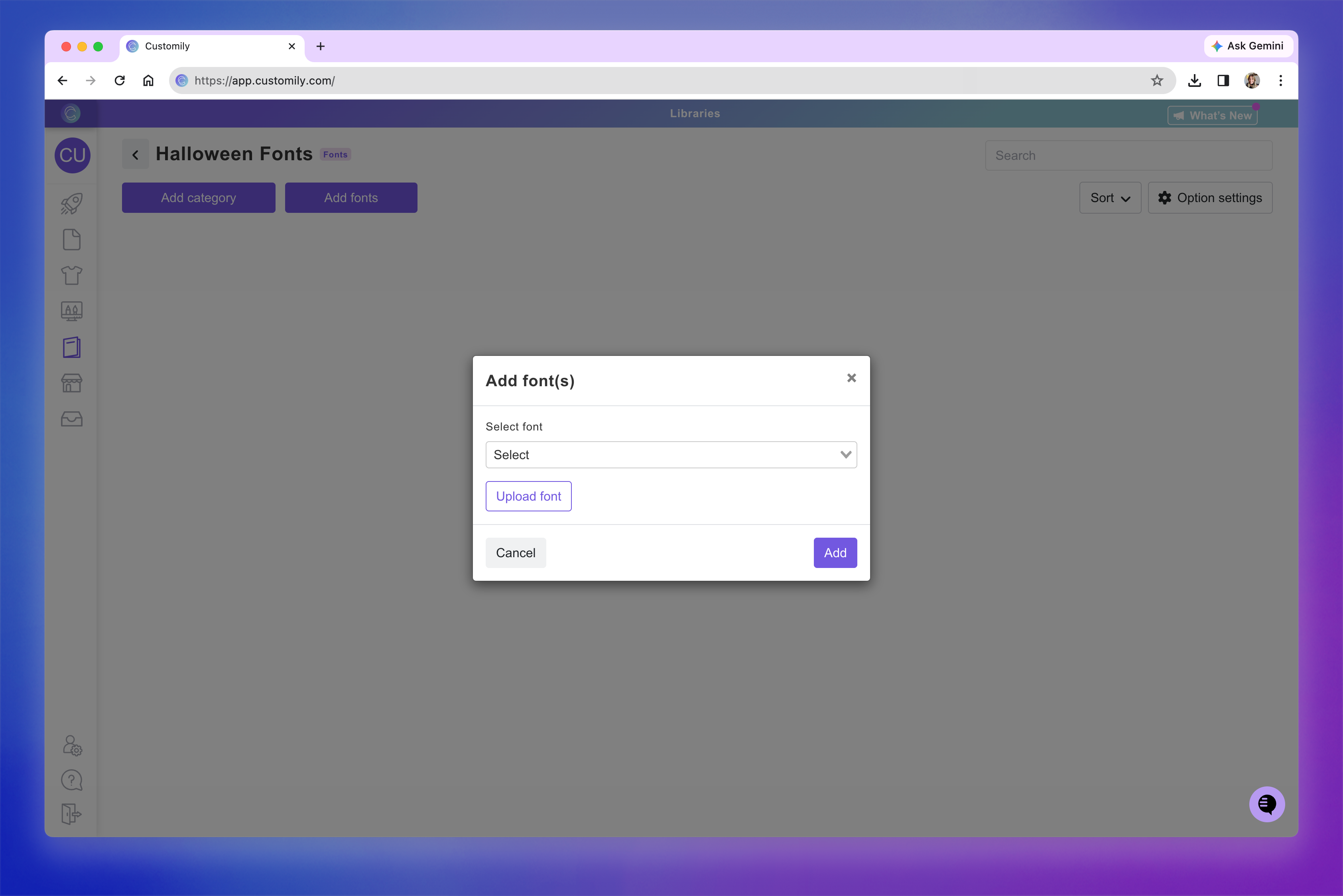
You can also upload a new custom font if the font you want to use is not already available in your account.
Click Add
Once uploaded, the fonts will appear inside the library.
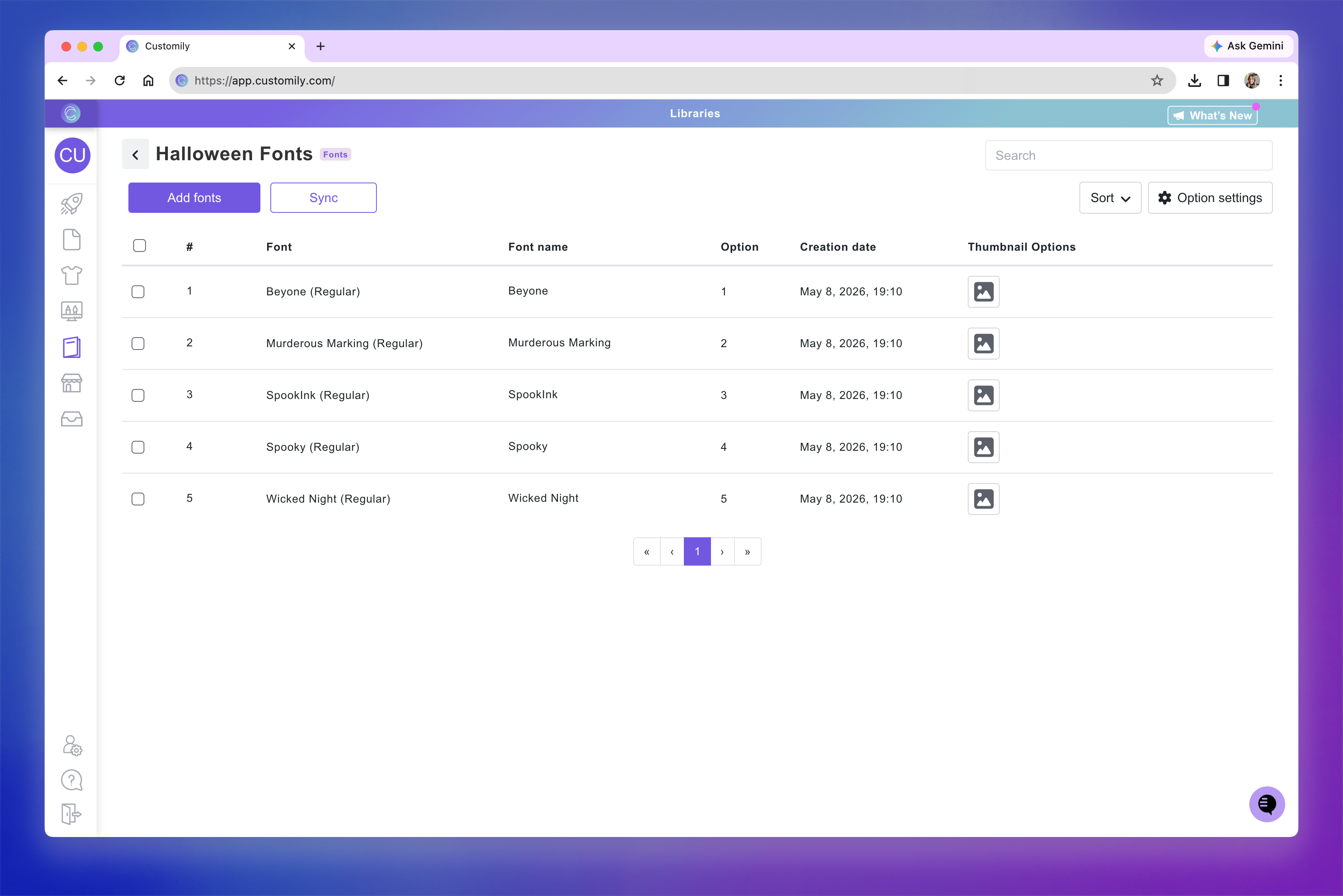
By default, the font name will be used as the asset name, and Customily automatically generates a thumbnail using the font itself.
Both the image name and thumbnail can be changed.
Font Libraries support:
TTF fonts
OTF fonts
Names and thumbnails
By default:
The font name is used as the asset name
Customily automatically generates a thumbnail with “Abc” written using the font
The image name and thumbnail are used by Customily when generating the shopper-facing personalization options.
You can rename the font by hovering over its name and clicking Rename.
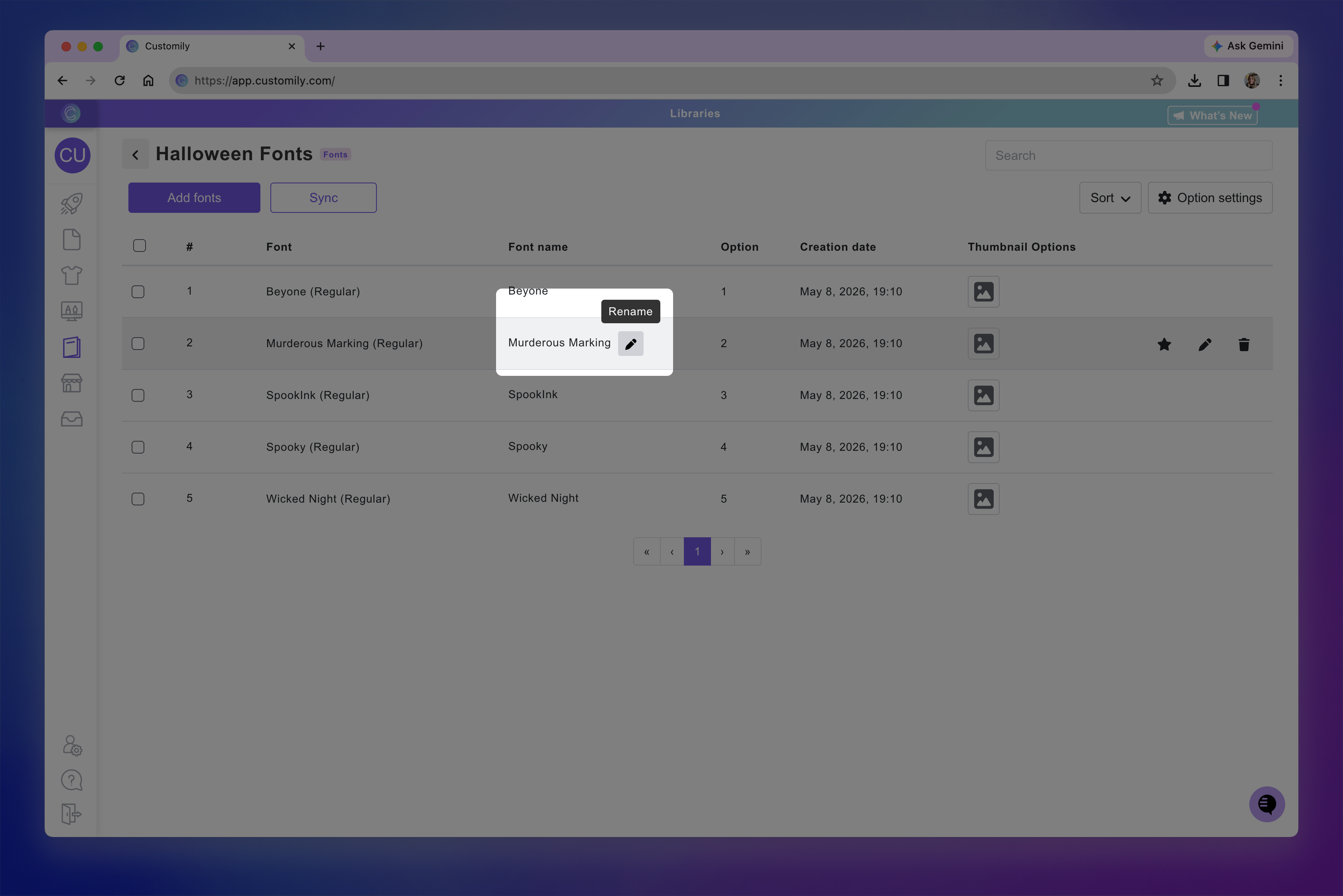
In the Thumbnail Options column, you can choose how the shopper-facing swatch thumbnail should be displayed.
By default, the image thumbnail option is selected and uses the automatically generated “Abc” preview as the swatch thumbnail.
You can:
Click the image thumbnail icon to replace the default thumbnail with a different image

Managing fonts
To manage a font, hover over it to reveal the action buttons on the right side.
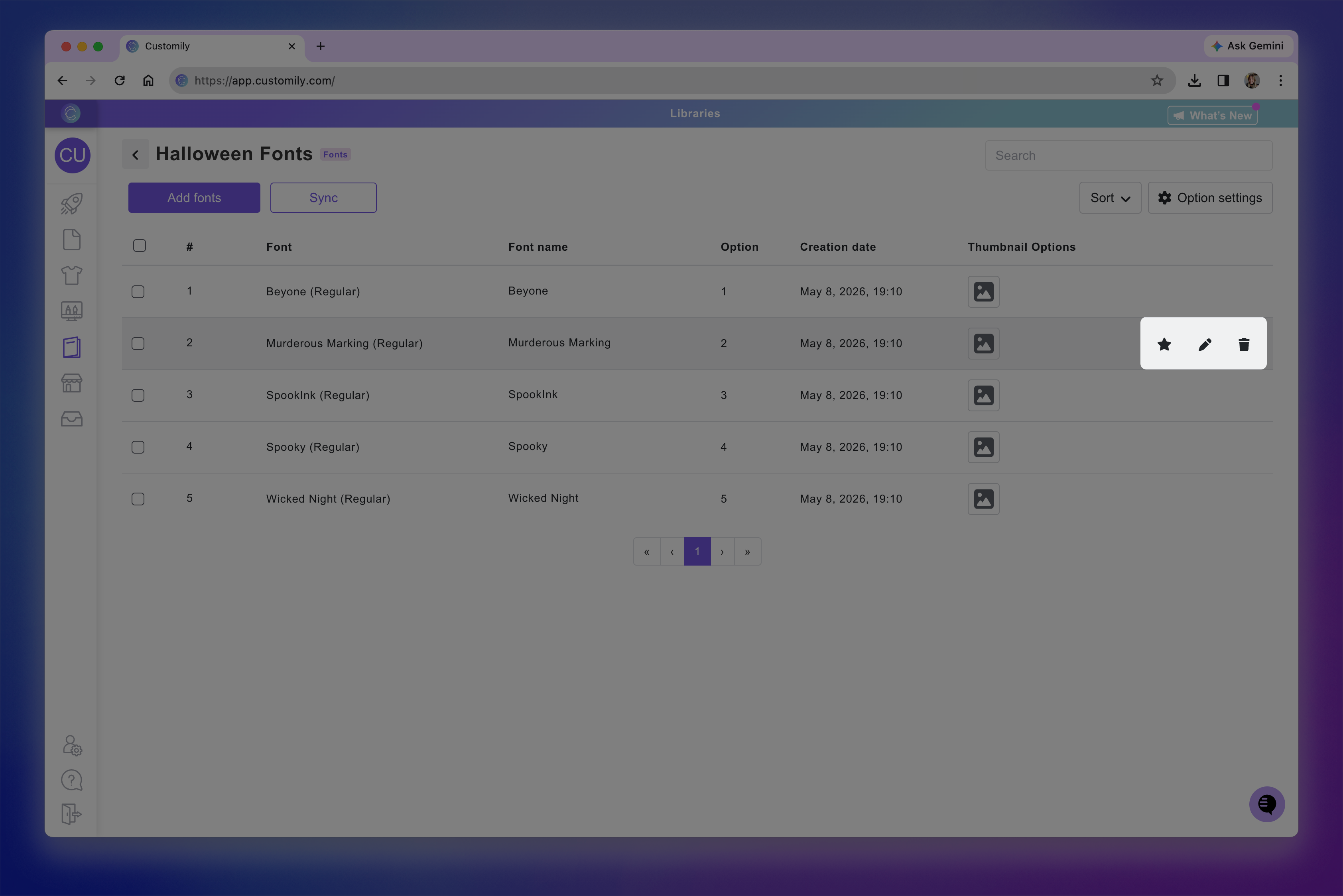
From there, you can:
Click the pencil icon to replace the font with a different one
Click the trash can icon to delete the font from the library
Click the star icon to mark the font as selected by default
The selected font will be used by Customily when automatically generating the personalization options for shoppers.
To delete multiple fonts at once:
Use the checkbox on the left side of each font to select the ones you want to delete
Click Delete
To select all fonts on the current page, use the checkbox at the top of the list.
You can also reorder fonts by:
Clicking and dragging them
Changing their # number
Changing the # number is especially useful when moving fonts beyond the current page of results.