How to create libraries
Last updated: May 7, 2026
Before libraries can be used in your designs and templates, they first need to be created and filled with assets.
The process for creating libraries is very similar across all library types. You’ll first create the library, then add categories and assets to it, and finally configure how the options generated from that library will behave for shoppers.
Create a new library
To create a new library:
Open the Libraries section
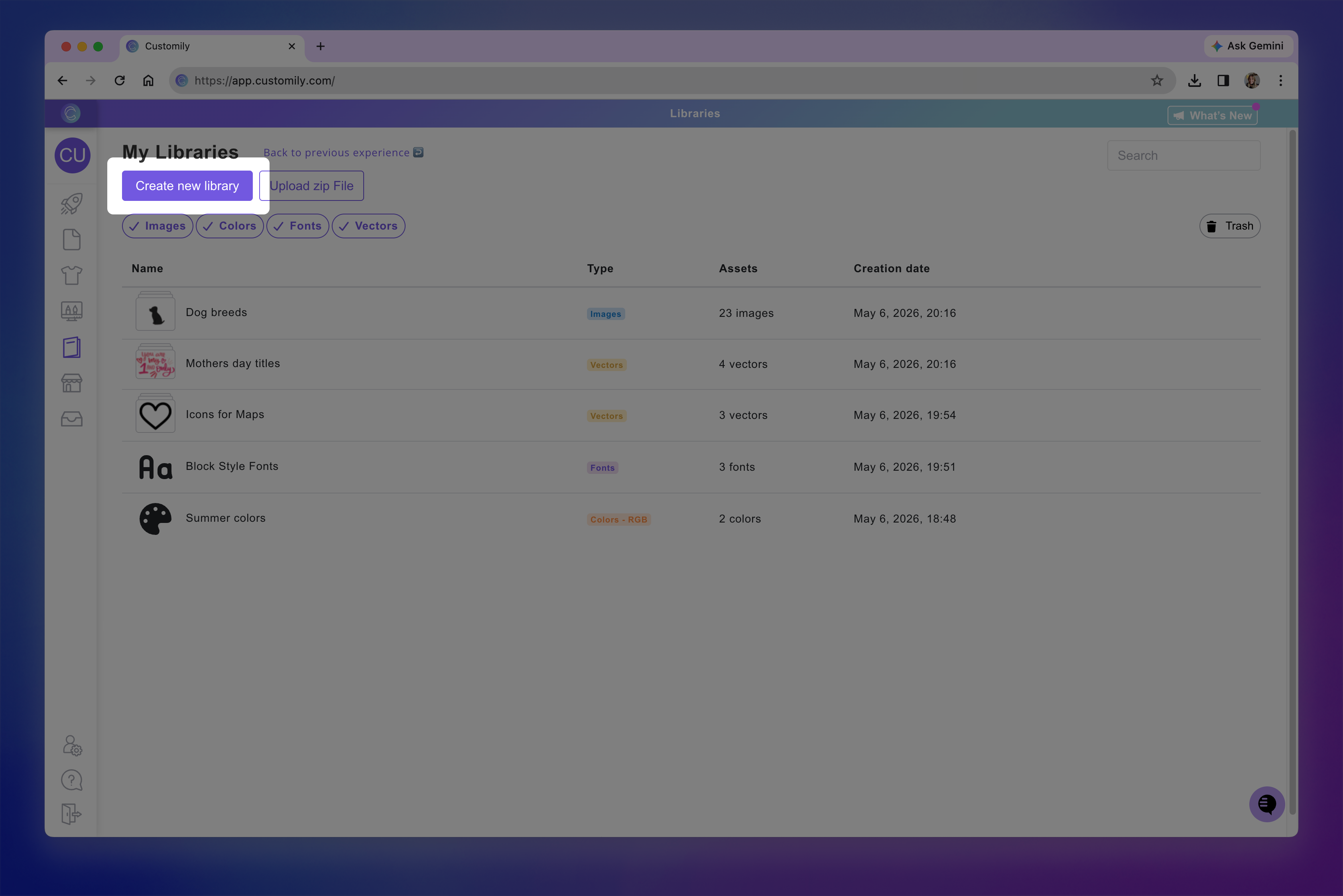
Click Create new library
Choose the type of library you want to create and enter a name for the library
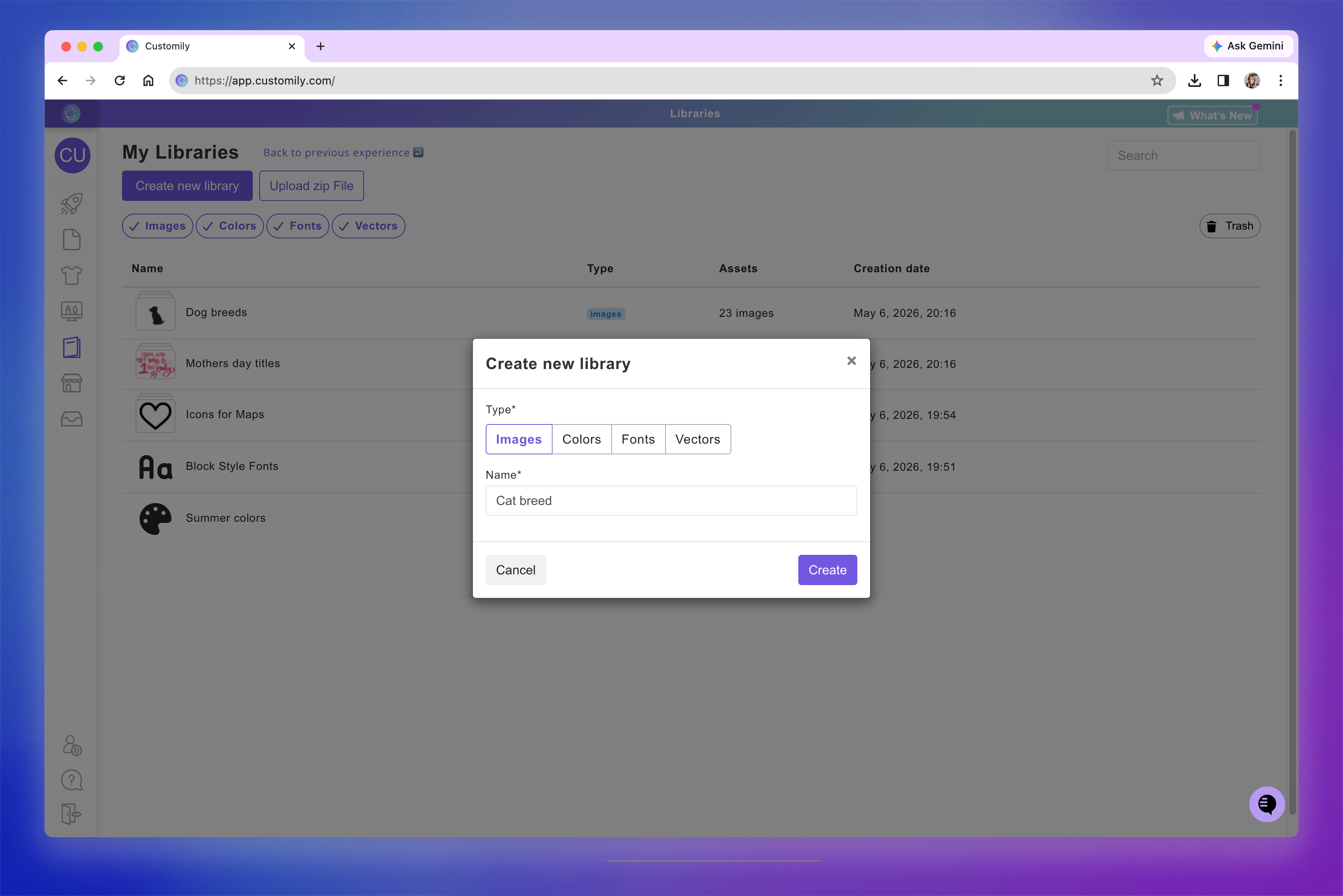
Click Create
Once the library is created, it will automatically open so you can start adding categories and assets.
Inside the library, you’ll see buttons to:
Add categories
Add assets
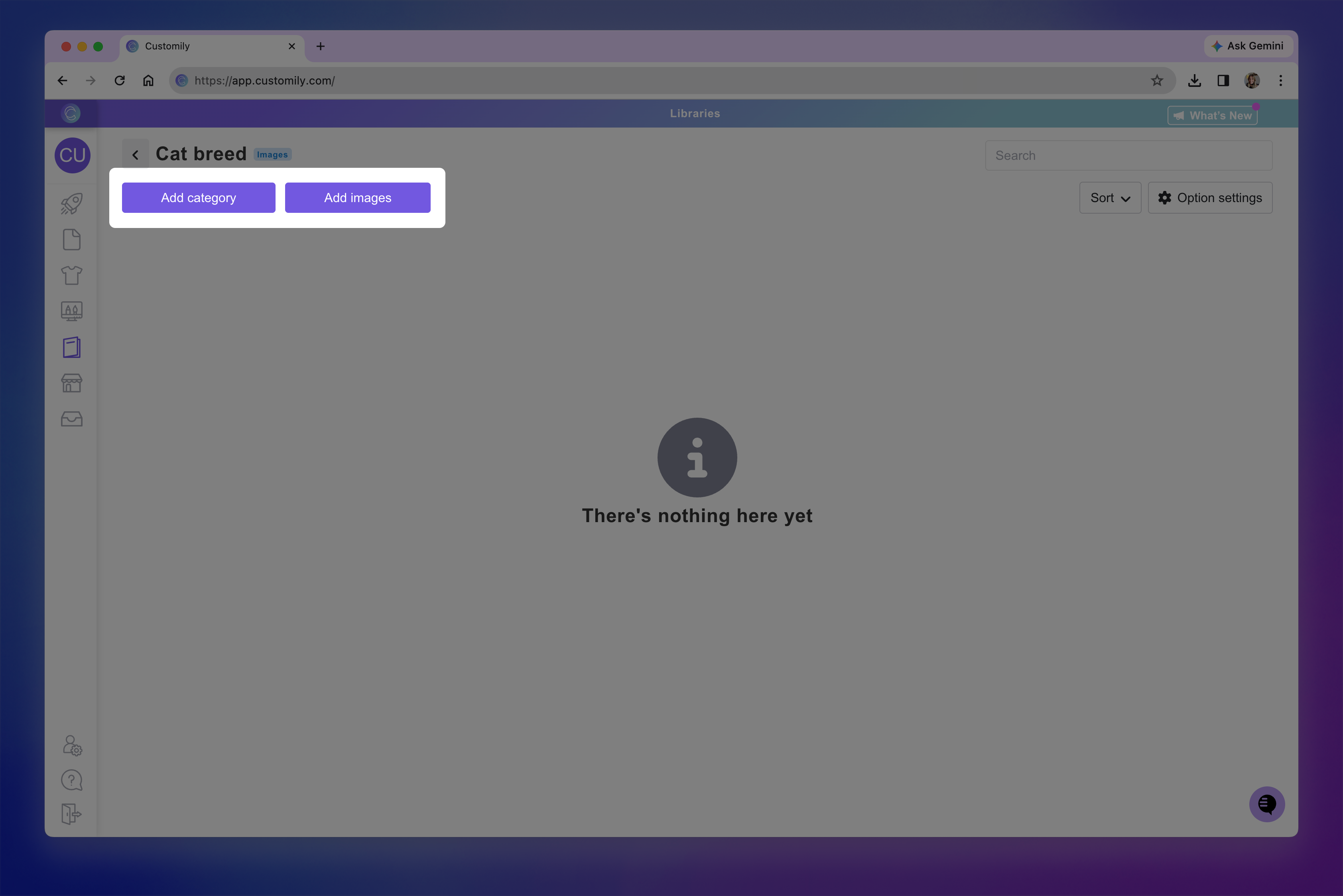
You can either:
Start by creating categories and then add assets inside them
Start by adding assets directly into the library
Keep in mind
If you start by adding assets directly into the library, you won’t be able to create categories later unless those assets are removed first.
Add Categories
Categories are optional, but they can help organize your libraries when you have many assets and improve the shopper experience when selecting options.
For example, you could use categories to separate:
Fonts by style
Dog clipart by breed
Hair style cliparts by hair length
Colors by collection
Once categories are created, you can add assets inside them to keep your libraries organized.
Creating a category
To create a category:
Click Add category
Enter a category name and upload a thumbnail image (only for image and vector libraries)
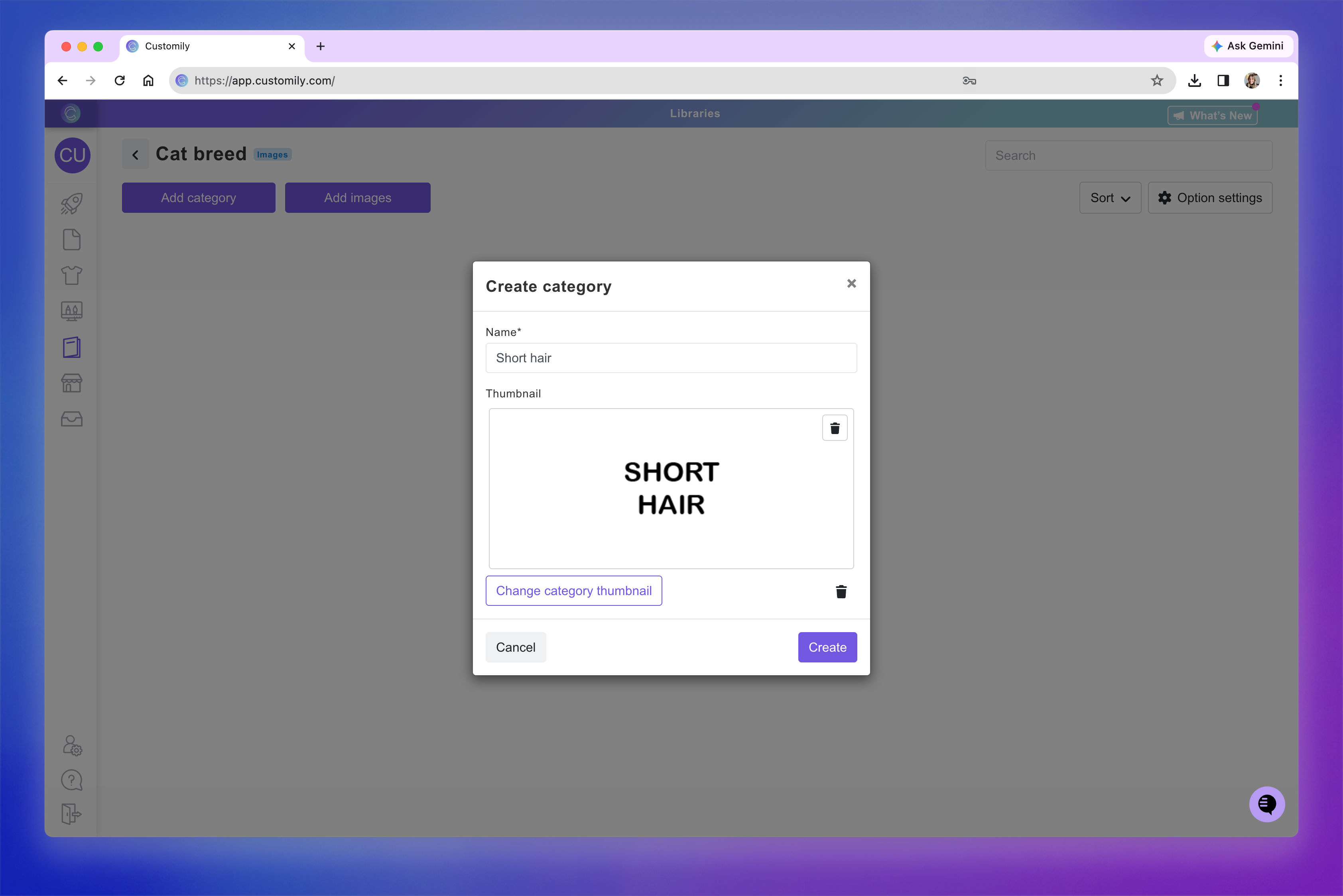
Click Create
Once the category is created, it will automatically open so you can start adding assets inside it.
By default:
Categories use the name you assign when creating them
Image and vector library categories can include custom thumbnail images
Color and font library categories only use names
Category names and thumbnails can be edited later.
The category name and thumbnail are used by Customily when generating the options shoppers will see on your store.
Managing categories
To manage a category, hover over it to reveal the action buttons on the right side.
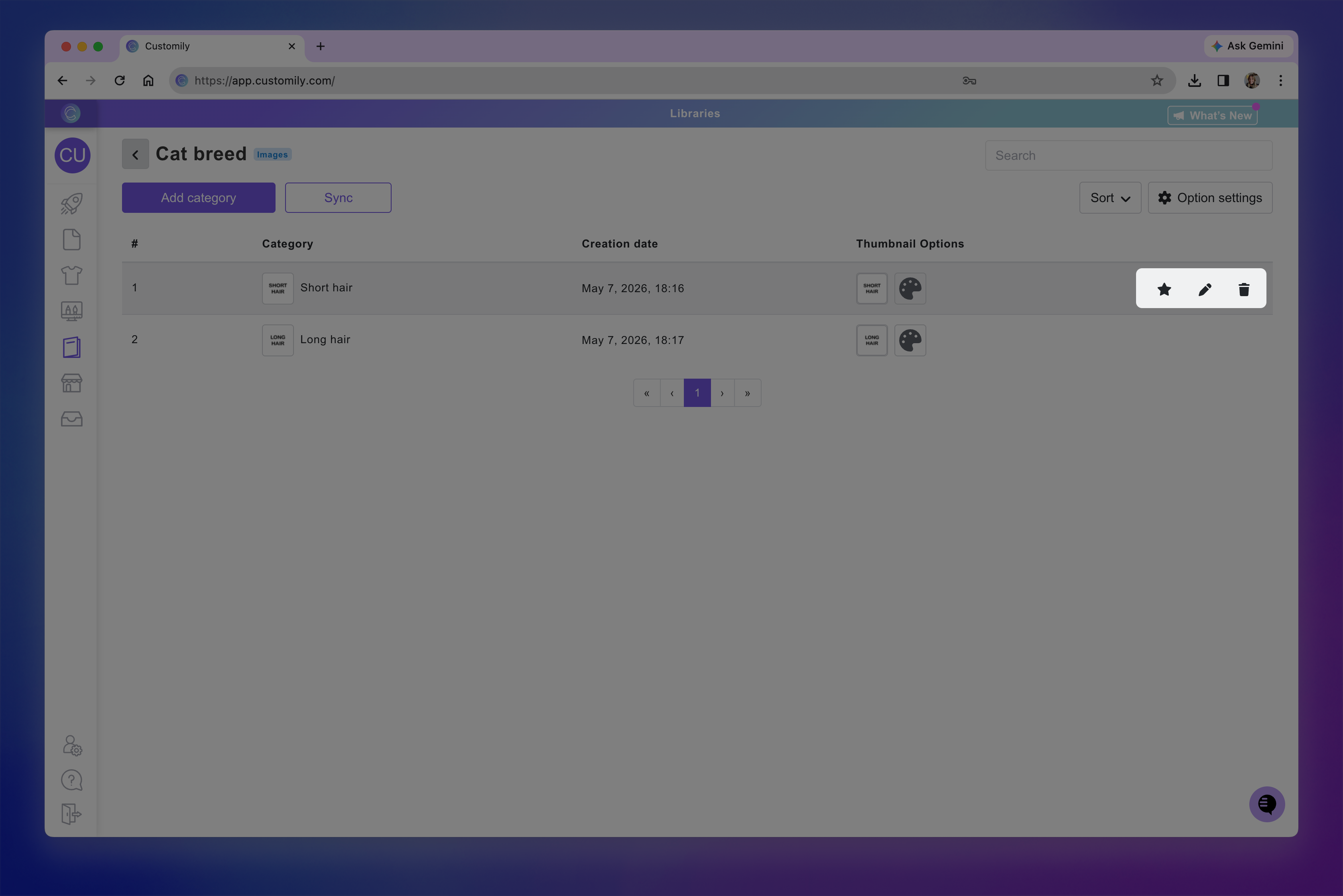
From there, you can:
Click the pencil icon to open the category and manage the assets inside it
Click the trash can icon to delete the category
Click the star icon to mark the category as selected by default
The selected category will be used by Customily when automatically generating the personalization options for shoppers.
You can rename a category by hovering over its name and clicking Rename.
To change the category thumbnail, click the existing thumbnail and upload a new image.
You can reorder categories by:
Clicking and dragging them
Changing their # number (first column on the left)
By clicking sort at the top right corner
Changing the # number is especially useful when moving categories beyond the current page of results.
Add Assets
Assets are the actual colors, fonts, images, or vectors that shoppers will choose from.
Once assets are added to a library, they can be used by Customily to automatically generate personalization options in your designs and templates.
Adding assets
To add assets to a library or category:
Open the library or category
Click the add button corresponding to that library type. For example:
Image Libraries use the Add image button
Color Libraries use the Add color button
Font Libraries use the Add font button
Vector Libraries use the Add vector button
Follow the instructions to upload or select the asset.
The process depends on the type of library you are creating. Detailed instructions for each type are covered in their corresponding articles.
By default:
Uploaded files use the file name as the asset name
Image and vector libraries use the uploaded asset as the thumbnail
Font libraries automatically generate a thumbnail preview using the font
Color libraries use the selected color as the thumbnail
Both names and thumbnails can be edited.
The asset names and thumbnails are used by Customily when generating the shopper-facing personalization options.
Managing assets
To manage an asset, hover over it to reveal the action buttons on the right side.
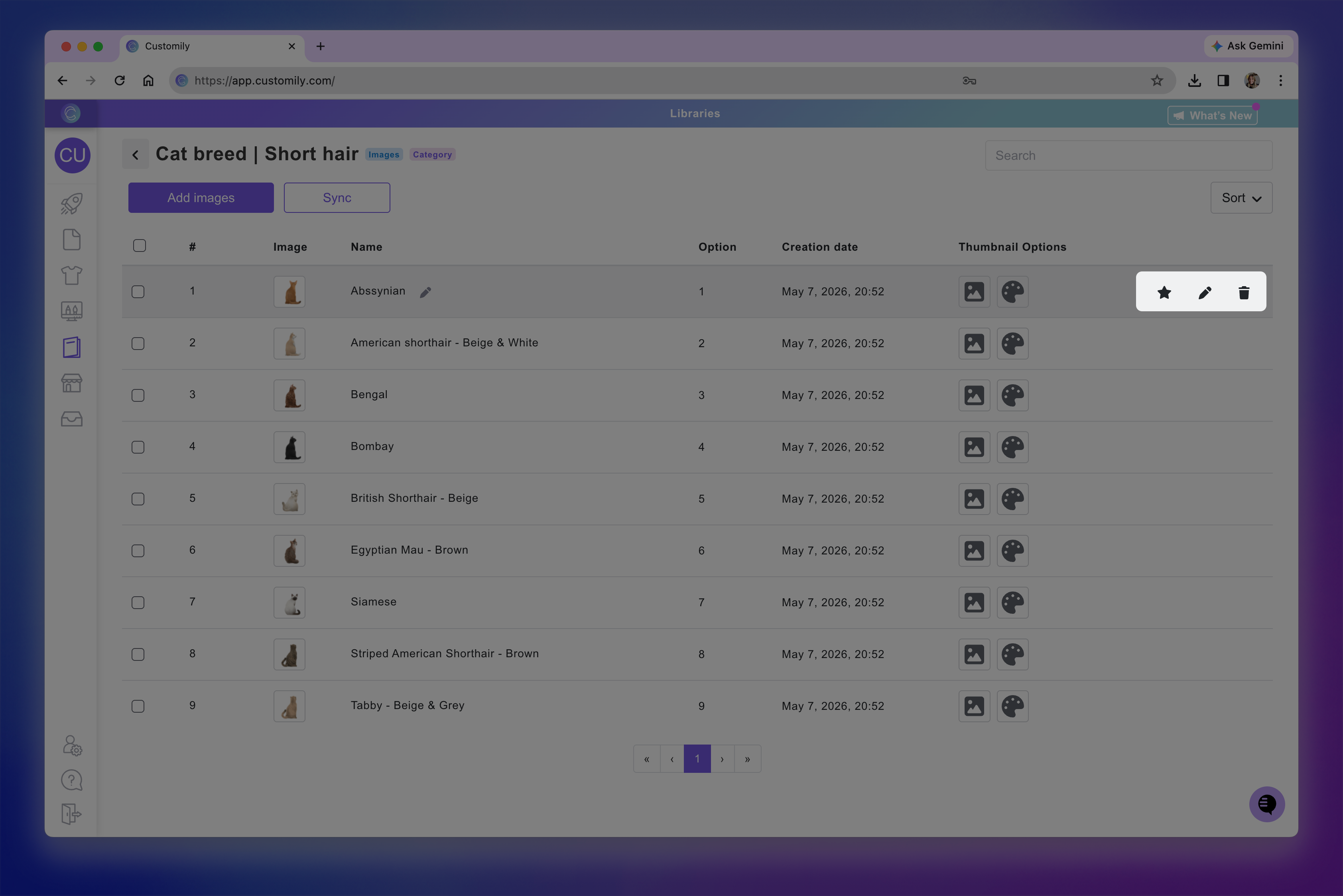
From there, you can:
Click the pencil icon to edit the asset
Click the trash can icon to delete the asset
Click the star icon to mark the asset as selected by default
The selected asset will be used by Customily when automatically generating the personalization options for shoppers.
You can rename an asset by hovering over its name and clicking Rename.
To change the asset thumbnail, click the existing thumbnail and upload a new image, or by choosing a solid color.
You can reorder assets by:
Clicking and dragging them
Changing their # number (first column on the left)
By clicking sort at the top right corner
Changing the # number is especially useful when moving assets beyond the current page of results.
Configuring options for libraries
Each library includes an Option settings section.
These settings do not directly create or edit personalization options. Instead, they define how Customily should behave when automatically generating personalization options for any design, template, or product that uses this library.
This allows you to pre-define how shopper-facing options should look and behave before they are created.
These settings will apply to all automatically generated options created from this library.
To configure the library option settings:
Open the library
Click the Option settings button on the top right
This will open a section showing the option settings for the library
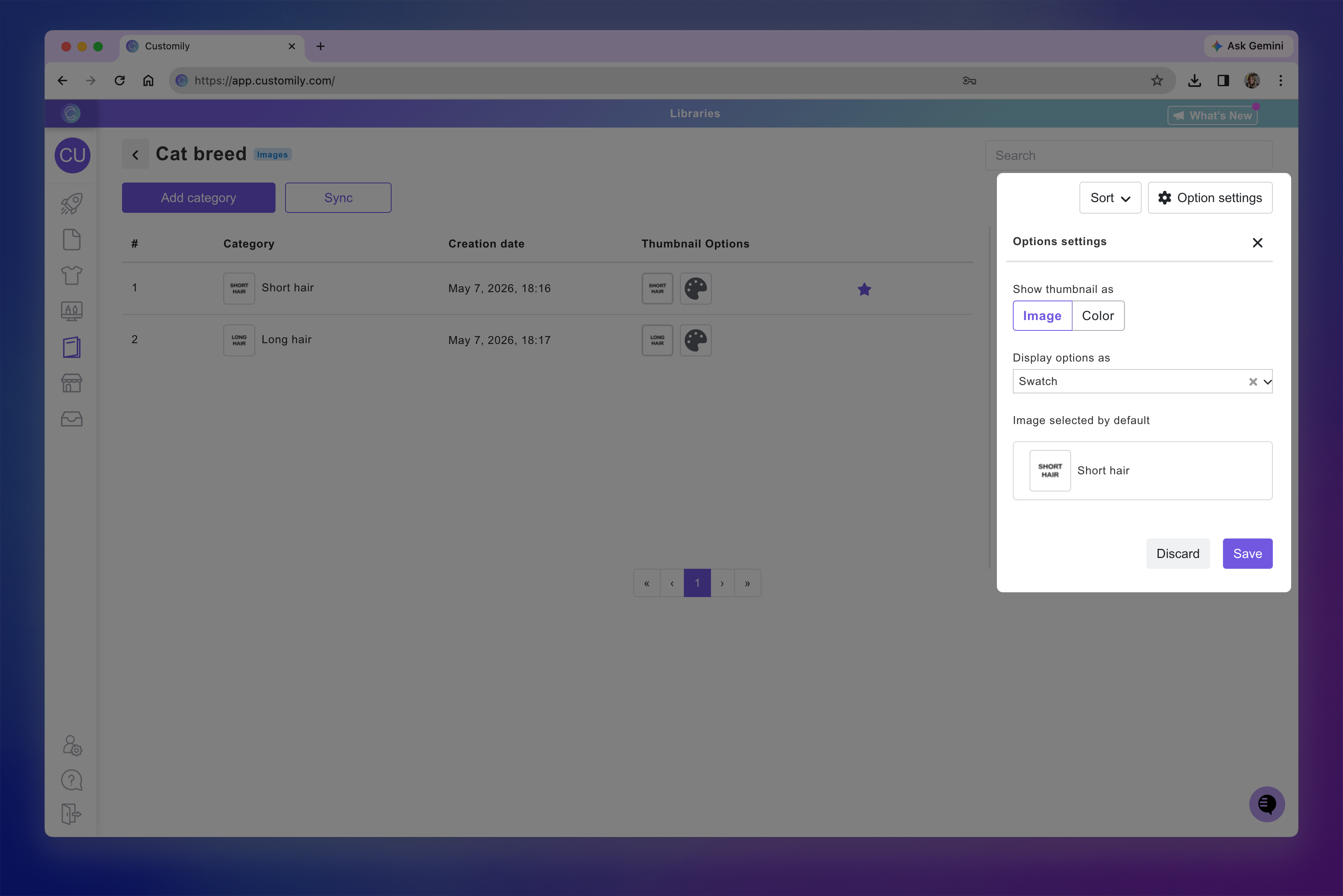
From there, you can configure:
The option type (Dropdown, Swatch, or Dropdown swatch)
The swatch thumbnail type (image thumbnail or color)
And it will show which asset or category will be selected by default