Uploading vectors into a Vector Library
Last updated: May 8, 2026
Vector Libraries store vectors that shoppers can choose from when personalizing a product.
They are used with Dynamic Vector elements and are commonly used for icons, and clipart-style selections.
Uploading vectors
Open the Vector Library. If your library uses categories, open the category first before uploading the vectors. Vectors uploaded inside a category will belong to that category.
Click Add Vector
Drag and drop vectors or click to browse your files, then select one or multiple vectors.
The selected vectors will appear inside the dialog before being added to the library. To remove any vector before uploading it, click the x on that vector.
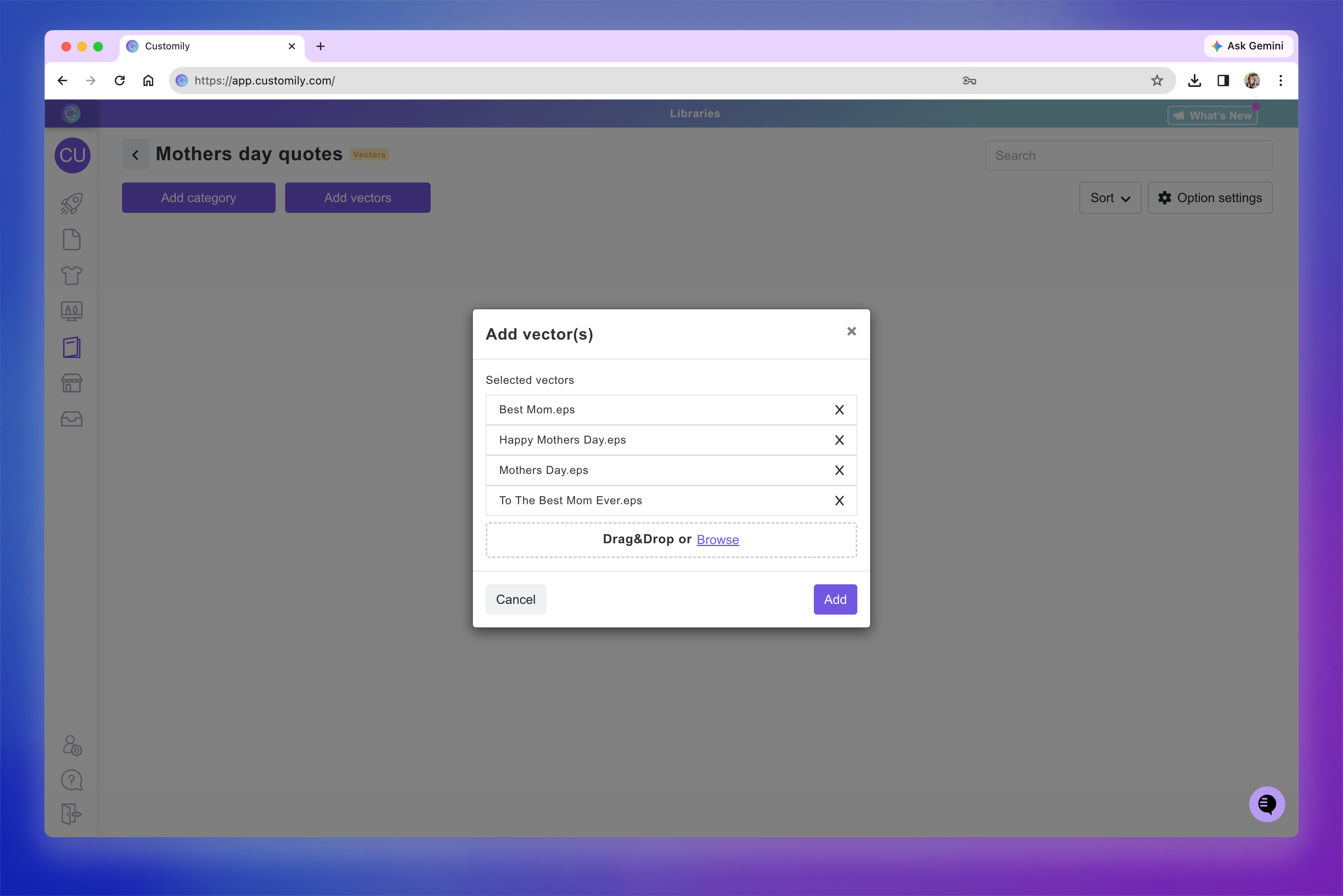
Click Add
Once uploaded, the vectors will appear inside the library.
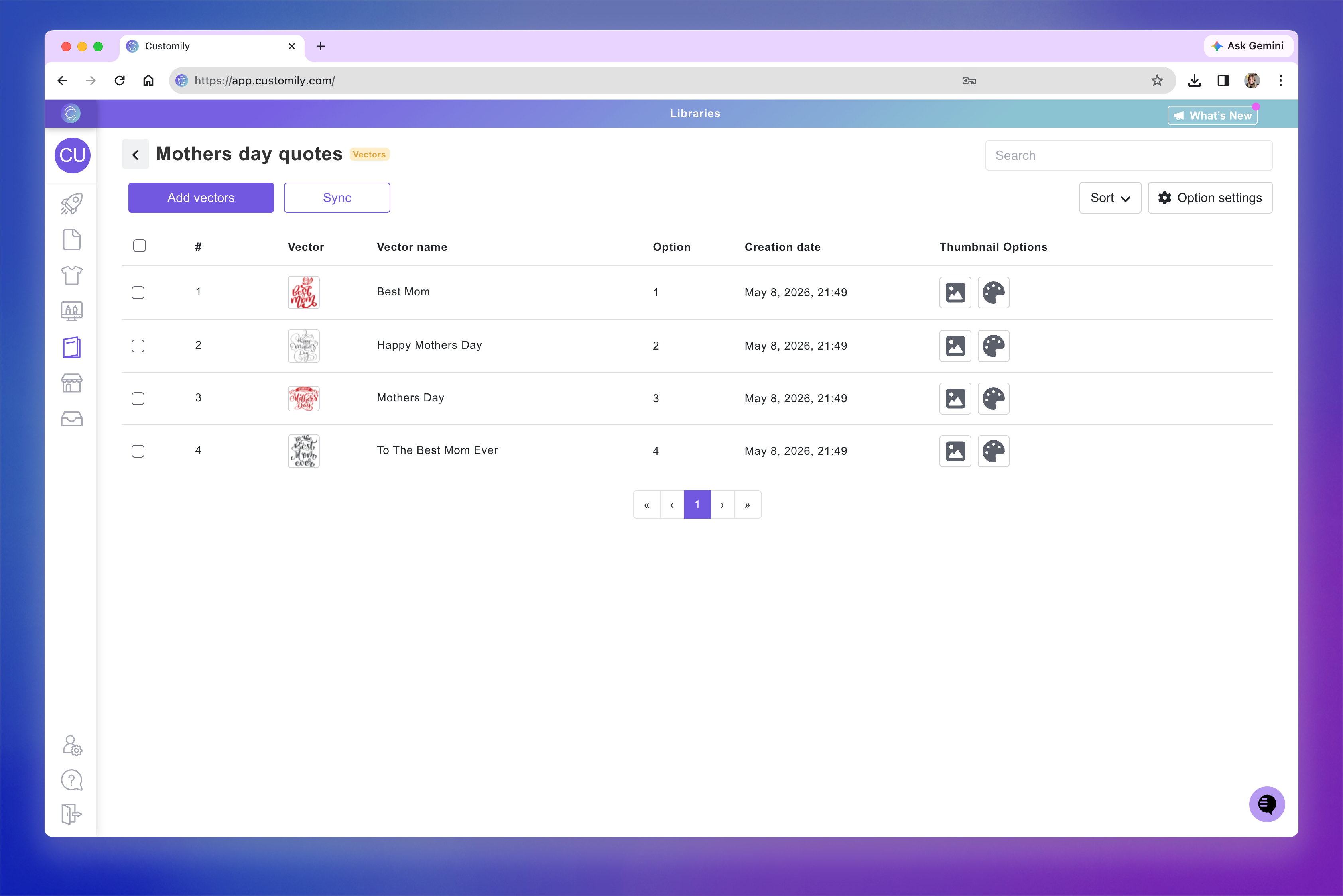
By default, the file name will be used as the vector name, and the uploaded vevtor itself will be used as the thumbnail.
Both the vector name and thumbnail can be changed later.
Vector Libraries support:
SVG
EPS
Names and thumbnails
By default:
The file name is used as the vector name
The uploaded vector is used as the thumbnail
The vector name and thumbnail are used by Customily when generating the shopper-facing personalization options.
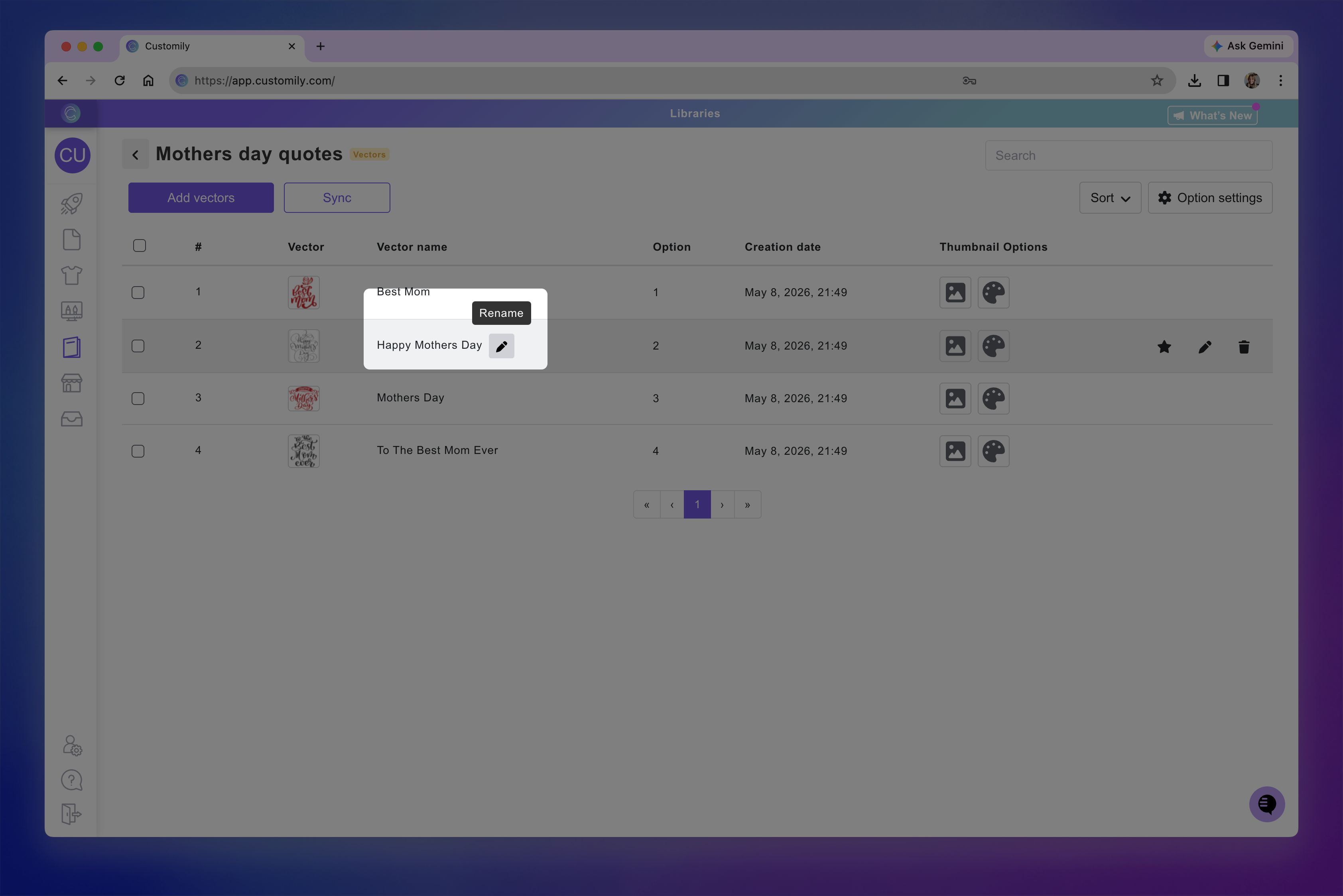
You can rename a vector by hovering over its name and clicking Rename.
In the Thumbnail Options column, you can choose how the shopper-facing swatch should be displayed. By default, the image thumbnail is selected and uses the uploaded image itself.
You can:
Click the image thumbnail icon to replace the default thumbnail with a different uploaded image
Click the color thumbnail icon to use a solid color instead

Tip
Using a color as the thumbnail is especially useful when the uploaded vector itself would not work well as a swatch.
For example, if you are creating body clipart in multiple skin tones, shoppers will usually have a better experience selecting a simple skin-color swatch instead of choosing from tiny thumbnails of the body illustrations.
Managing vectors
To manage a vector, hover over it to reveal the action buttons on the right side.
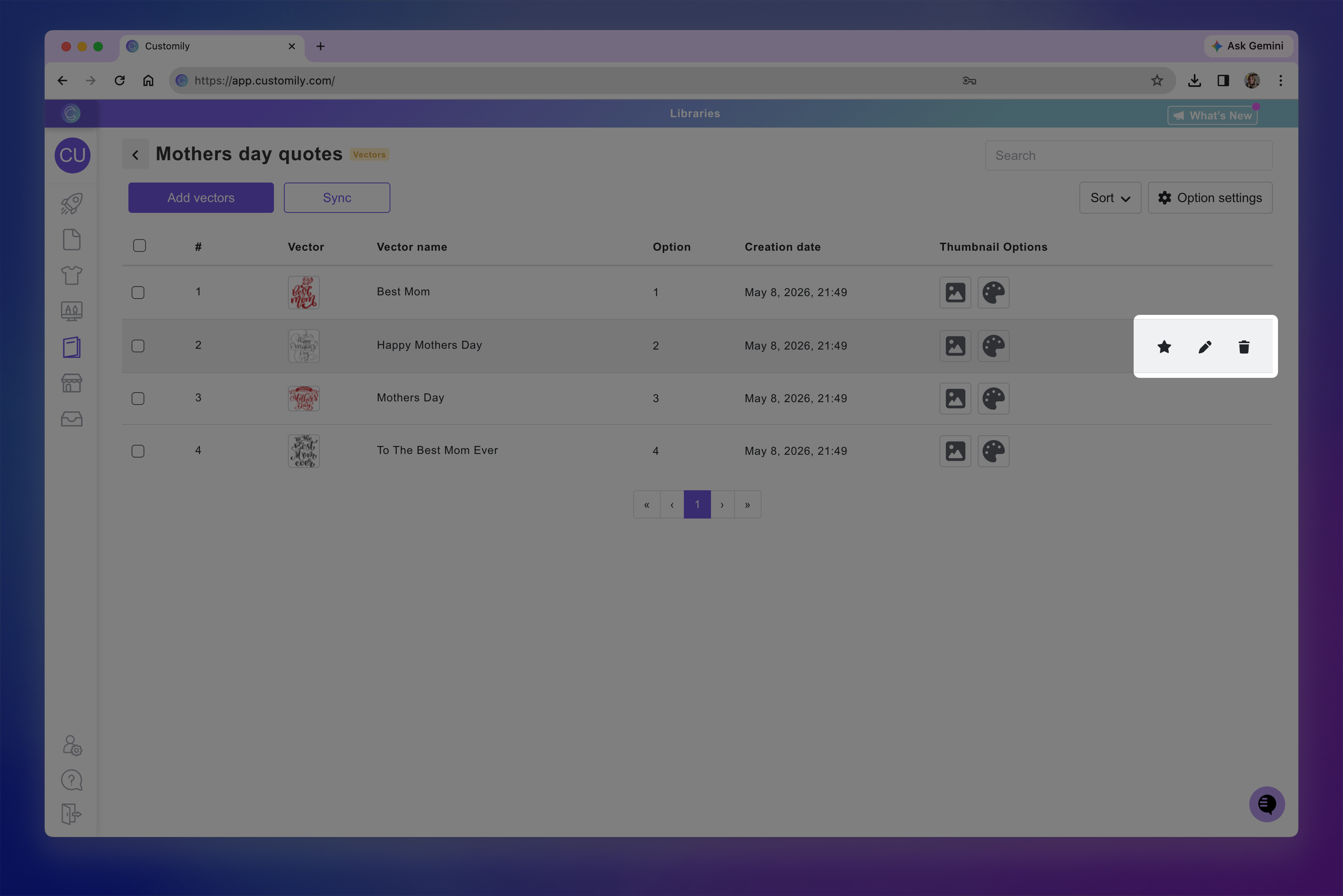
From there, you can:
Click the pencil icon to replace the vector with a new upload
Click the trash can icon to delete the vector
Click the star icon to mark the vector as selected by default
The selected vector will be used by Customily when automatically generating the personalization options for shoppers.
To delete multiple vectors at once:
Use the checkbox on the left side of each vector to select the ones you want to delete
Click Delete
To select all vectors on the current page, use the checkbox at the top of the list.
You can also reorder vectors by:
Clicking and dragging them
Changing their # number
Changing the # number is especially useful when moving vectors beyond the current page of results.