Understanding Templates
Last updated: October 13, 2026
Templates define how your personalized product looks and how its print-ready file is generated.
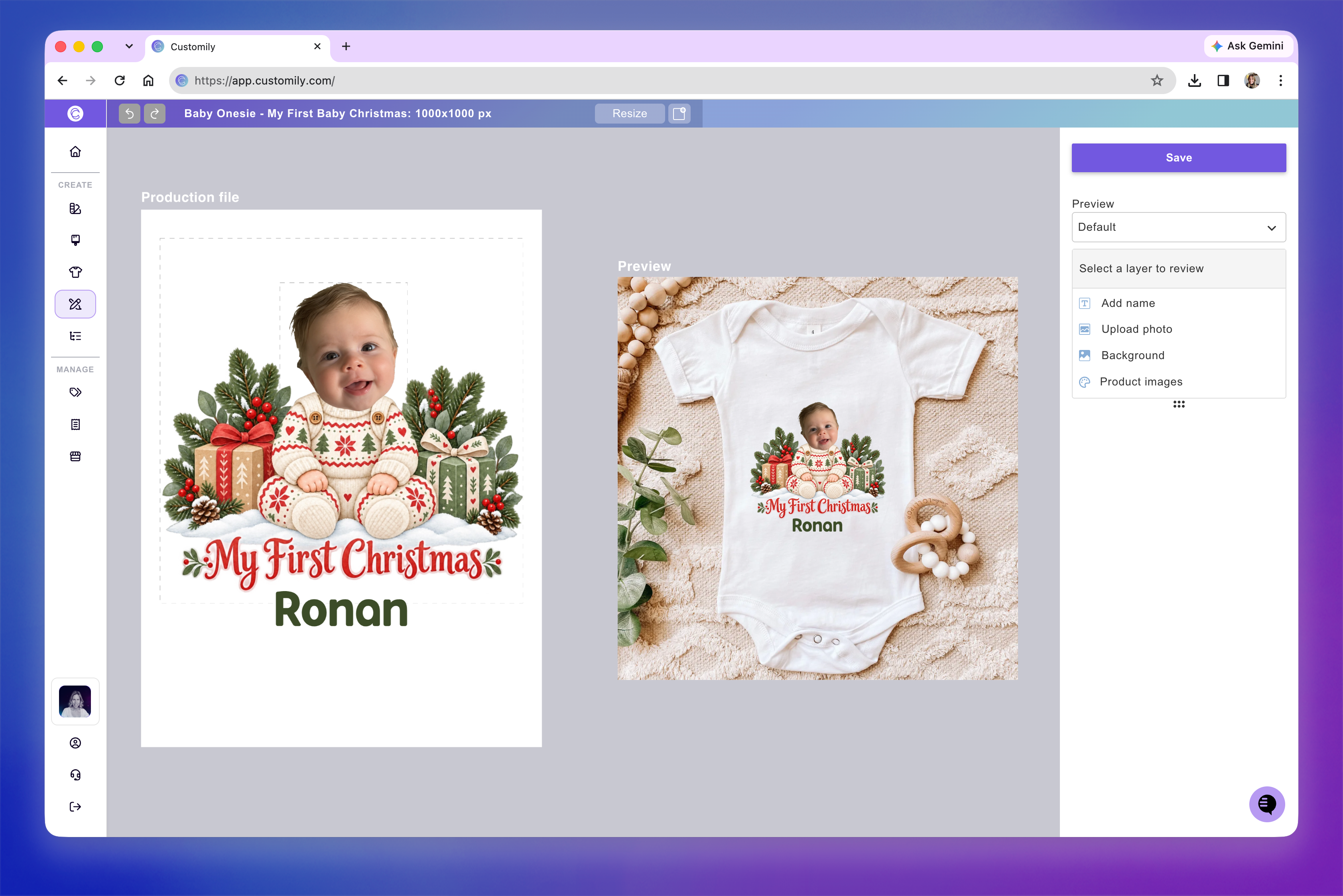
Each Template contains two main parts: Print file settings, which control the file used for production, and Preview settings, which control the interactive mockup customers see in your store.
You can create a Template by combining a Design with a Product Base, or build one from scratch by setting up the print file and preview yourself.
Print file setup
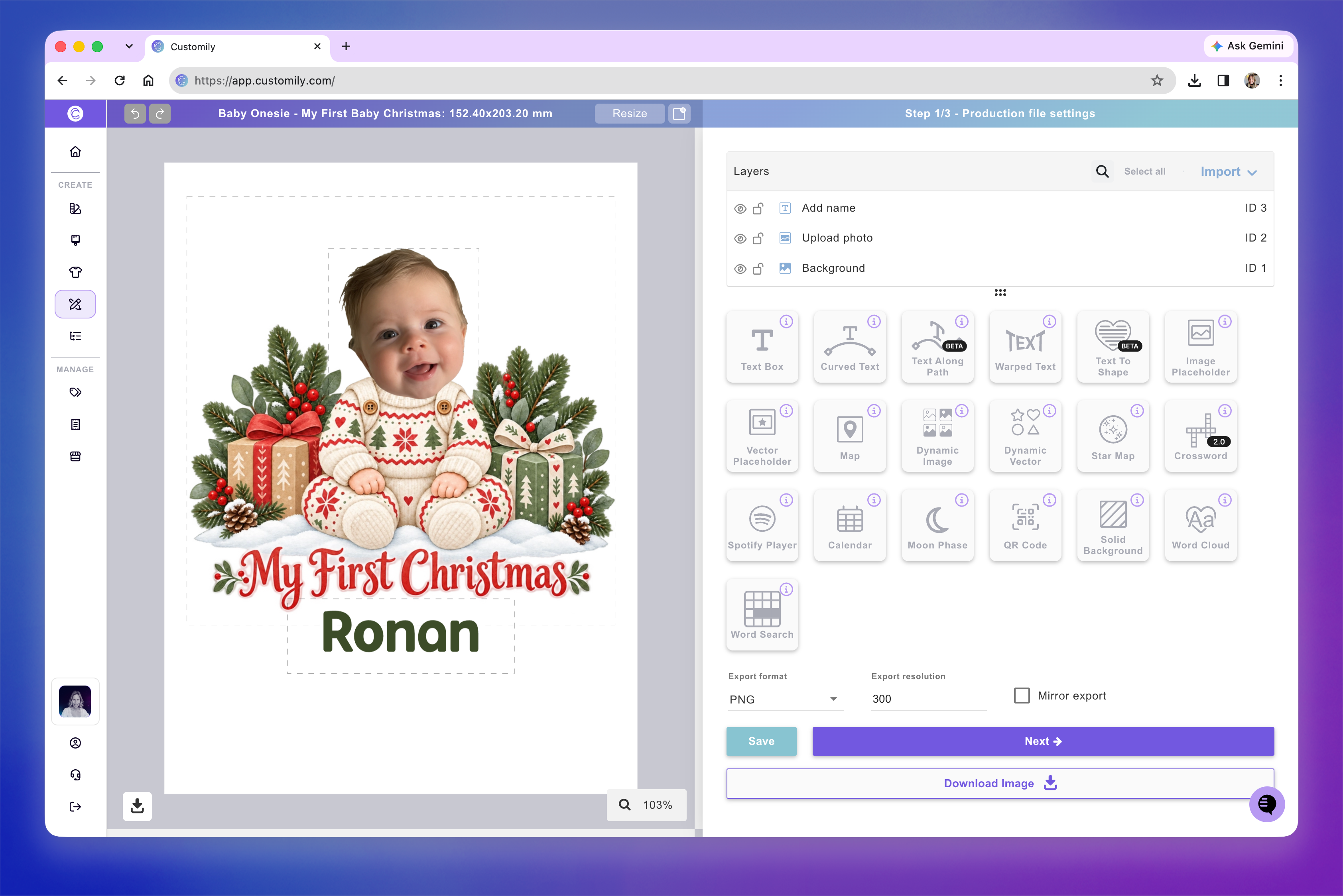
The print file (also called the production file) is the file Customily generates when a customer places an order.
It contains the personalized elements of your design, such as text, images, and clipart, along with any additional elements needed for production, such as margins or crop marks.
In the Print file settings, you can configure the file's dimensions, format, resolution, and other production requirements.
Learn more about 📄 Print File Setup
Preview setup
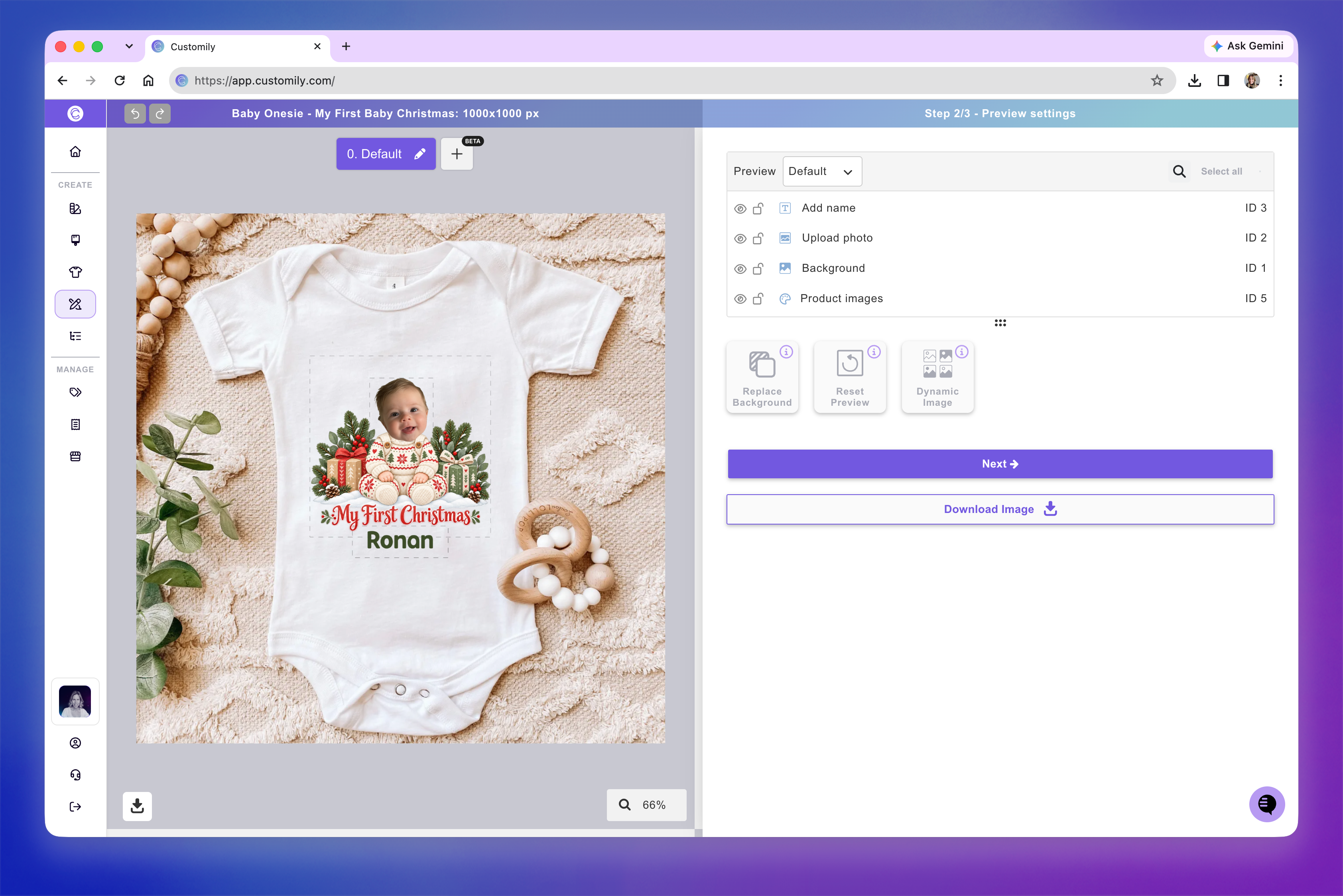
The preview is the interactive mockup customers see in your store.
It combines the personalized elements of your design with images of the actual product, allowing customers to see how their customization will look before purchasing.
In the Preview settings, you can position personalized elements on the product image, hide elements that are only needed for production, and add visual effects or textures to make the preview more realistic.
Learn more about 📄 Preview Setup
What's the difference between Templates, Designs, and Product Bases?
Templates, Designs, and Product Bases work together to make creating personalized products easier.
Designs contain the personalized artwork, including text, images, clipart, and other design elements.
Product Bases contain the product's production specifications and mockup images, defining where and how the design will appear.
Templates combine the design and product information into a complete setup, with both print file and preview settings.
You can create a Template in two ways:
Automatically by combining a Design and a Product Base: Customily automatically creates a Template with the design positioned on the print file and product preview. You can then edit the Template to make any adjustments needed.
Manually from scratch: Set up the print file and preview manually, adding your design elements and product images directly to the Template.
Using Designs and Product Bases makes it easier to reuse the same Design across different products or apply different Designs to the same Product Base, without configuring everything from scratch each time.