Save shoppers' personalization
Last updated: October 2, 2026
Customily can save a shopper’s personalization so it can be restored later. Depending on when you want the personalization to be available, you can save it before or after the product is added to the cart.
Go to Store Settings > Advanced Settings → Save And Share Personalization to configure these settings.
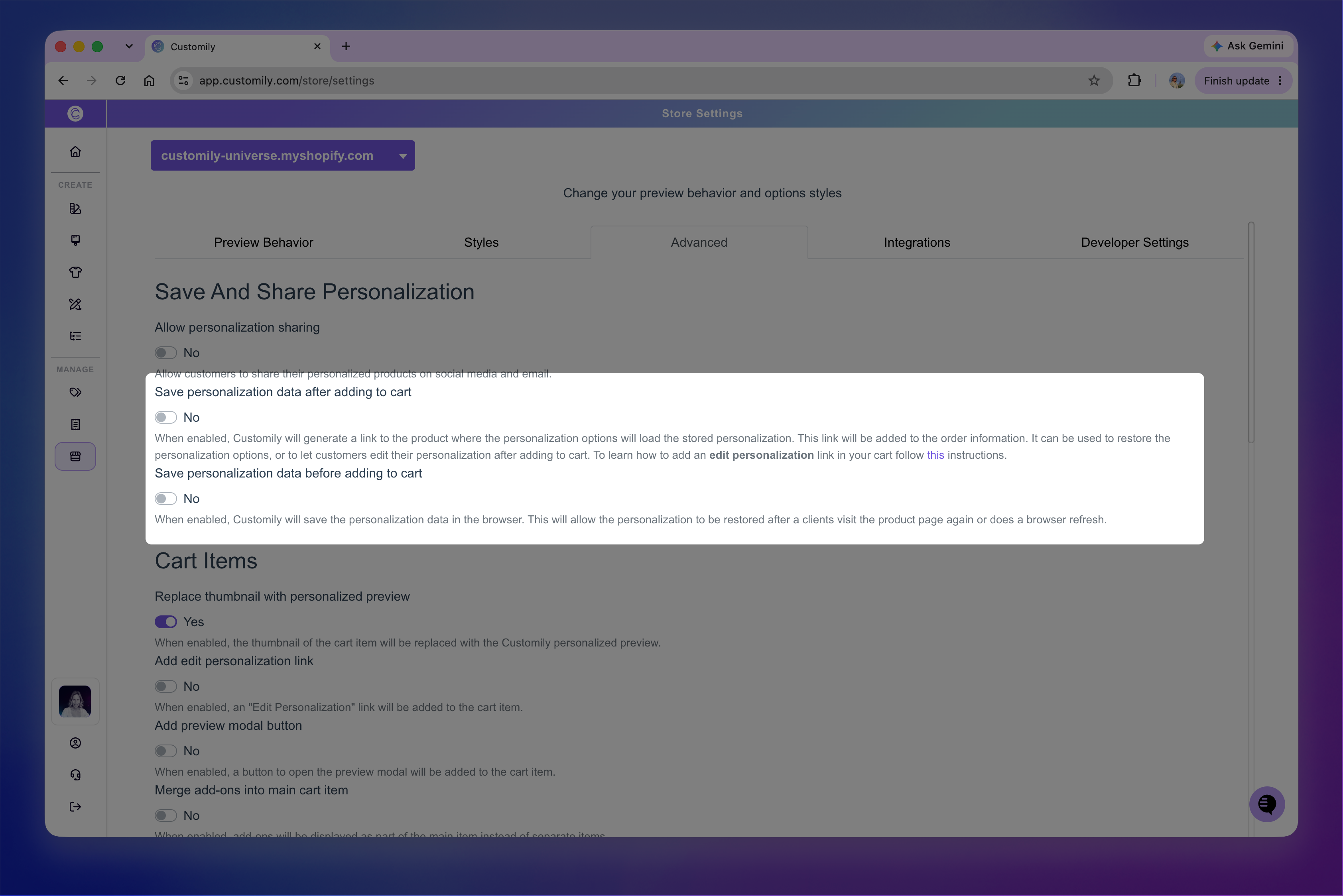
Save personalization after adding to cart
Turn on Save personalization data after adding to cart to save a shopper’s personalization when they add the product to their cart.
When enabled, Customily generates a link that saves the shopper’s personalization and adds it to the cart item as a property named _customily-customization-url.
Opening this link returns to the product with the personalization options and preview restored exactly as they were when the product was added to the cart.
The saved personalization link is also included in the order information, so the personalization can still be accessed after the order is placed.
This can be useful for:
Letting shoppers return to and edit a personalization they've already added to their cart. Their previous selections are restored, so they can make changes without starting over.
Accessing the personalization associated with an order. For example, if a shopper lets you know they made a mistake after placing their order, you can reopen their personalization, correct it, and regenerate the print file.
Using the saved personalization URL in cart recovery, marketing campaigns, or other shopper communications.
Update the existing cart item when editing
When Save personalization data after adding to cart is enabled, an additional Edit personalization data setting becomes available.
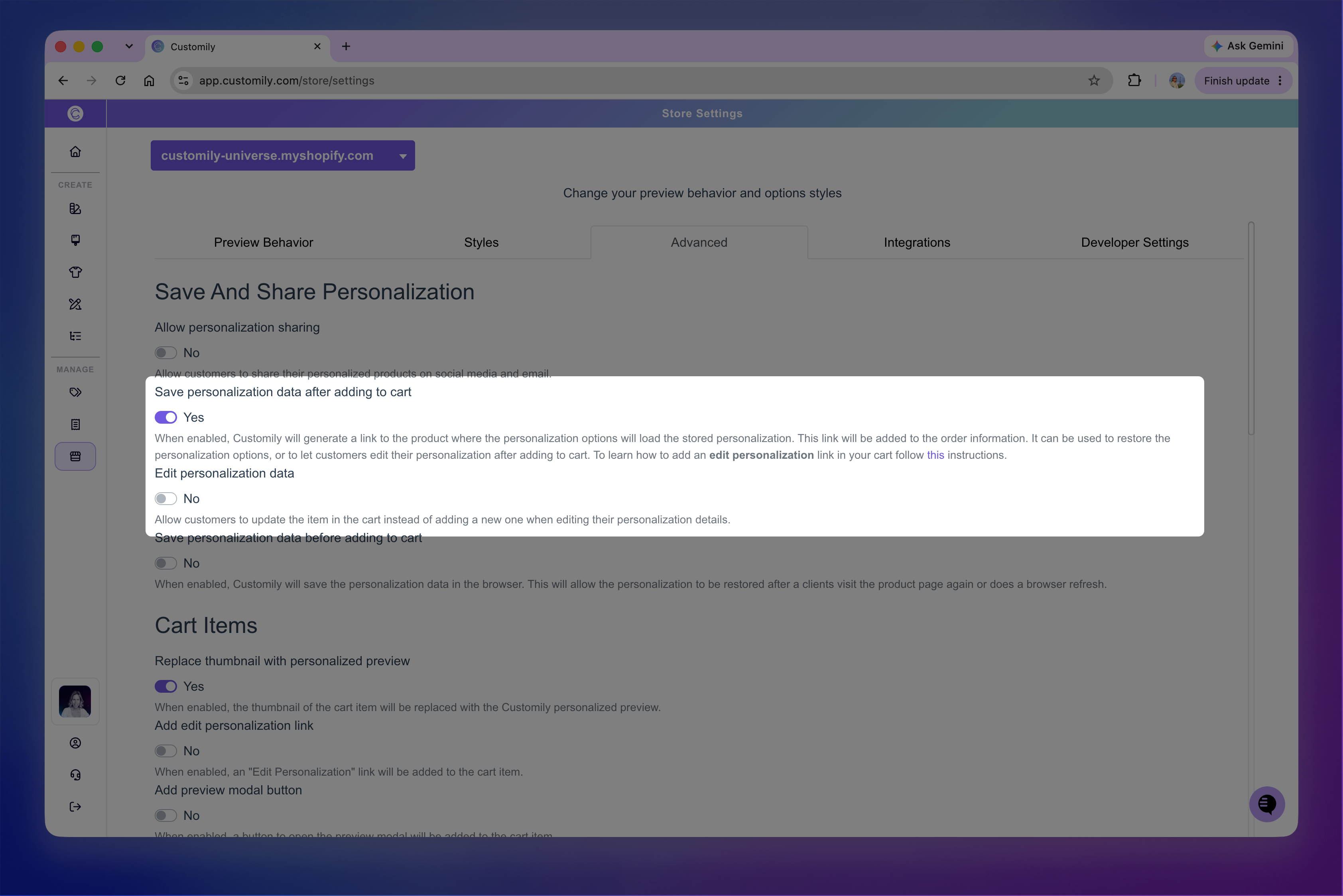
Turn on Edit personalization data if you want a shopper who returns to edit a saved personalization to update the existing item in their cart.
When it's turned off, adding the edited personalization to the cart creates a new cart item instead.
Note
This setting controls what happens when a saved personalization is edited. To display an Edit personalization link directly in the cart, additional cart settings are required. See 📄 Edit personalization from the cart
Save personalization before adding to cart
Turn on Save personalization data before adding to cart to preserve a shopper’s personalization in their browser while they're working on it.
If the shopper refreshes the page or returns to the product page later, Customily can restore the personalization they had already entered instead of making them start over.
This is useful for products with longer or more complex personalization, where shoppers may spend more time configuring their product before adding it to the cart.
Note
This personalization is saved in the shopper’s browser. Unlike Save personalization data after adding to cart, it doesn't create the saved personalization link associated with the cart item and order.
Let shoppers choose whether to restore their personalization
When Save personalization data before adding to cart is enabled, the Prompt before restoring personalization setting becomes available.
Turn it on if you want shoppers to choose whether to restore their previously saved personalization or start a new personalization when they return to the product.
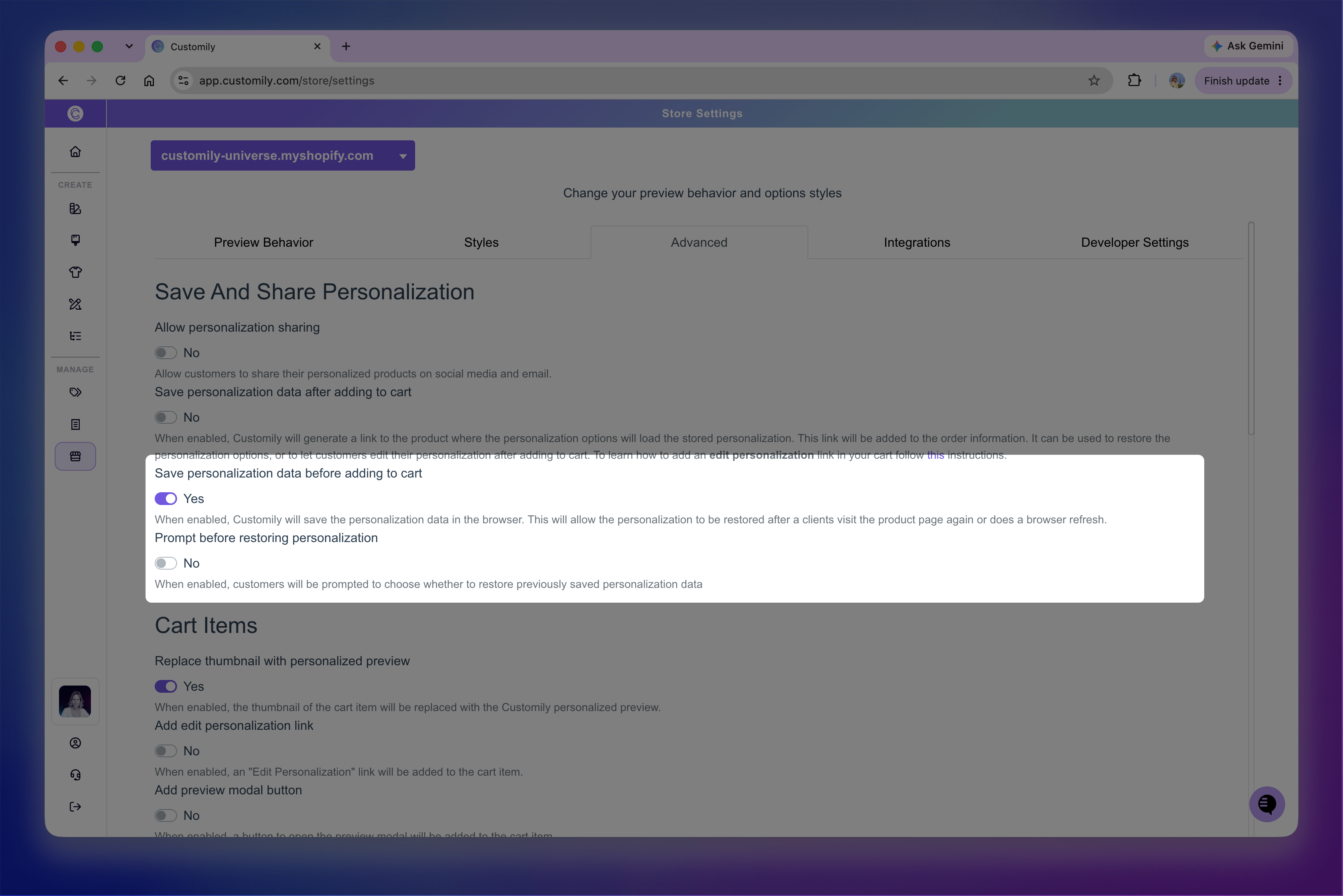
When this setting is turned off, Customily restores the previously saved personalization automatically.
Use both settings together
You can enable both settings if you want to preserve personalization throughout the entire shopping experience.
With both enabled, Customily can restore a shopper’s work while they're personalizing the product and save the completed personalization once they add it to their cart.