Customize how add-ons behave in the cart
Last updated: October 6, 2026
Add-ons let you add extra products and charges based on a shopper's personalization choices. Add-ons are configured in the Option Set using Add Shopify Product.
Once add-ons are configured, you can use Advanced Settings to control how they behave and appear in the cart, including whether they're grouped with the main product and whether shoppers can change their quantity or remove them independently.
Note
The settings in this article don't create or configure add-ons. To learn how to add an additional product or charge from an Option Set, see 📄 How to Charge Extra for Personalization Options
Keep add-ons synchronized with the main product
By default, products added through Add Shopify Product behave as independent products once they're in the cart. This means changes to the main product don't necessarily affect its add-ons.
Go to Store Settings > Advanced Settings → Add-ons and turn on Enable add-ons features to keep add-ons and their main product better synchronized.
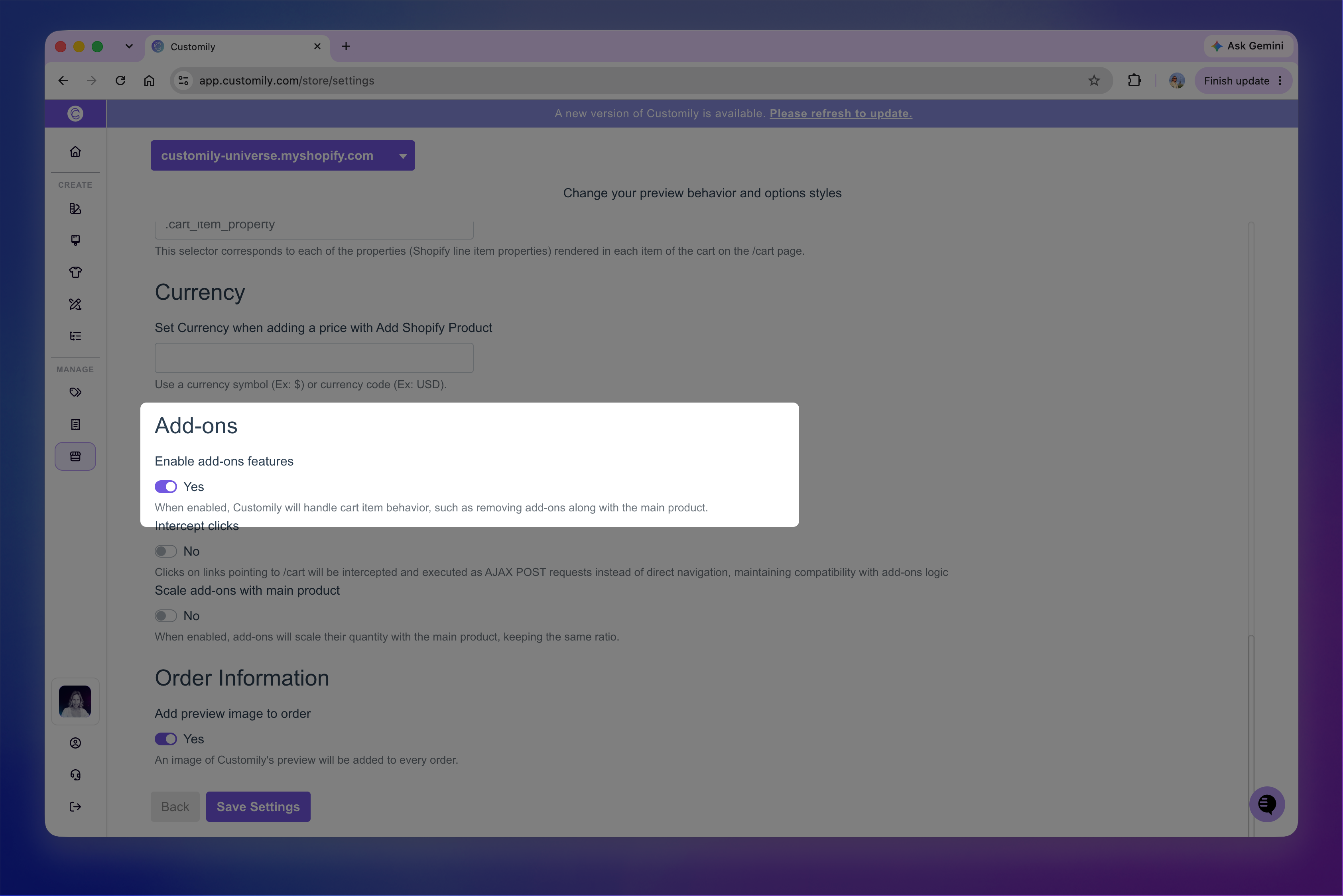
When this setting is enabled removing the main product from the cart also removes its add-ons.
It also makes two additional settings available:
Scale add-ons with main product, to keep add-on quantities synchronized with the main product.
Intercept clicks, for compatibility with carts that don't use AJAX.
Note
Enable add-ons features isn't required to use add-ons. Add-ons can still be added to the cart when it's turned off, but they'll behave more like independent products. We recommend enabling it for a more consistent cart experience.
Scale add-ons with the main product quantity
Turn on Scale add-ons with main product if you want add-on quantities to increase or decrease together with the quantity of the main product. This is useful when each unit of the main product needs its own corresponding add-ons or additional charges.
For example, if each main product has 2 add-ons, a quantity of 1 of the main product has 2 add-ons. Increasing the main product quantity to 2 increases the total to 4 add-ons.
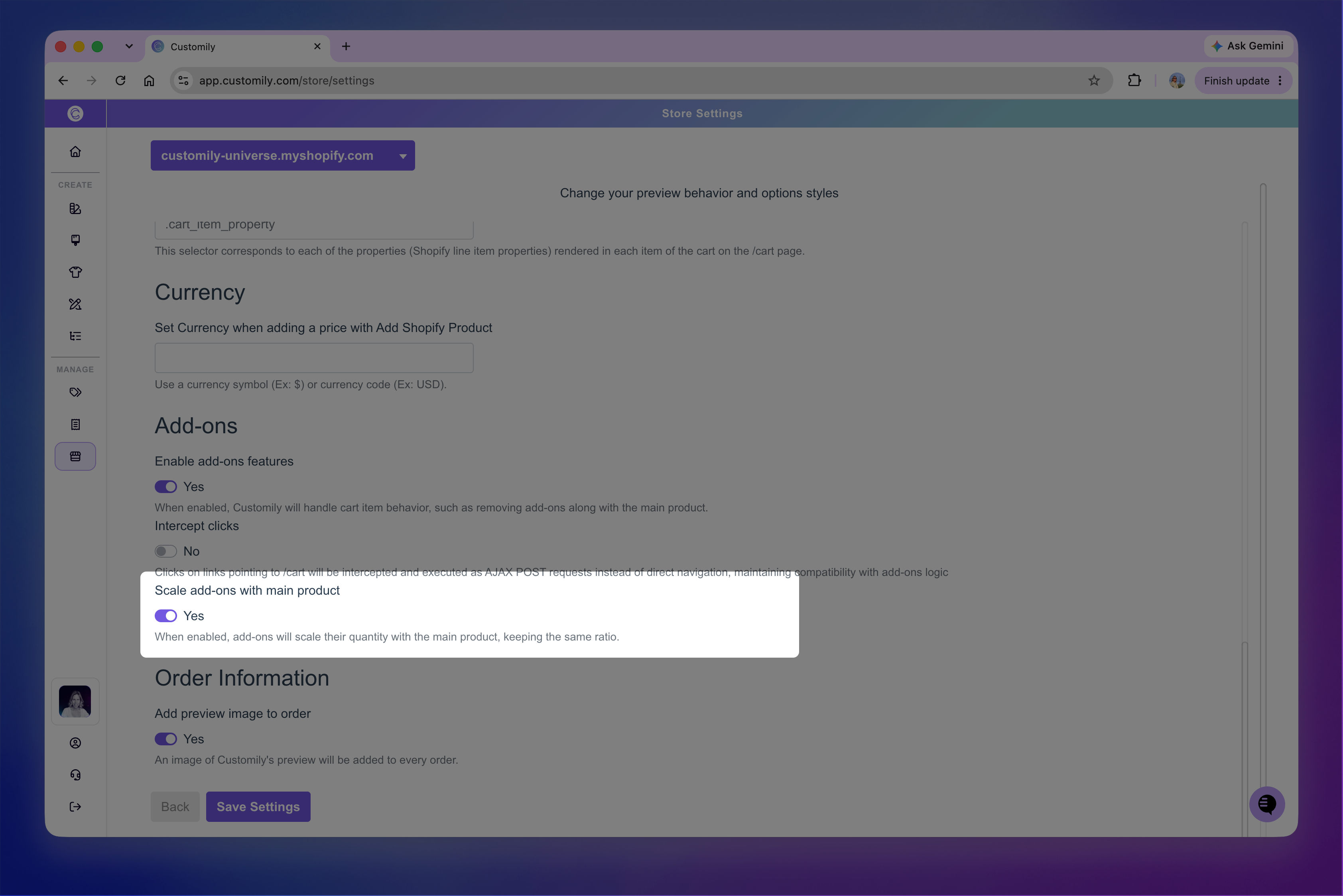
Enable add-ons features alone doesn't synchronize quantities. You need to turn on Scale add-ons with main product for this behavior.
Support carts that don't use AJAX
Intercept clicks is an advanced compatibility setting for stores whose cart doesn't use AJAX.
When enabled, Customily intercepts links that would normally navigate directly to the cart and handles them as AJAX requests instead. This allows Customily to correctly update the related add-on items when the main product changes.
Note
This is an advanced compatibility setting that is usually enabled by the Customily team when needed. You generally don't need to change it unless instructed by our team or you're troubleshooting add-on behavior with your cart.
Control how add-ons appear in the cart
By default, add-ons appear as separate products in the cart. You can either display them as part of the main cart item or keep them separate and control which actions shoppers can take on them.
Display add-ons as part of the main cart item
Go to Store Settings > Advanced Settings → Cart Items, then turn on Merge add-ons into main cart item.
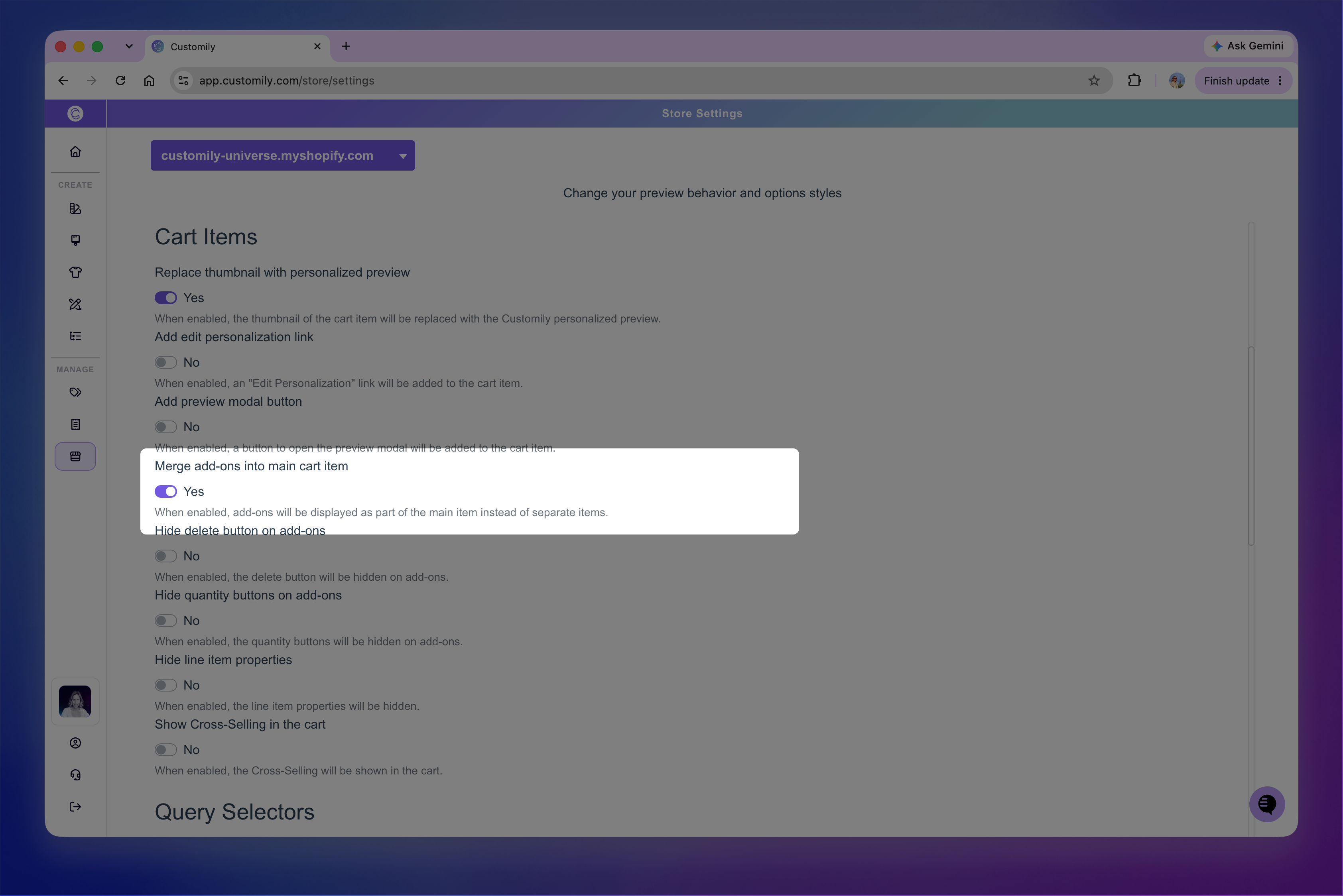
the add-on is displayed within the main product as an additional line item, including its name, quantity, and price. When it's disabled, the add-on appears as a separate product with its own image, price, quantity controls, and delete button.
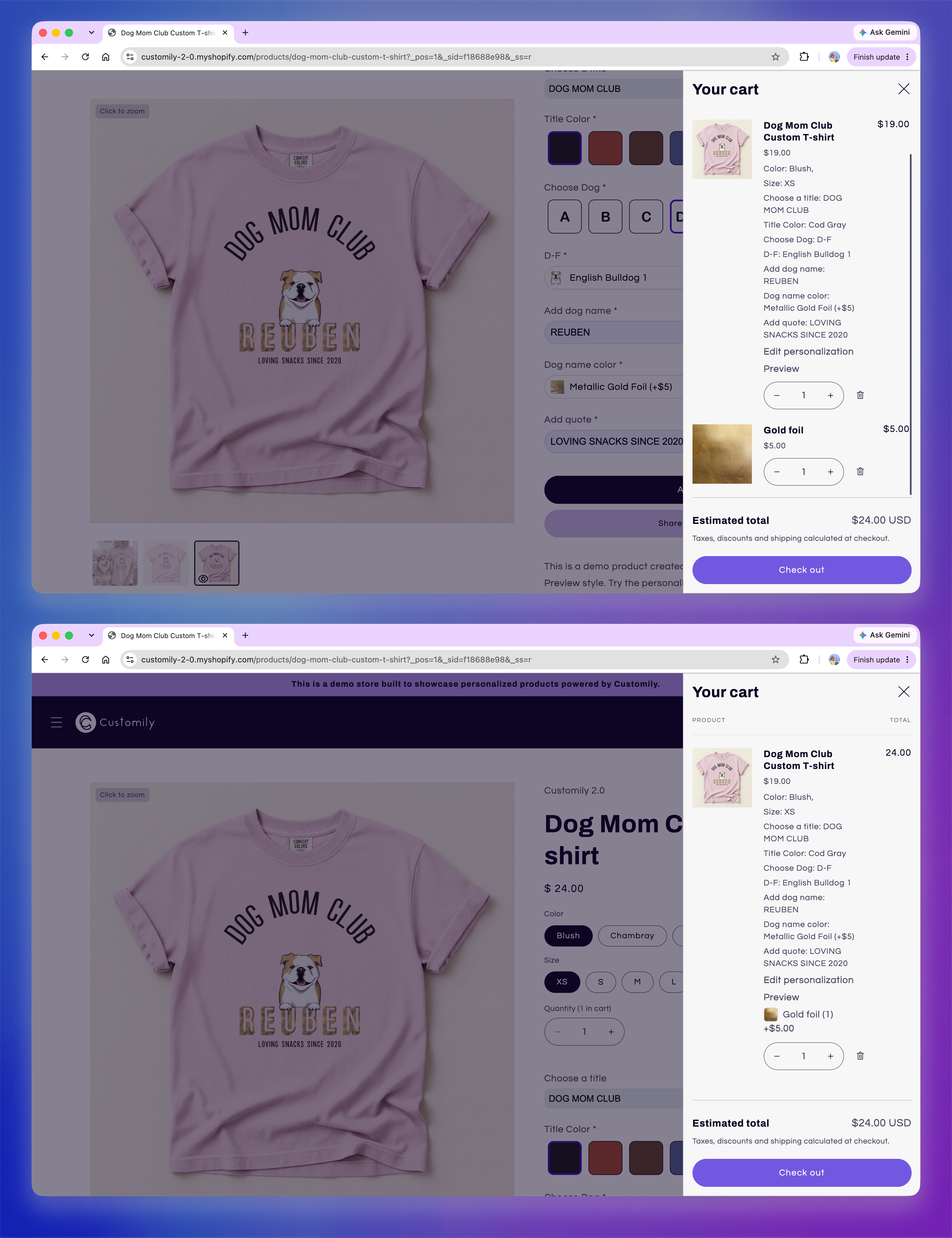
When add-ons are merged, shoppers can't remove them or change their quantities independently. Because of this, Hide delete button on add-ons and Hide quantity buttons on add-ons are only relevant when add-ons are displayed as separate cart items.
Control separate add-on cart items
If you keep add-ons as separate cart items, you can control whether shoppers can remove them or change their quantities independently.
Go to Store Settings > Advanced Settings → Cart Items.
Turn on Hide delete button on add-ons to prevent shoppers from removing an add-on independently from the main product. This is useful when the add-on represents an additional charge associated with a personalization choice.
Turn on Hide quantity buttons on add-ons to prevent shoppers from changing the add-on quantity independently from the main product.
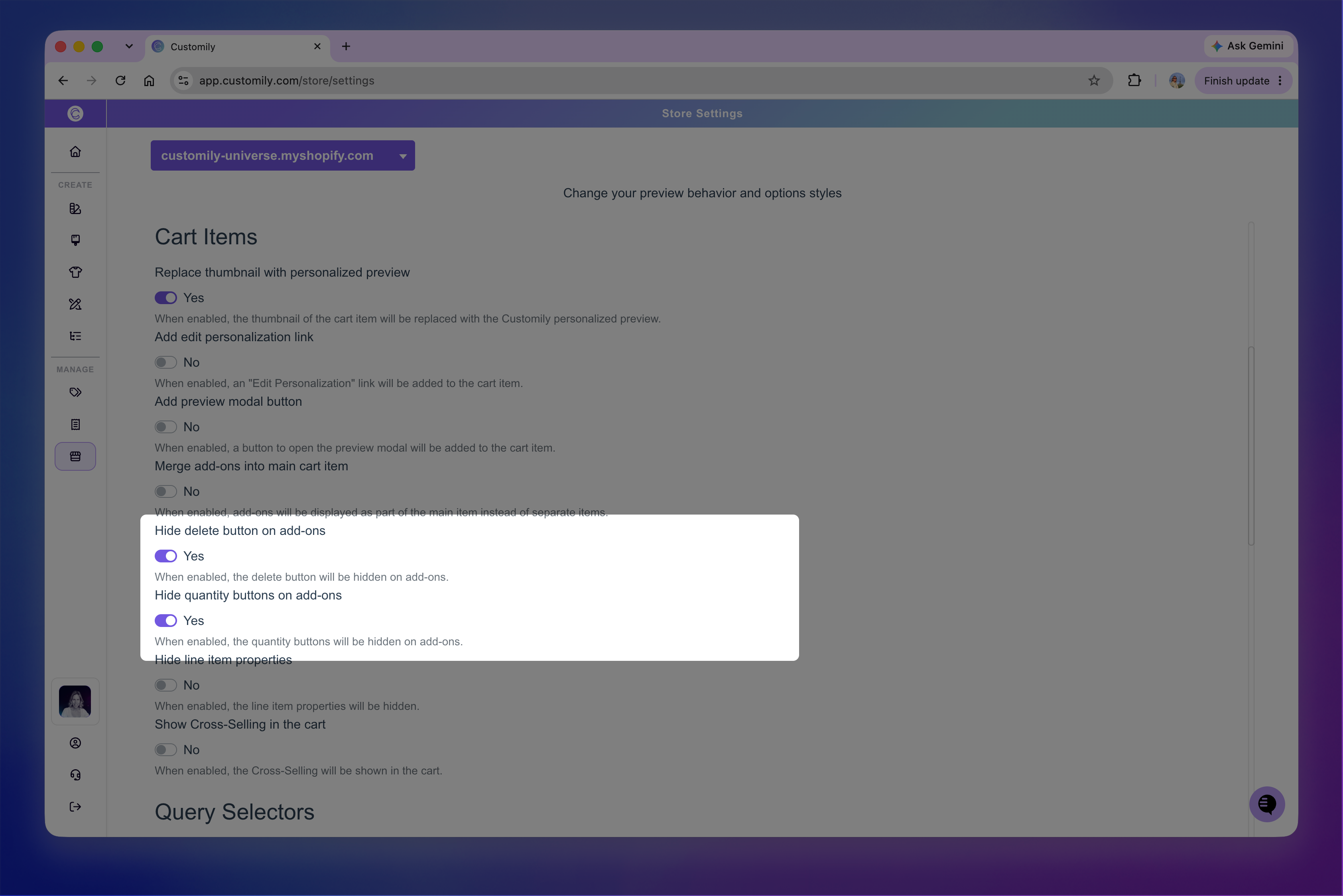
These settings are only relevant when add-ons are displayed as separate cart items. If Merge add-ons into main cart item is enabled, the add-on doesn't have its own delete or quantity controls.