Star Map
Last updated: October 26, 2026
The Star Map element lets you add customizable maps of the night sky to your designs. Shoppers can select a location and date to generate a star map showing the positions of stars and constellations at that specific time and place.
You can customize the map's size, appearance, and displayed elements, and offer different styles for shoppers to choose from.
How It Works
When you add a Star Map element to your design:
Shoppers select a location and date, and the star map updates automatically.
The map displays the positions of stars and constellations for the selected time and location.
You can customize the map's appearance, including its style and which celestial features are displayed.
You can let shoppers choose which features to display and, if you add multiple map styles, select their preferred style.
How to add a star map
Open your Design or Template in the Design Studio.
Click Star Map to add a new element.
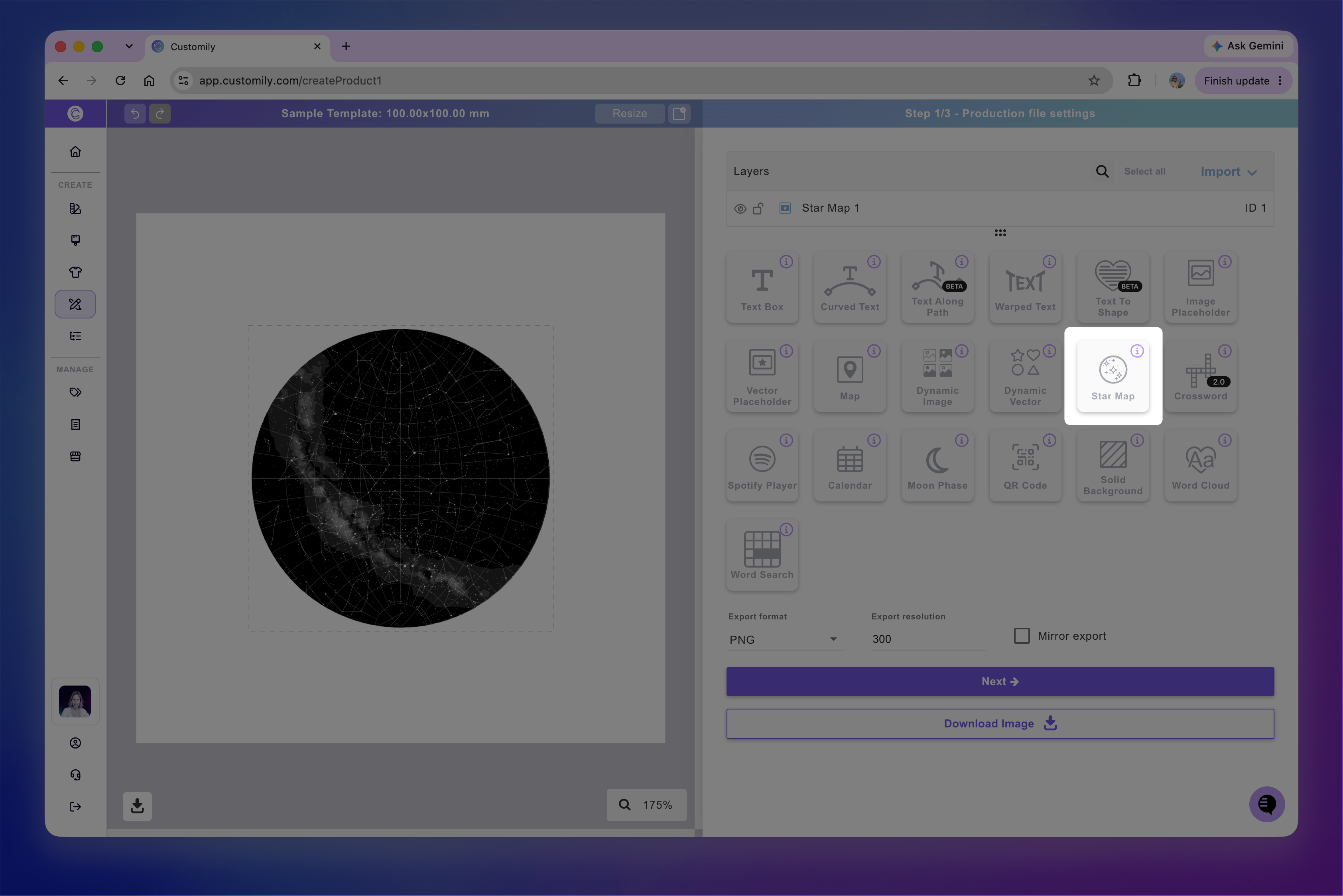
Each star map has a name you can edit and a unique ID to help you identify it.
How to move, resize and transform the map
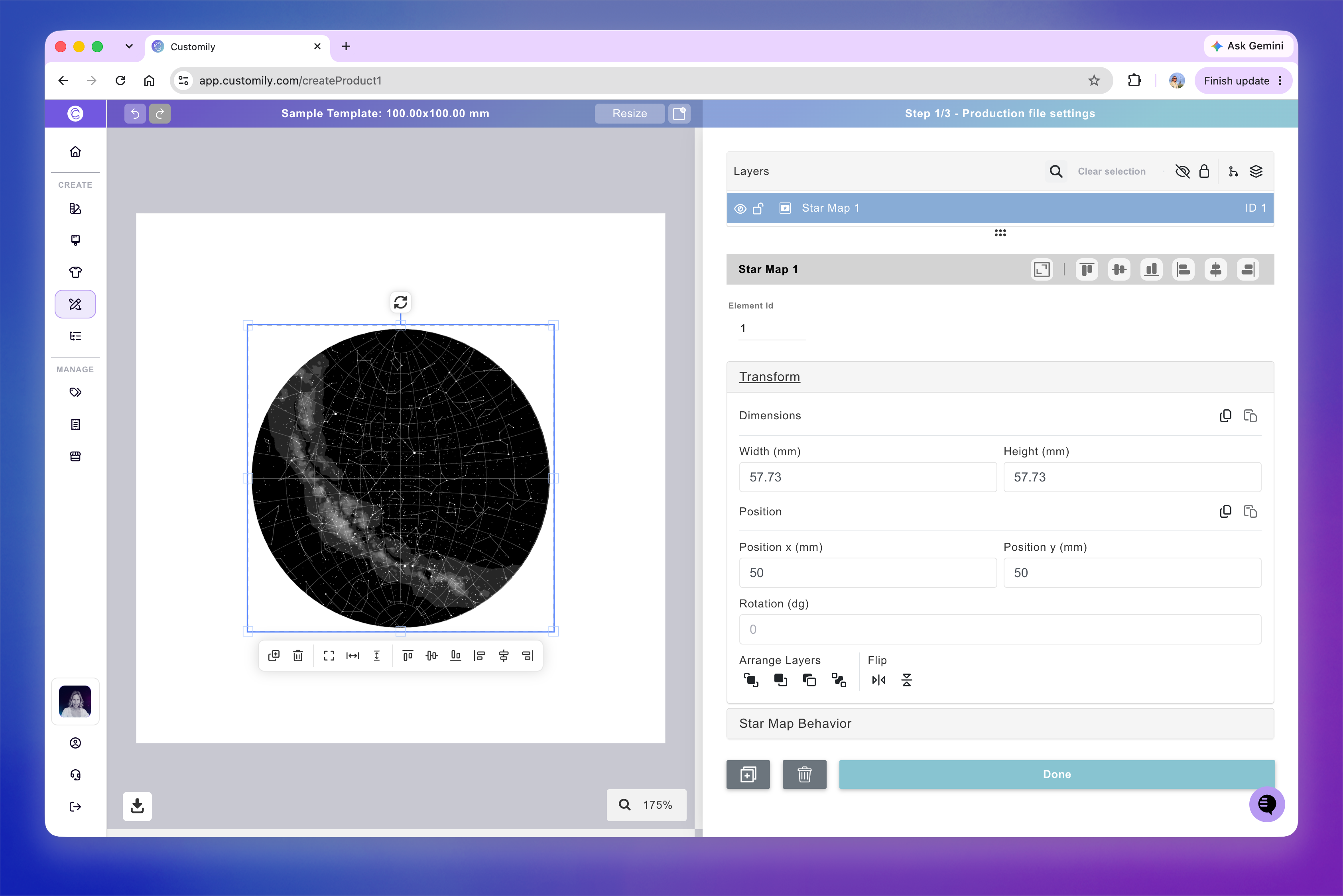
You can move, resize, and rotate a star map directly on the canvas.
When you select a star map, a quick-action toolbar appears below it, with shortcuts to duplicate, delete, align, and distribute elements.
For more precise adjustments, expand the Transform toolbox. Use these controls to adjust the map's position, rotation, size, flip, and layer order.
Change the star map behavior and style
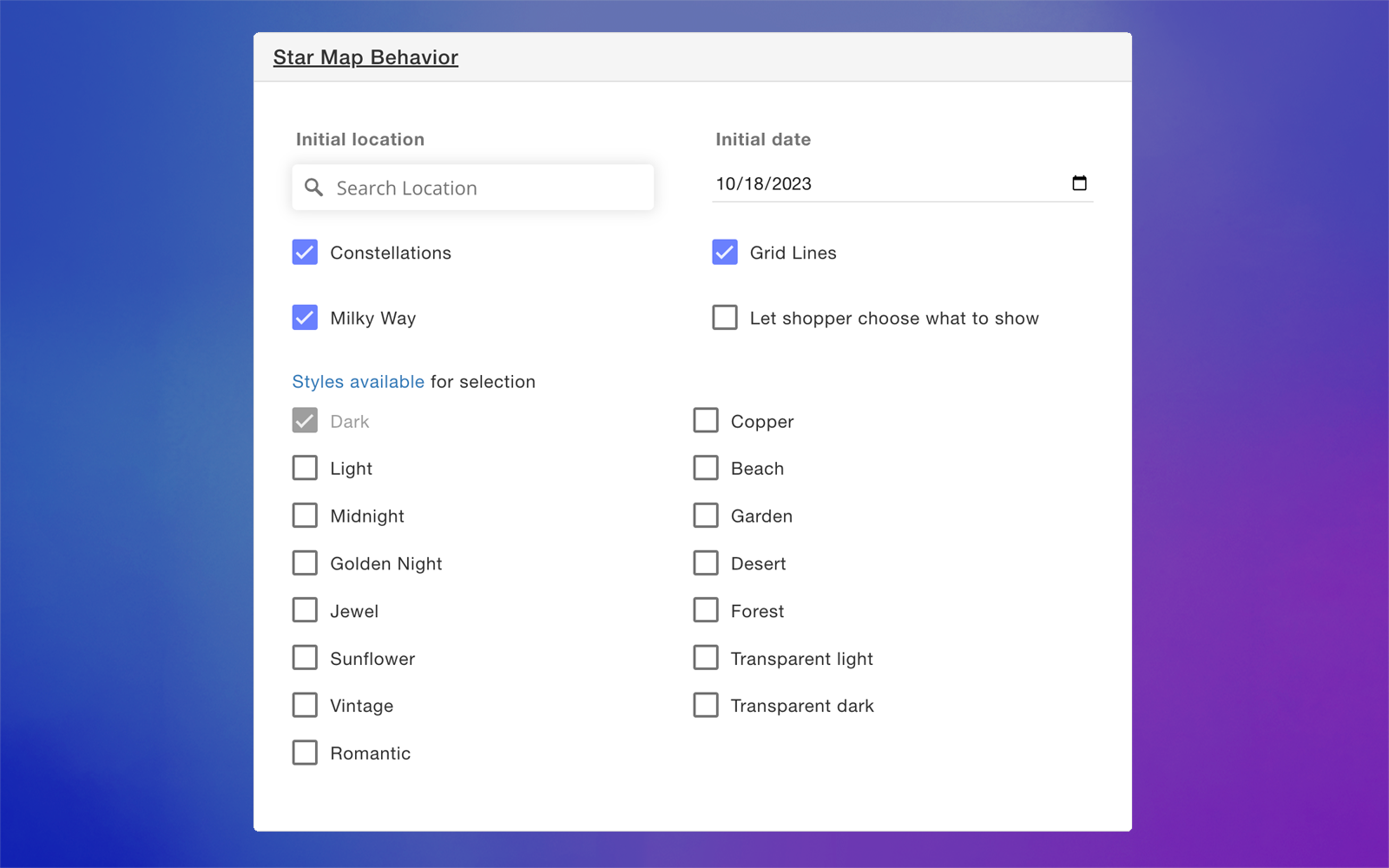
The Star Map Behavior toolbox lets you control how the star map appears in your design and what shoppers can customize during personalization.
You can set the initial location and date, choose which celestial features to display, and offer different map styles for shoppers to select from.
Set the initial location and date
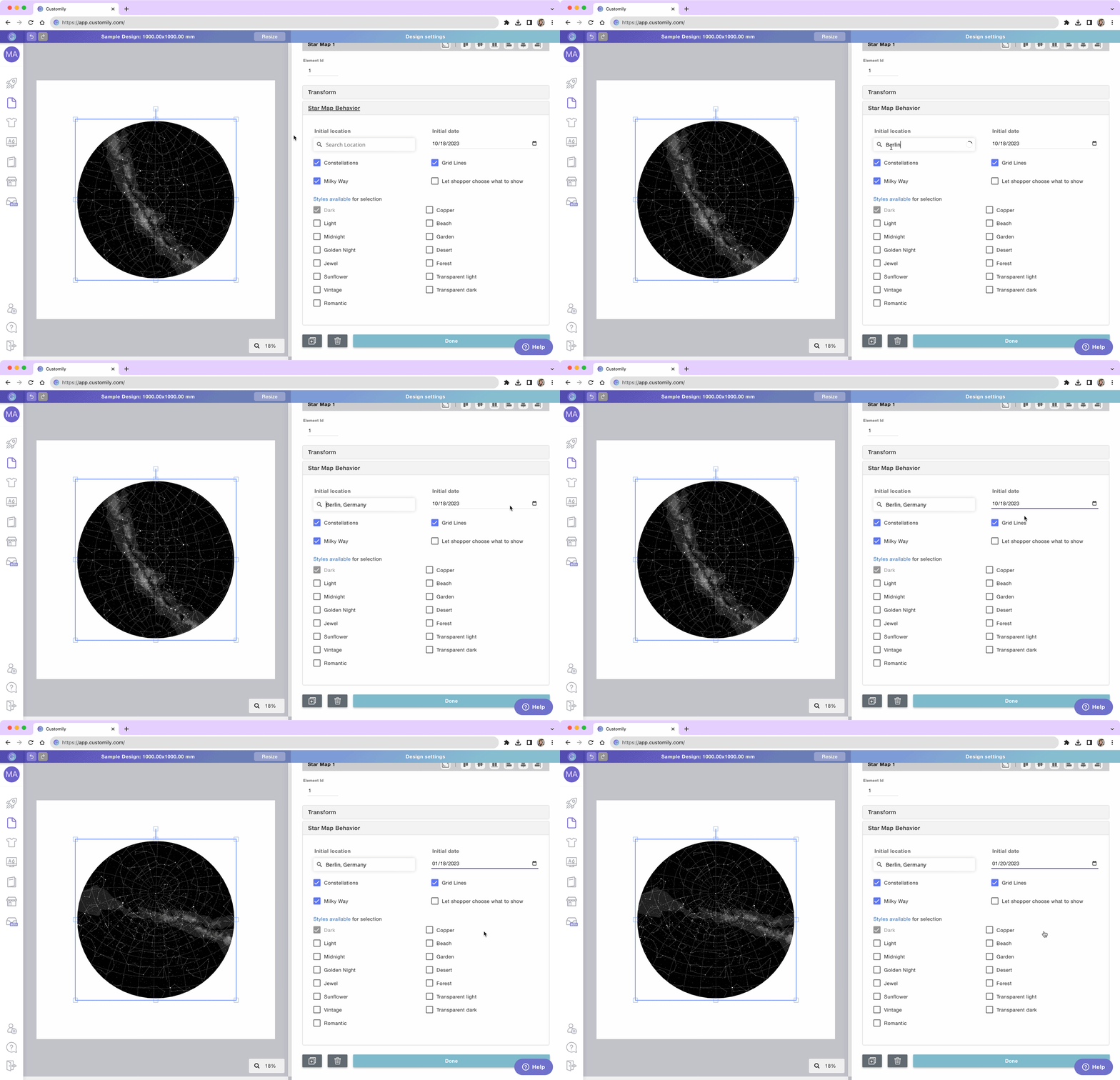
The initial location and date determine what the star map displays when it first loads. Shoppers can then enter their own location and date to personalize it.
Select the Star Map element.
Expand the Star Map Behavior toolbox.
Enter an initial location, such as an address, city, or country.
Select the initial date.
Show constellations, grid lines, and the Milky Way
You can choose which visual elements appear on the star map:
Constellations: Displays the lines connecting stars to form constellations.
Grid Lines: Displays the map's coordinate grid.
Milky Way: Displays the hazy band representing the Milky Way.
Let shopper choose what to show: Allows shoppers to choose which of these elements appear on their personalized star map.
To configure these options:
Select the Star Map element.
Expand the Star Map Behavior toolbox.
Enable the features you want to display.

Note
When you enable a feature without enabling Let shopper choose what to show, it remains fixed on the star map. Enable the shopper choice setting if you want customers to control which features are displayed.
Choose map styles
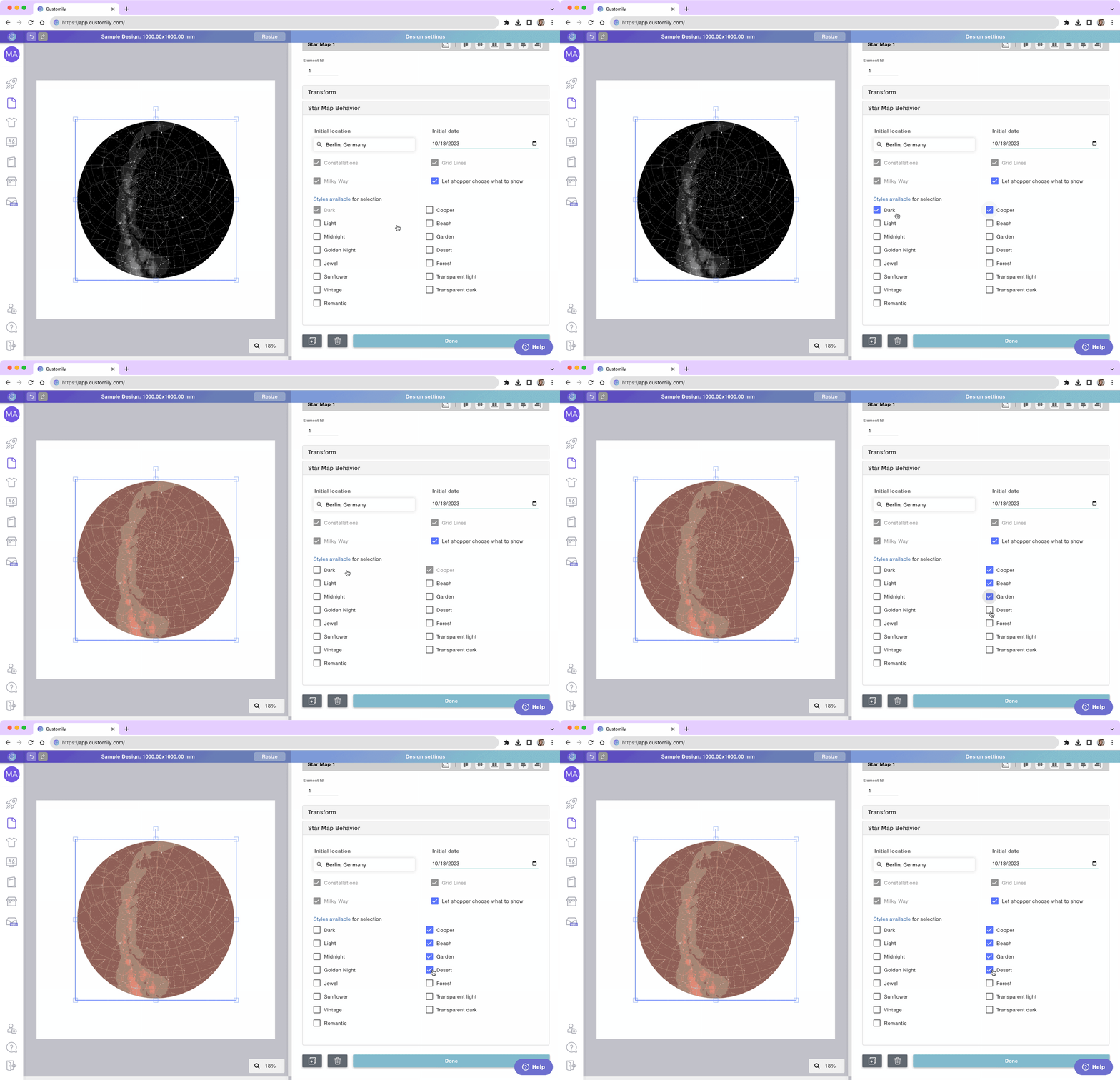
You can select one or multiple predefined styles for your star map. If you select multiple styles, shoppers will be able to choose between them when personalizing their product.
To choose a map style:
Select the Star Map element.
Expand the Star Map Behavior toolbox.
Enable the map styles you want to make available.
Tip
Some star map styles have transparent backgrounds, allowing you to place your own images behind the stars. You can explore all available styles in the Star Map styles reference.