Crosswords
Last updated: October 26, 2026
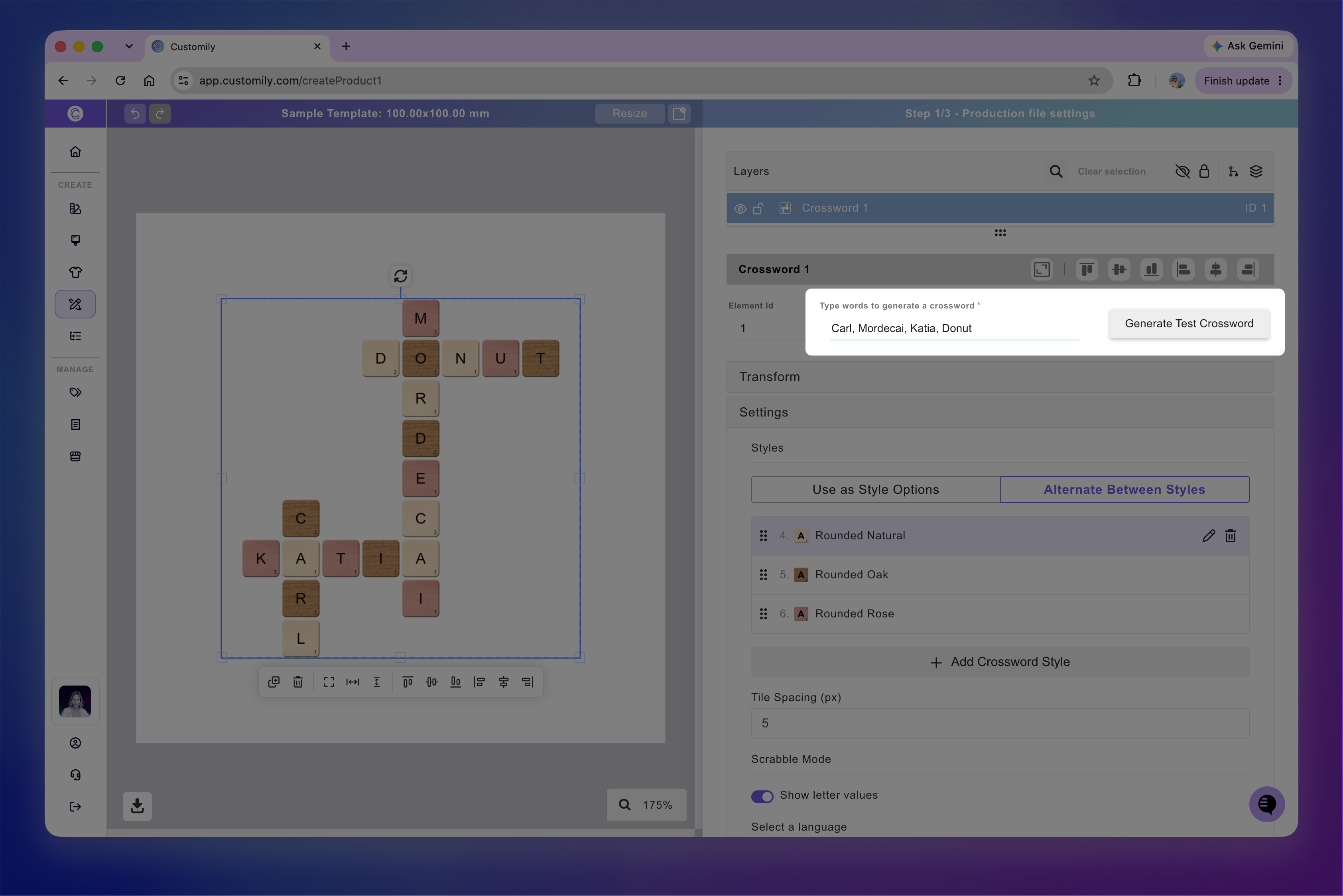
The Crossword element lets you add personalized word puzzles to your designs. Shoppers can enter words, and Customily automatically arranges them into an interconnected crossword layout.
You can customize the crossword's size, tile appearance, and spacing, and display Scrabble-style letter scores.
How It Works
When you add a Crossword element to your design:
Shoppers enter words to generate their personalized crossword.
Customily automatically arranges the words into an interconnected layout.
The crossword updates based on the words entered.
You control the tile styles, spacing, and whether letter scores are displayed.
If you add multiple styles, you can let shoppers choose between them or alternate styles within the crossword.
How to add a crossword
How to add a map
Open your Design or Template in the Design Studio.
Click Crossword to add a new element.
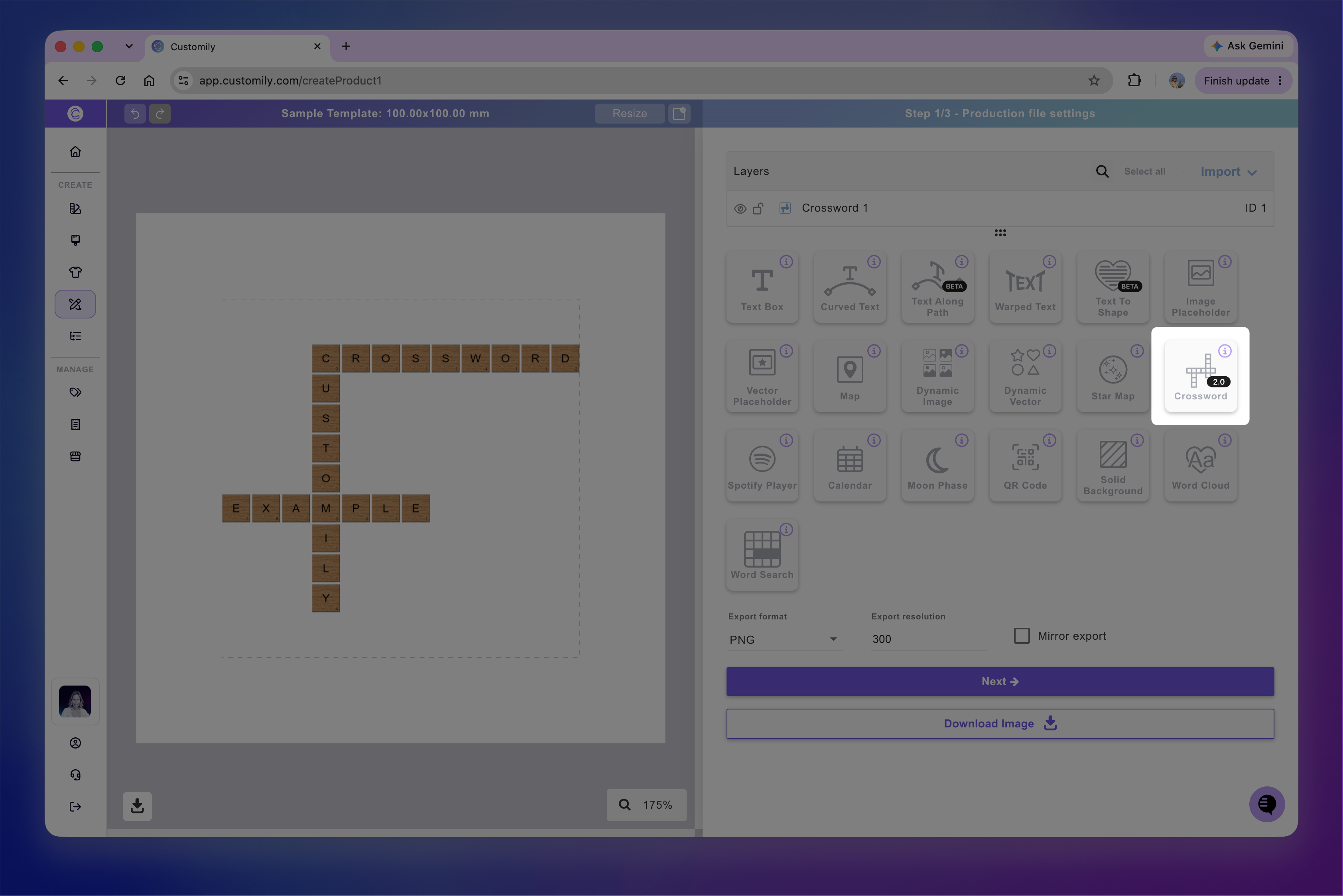
Each crossword has a name you can edit and a unique ID to help you identify it.
How to move, resize and transform the crossword
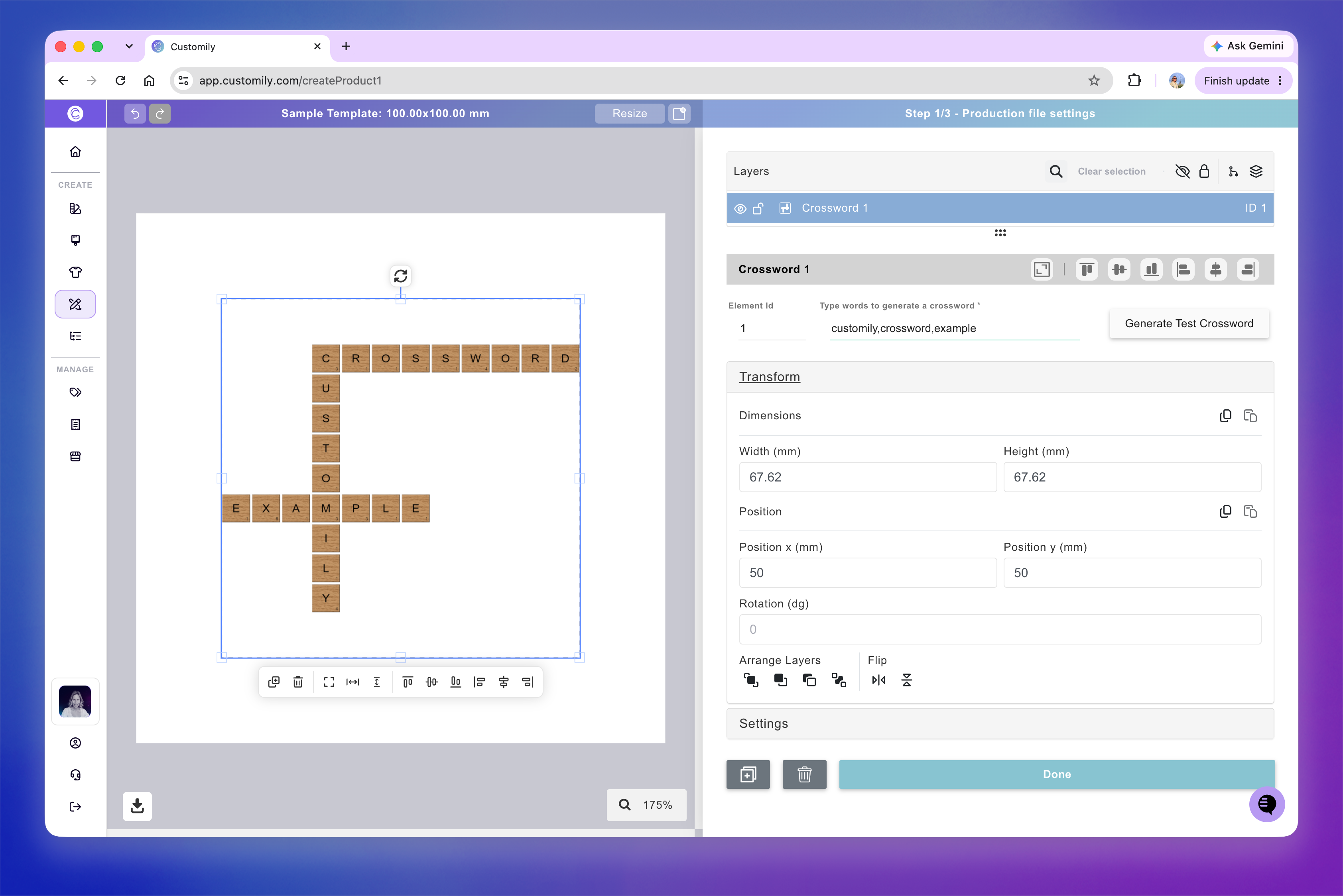
You can move, resize, and rotate a crossword directly on the canvas.
When you select a crossword, a quick-action toolbar appears below it, with shortcuts to duplicate, delete, align, and distribute elements.
For more precise adjustments, expand the Transform toolbox. Use these controls to adjust the crossword's position, rotation, size, flip, and layer order.
How to customize crossword settings
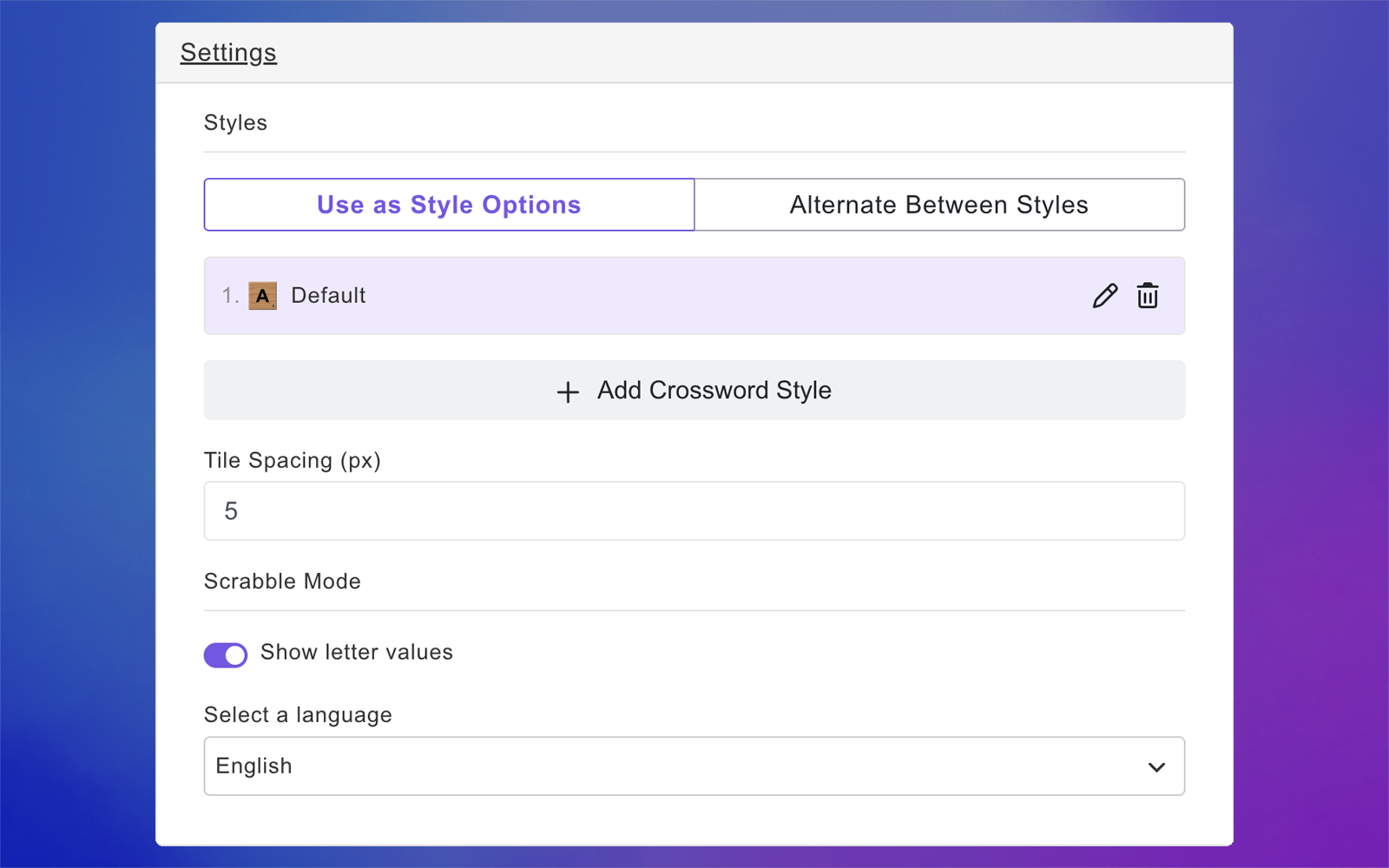
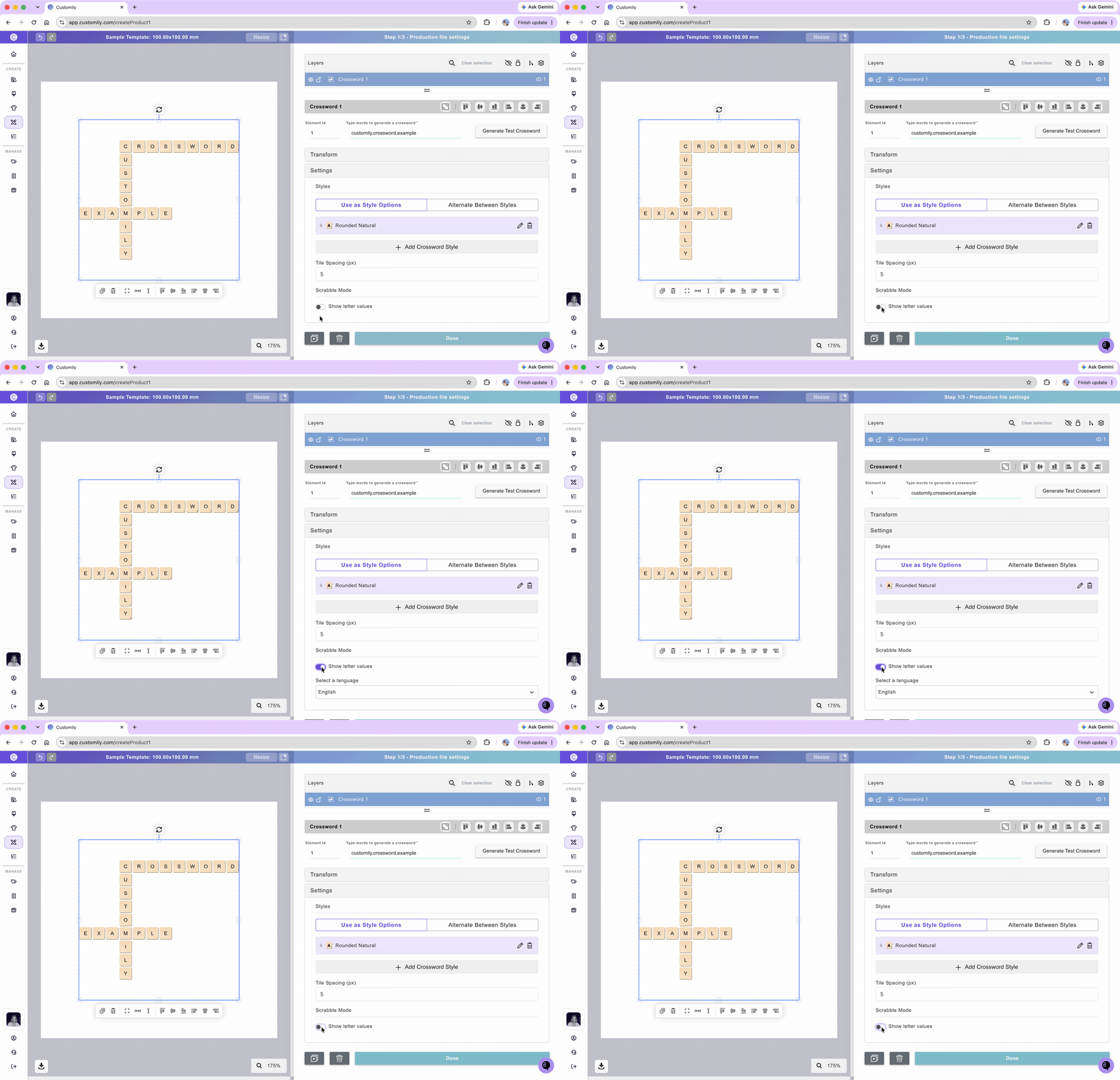
The Settings toolbox lets you control how the crossword tiles look, how they're arranged, and whether letter scores are displayed.
You can choose predefined tile styles or create your own, control how multiple styles are used, adjust the spacing between tiles, and enable Scrabble-style letter values.
Add crossword styles
You can choose from predefined crossword styles or create your own by customizing the tile image, font, size, and color.
To add a crossword style
Select the crossword element.
Expand the Settings toolbox.
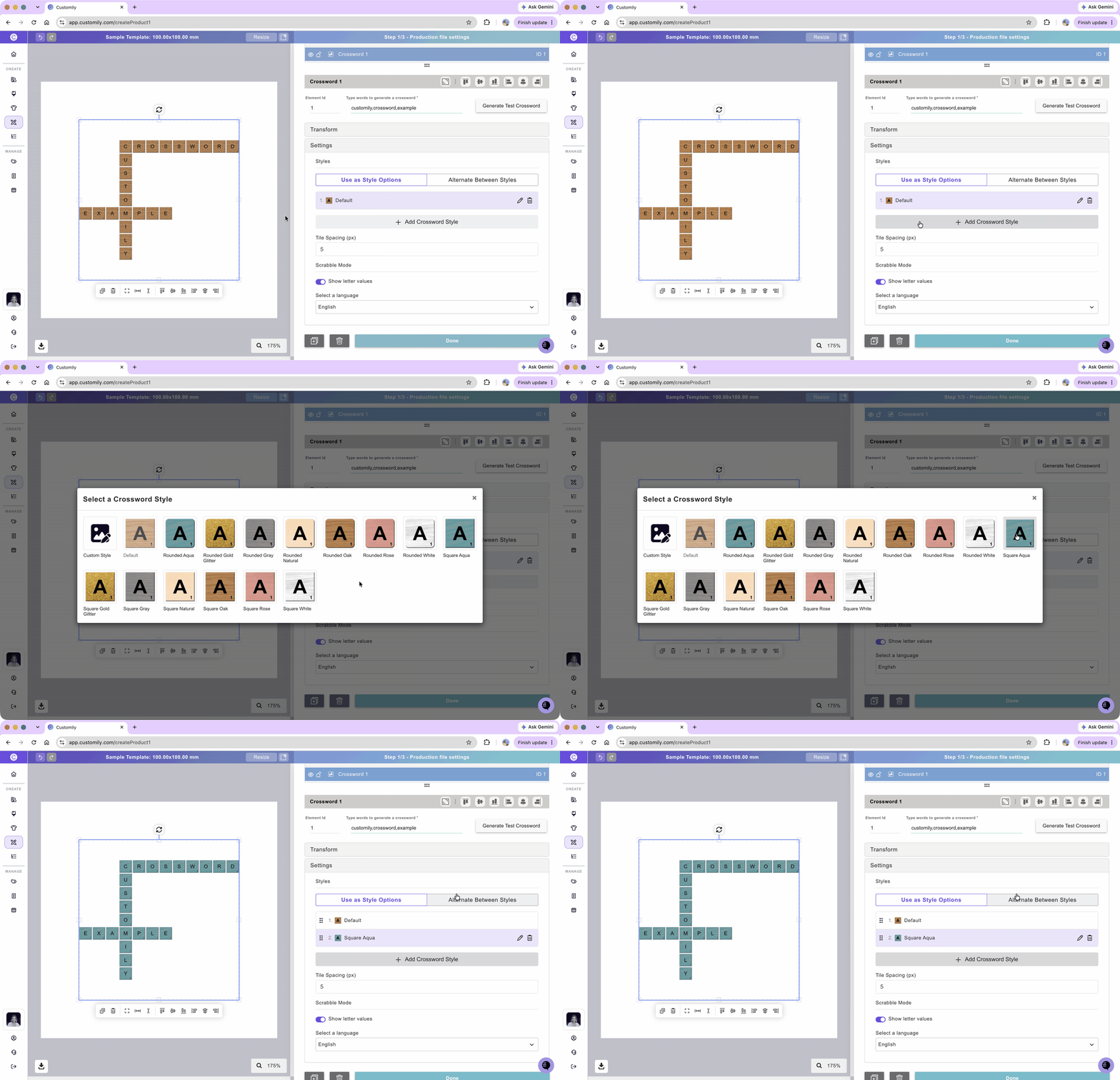
Click Add Crossword Style.
Choose a predefined style or select Custom Style to create your own.
You can add multiple styles to the same crossword, edit an existing style using the pencil icon, or remove it using the trash icon.
Create your own crossword style
You can create a custom style by choosing the font, letter size, color, and background image for the tiles.
In the Settings toolbox, click Add Crossword Style.
Select Custom Style.
Enter a Style Name.
Under Letters, select a font, set its size in pixels, and choose a color.
Under Tile Image, upload an image for the tile background (PNG, JPG, or WEBP, up to 10 MB).
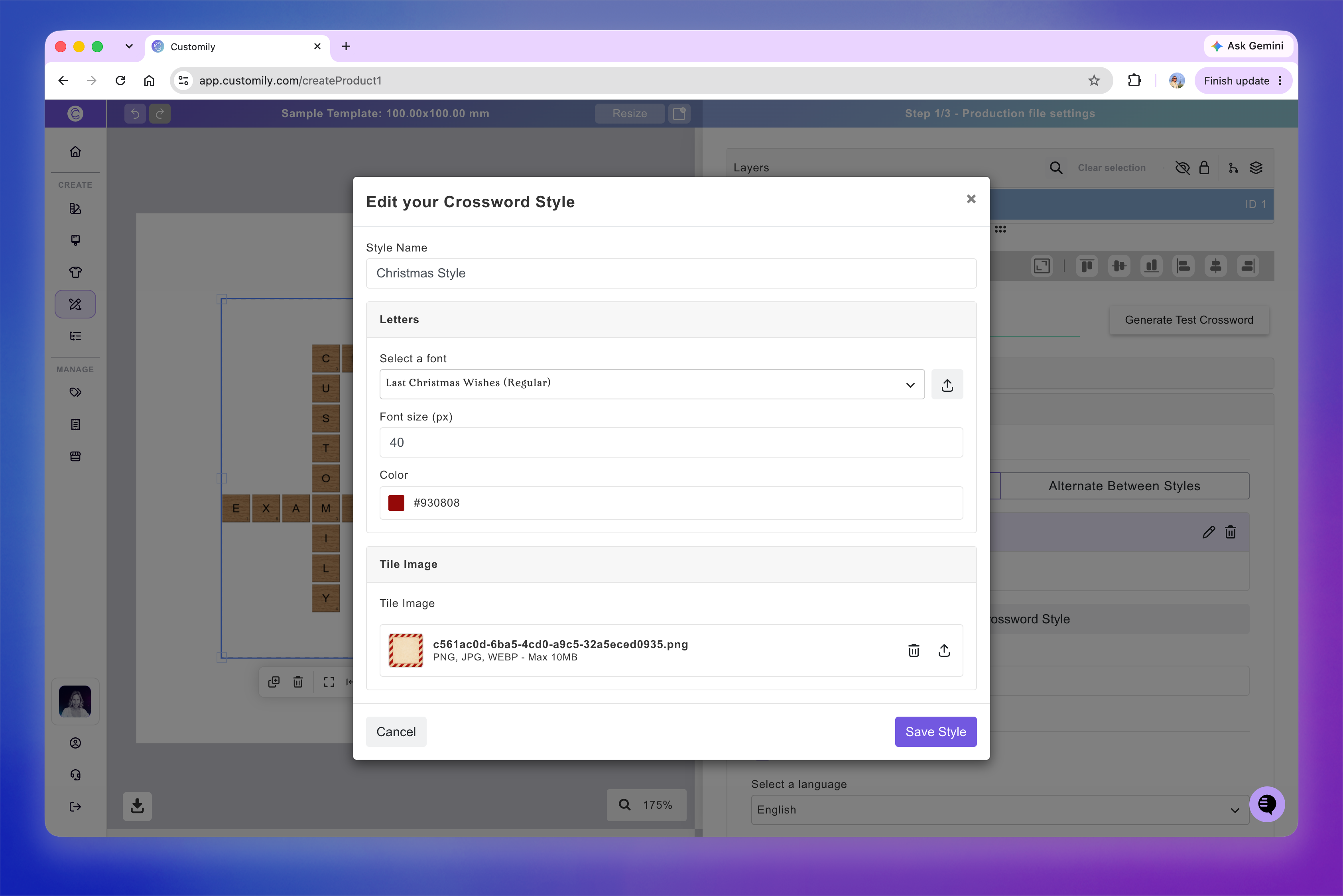
Click Create Style.
Tip:
You can also edit an existing or default style using the pencil icon or remove it using the trash icon.
Choose how crossword styles are used
When you add multiple styles to a crossword, you can choose how they're applied.
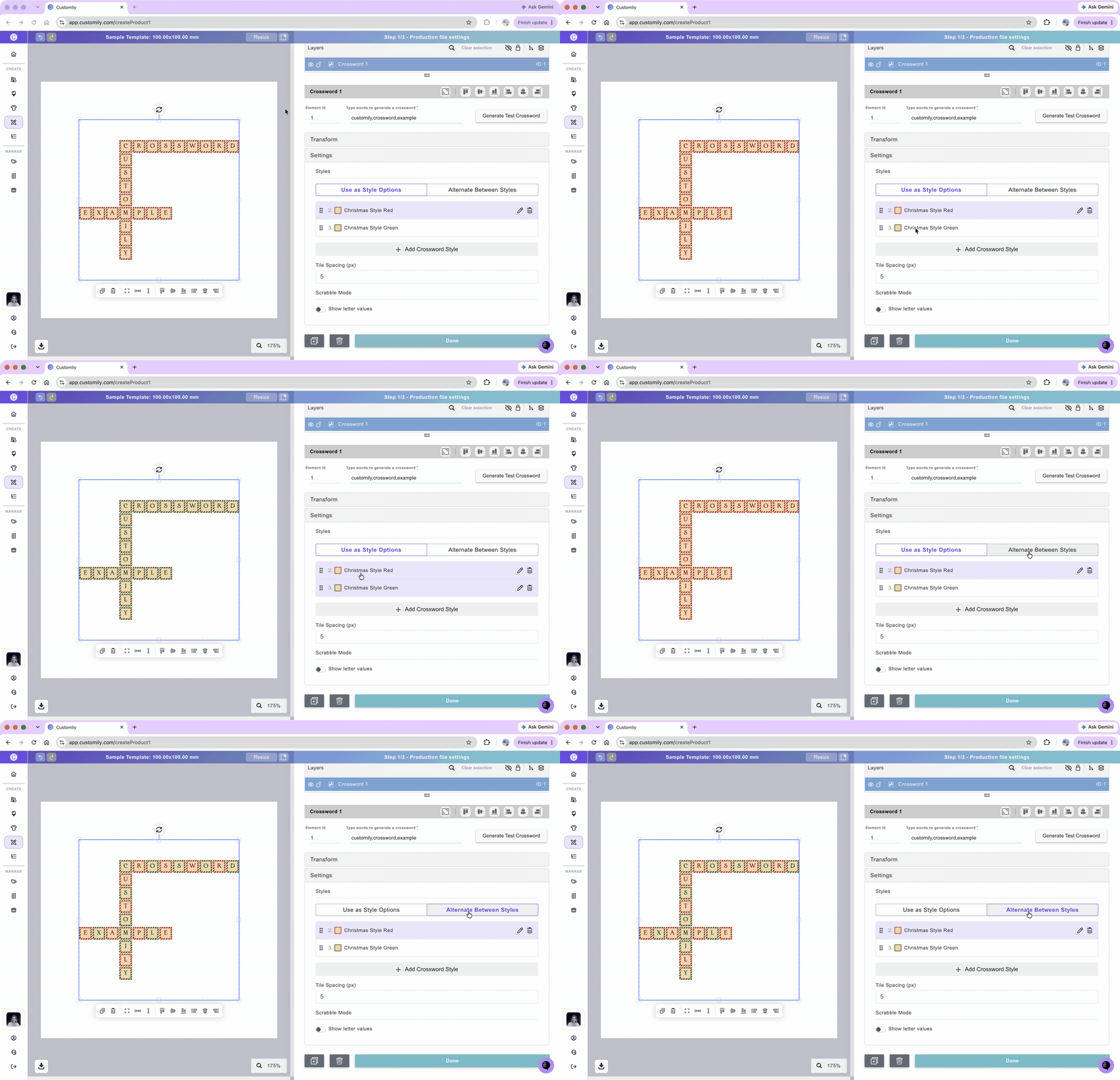
Under Styles, select one of the following:
Use as Style Options: Lets shoppers choose between the available crossword styles.
Alternate Between Styles: Applies different tile styles within the same crossword, mixing the selected styles instead of using a single style for the entire crossword.
Adjust tile spacing
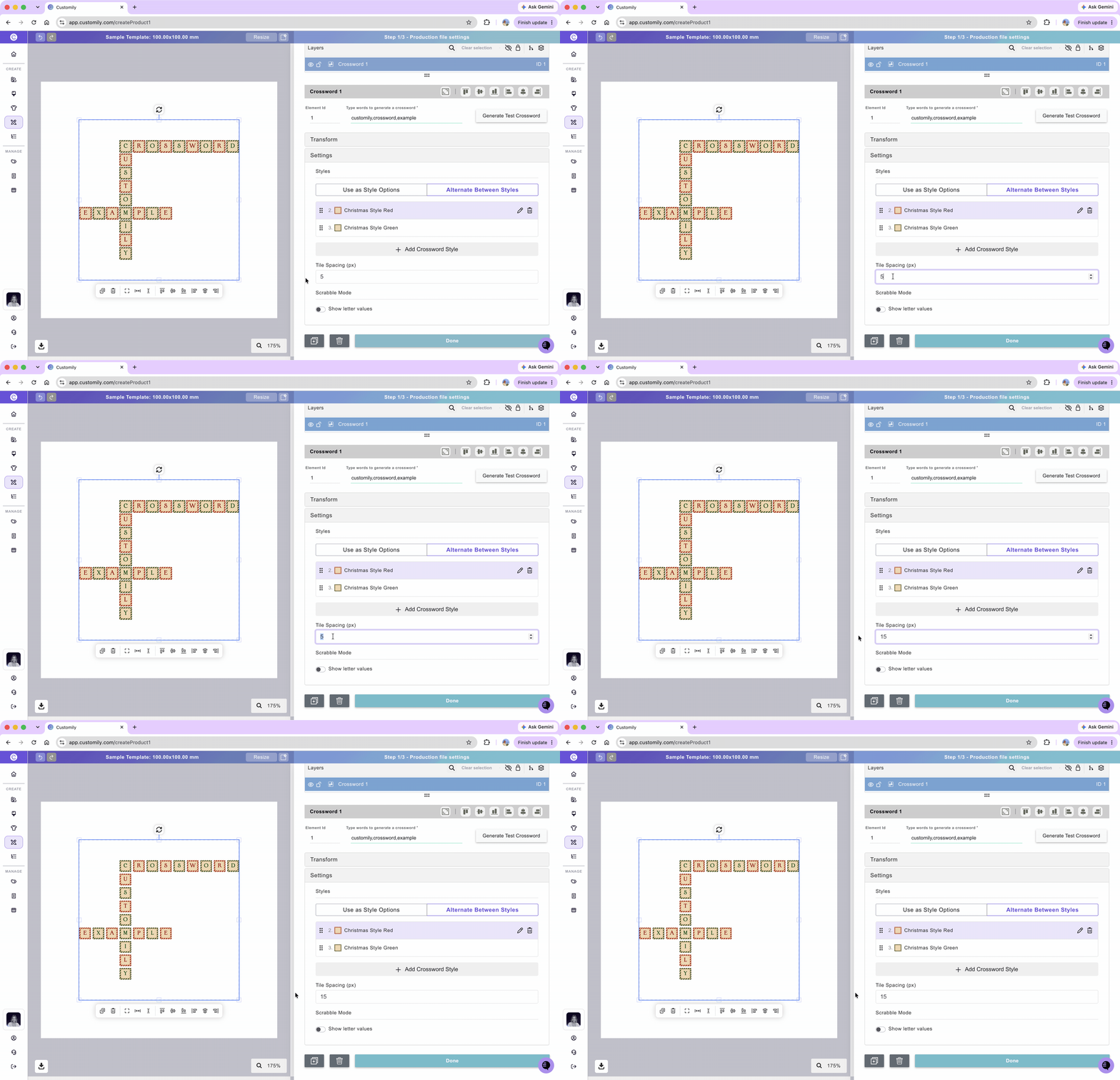
Use Tile Spacing (px) to control the distance between crossword tiles.
Select the crossword element.
Expand the Settings toolbox.
Enter a value in Tile Spacing (px).
Smaller values bring the tiles closer together, while larger values create more space between them.
Show Scrabble letter values
You can display Scrabble-style point values on each letter tile. The scores depend on the selected language, since letter values vary between languages.
Select the crossword element.
Expand the Settings toolbox.
Under Scrabble Mode, enable Show letter values.
Choose a language from Select a language.
Letter values vary by language because some letters are more common than others. Selecting the language ensures that each letter receives the appropriate Scrabble point value for that language.
Test how the shopper's crossword will look
While configuring your crossword, enter sample words in Type words to generate a crossword, separating them with commas. Then click Generate Test Crossword to see how the words are arranged in your design.
This crossword is only for testing. The sample words won't be saved or visible to your shoppers.