Using POD product Bases
Last updated: April 29, 2026
What are POD Product Bases?
POD (Print-on-Demand) Product Bases are preconfigured products provided by Customily's integrated print providers. They include everything needed to sell a personalized product — like mockups, print areas, and variant options — so you don’t have to set up anything from scratch.
You’ll find product bases for providers like Printify, Printful, CustomCat and many more, ready to use inside Customily.
What’s Included in a POD Product Base?
Each POD product base includes:
Variant options (like sizes and colors)
Predefined print area(s)
Export settings for print files
A mockup of the product
All you need to do is add a design and publish the product to your store.
When to Use POD Product Bases
Use POD product bases when:
You want to publish personalized products quickly
You already work with an integrated provider like Printify or Gooten
You don’t hold product inventory and want a provider to both supply and fulfill products with your designs
How to Use a POD Product Base
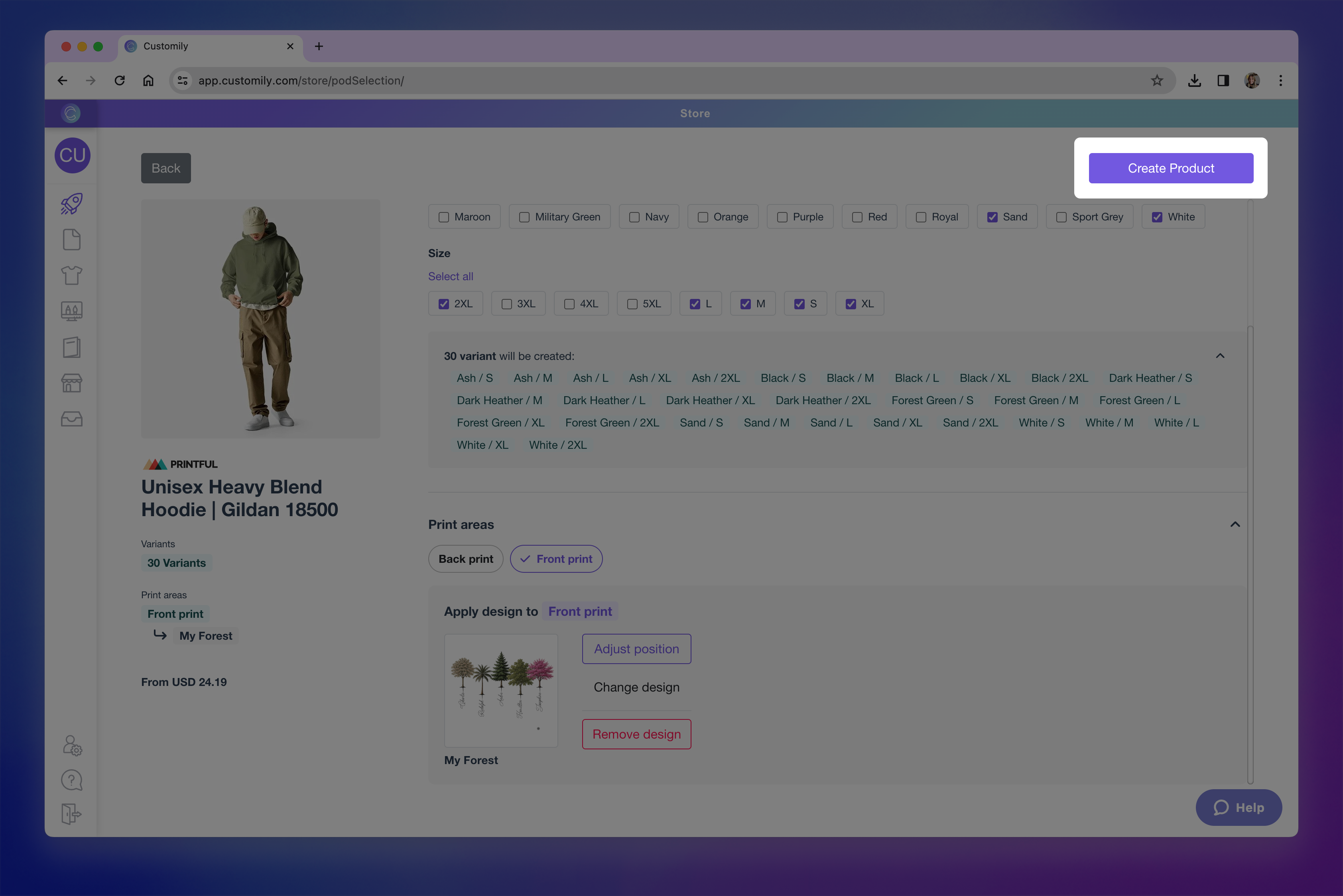
POD product bases are used by combining them with a design to create a personalized product listing. This automatically sets up the product in your store, complete with its template and customization options, and linked to the POD for automatic fulfillment.
It’s a fast and reliable way to publish personalized products. And it's very helpful especially if you want to offer multiple versions of the same product (like t-shirts for different occasions), or apply the same design to different products (like mugs, canvases, and hoodies).
To publish a product using a POD Product Base:
Go to the Start Menu and click Publish a New Product from your dashboard.

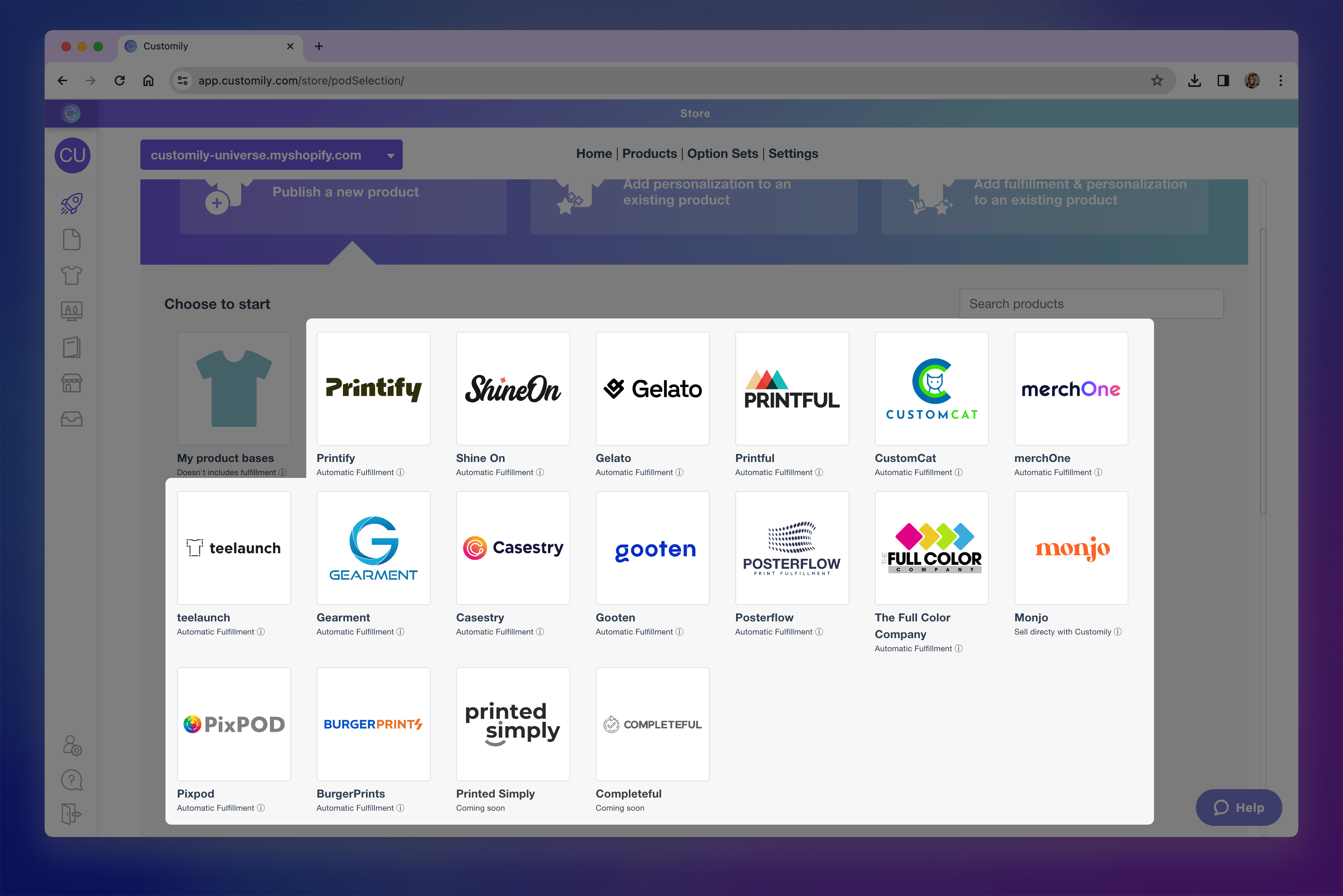
Choose one of the available print-on-demand providers to browse their product catalog.
Pro Tip
Use the search bar to look for a specific product across all PODs. This helps you compare similar products by price, fulfillment time, and shipping locations — so you can choose the best option.
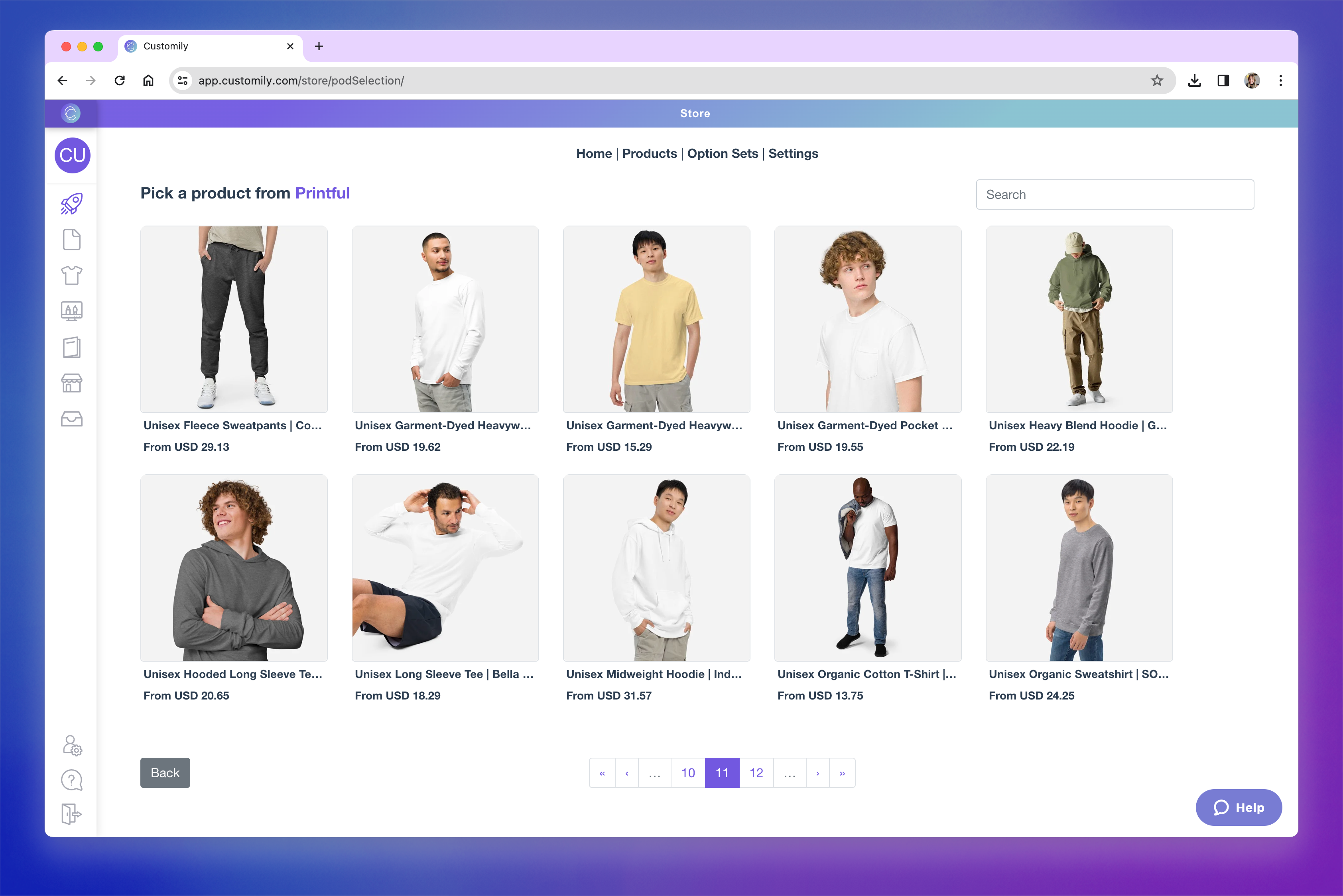
Browse the PODs product catalog to find the right product, and click on it to select it.
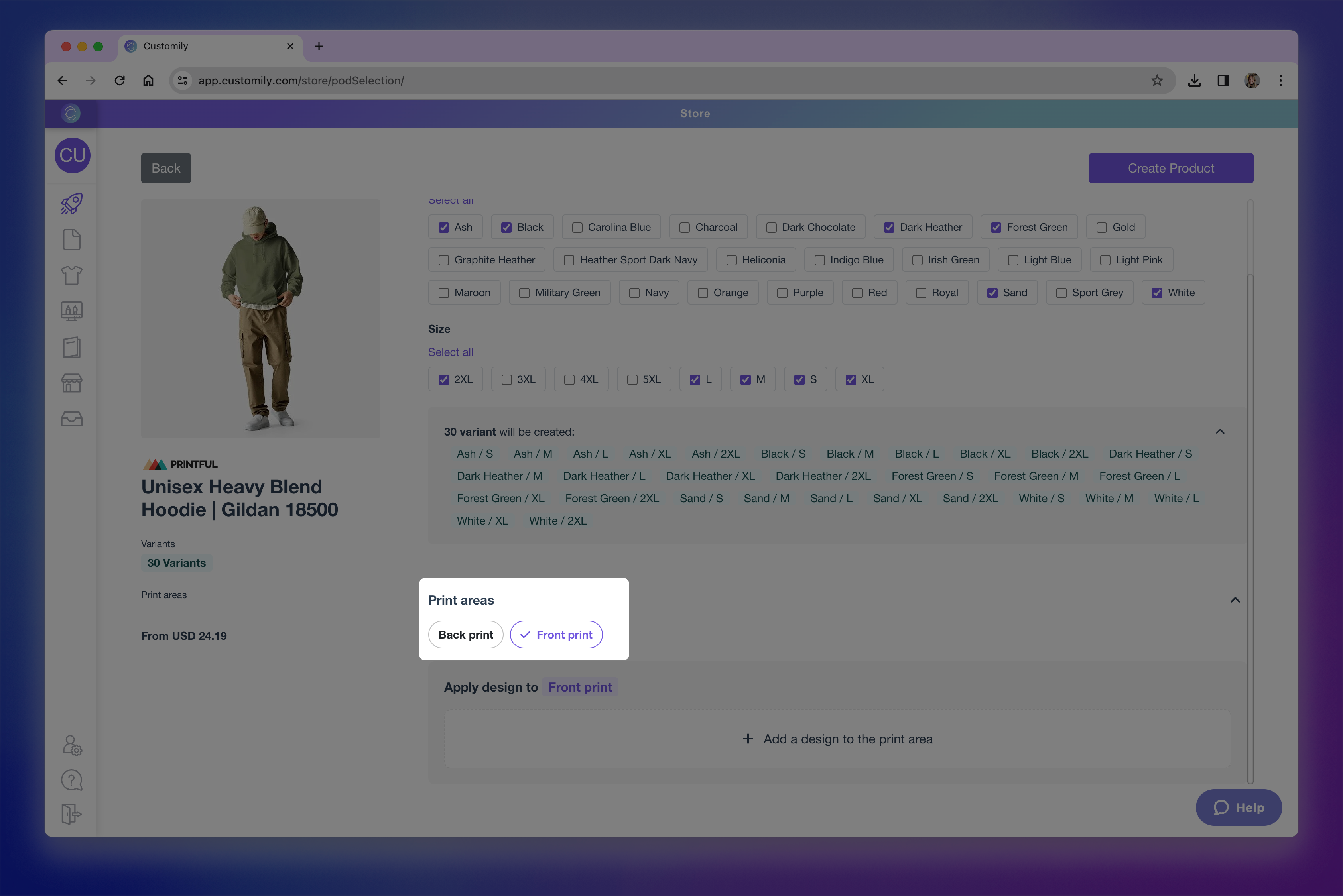
Select your preferred variants. Below your selection, you'll see a list of all the variants that will be created on your store.

Choose the Print Areas where you'd like to apply a design. Depending on the product you can choose one or multiple print areas. You'll be able to choose a design for each print area.
Click + Add a design to the print area to select a design

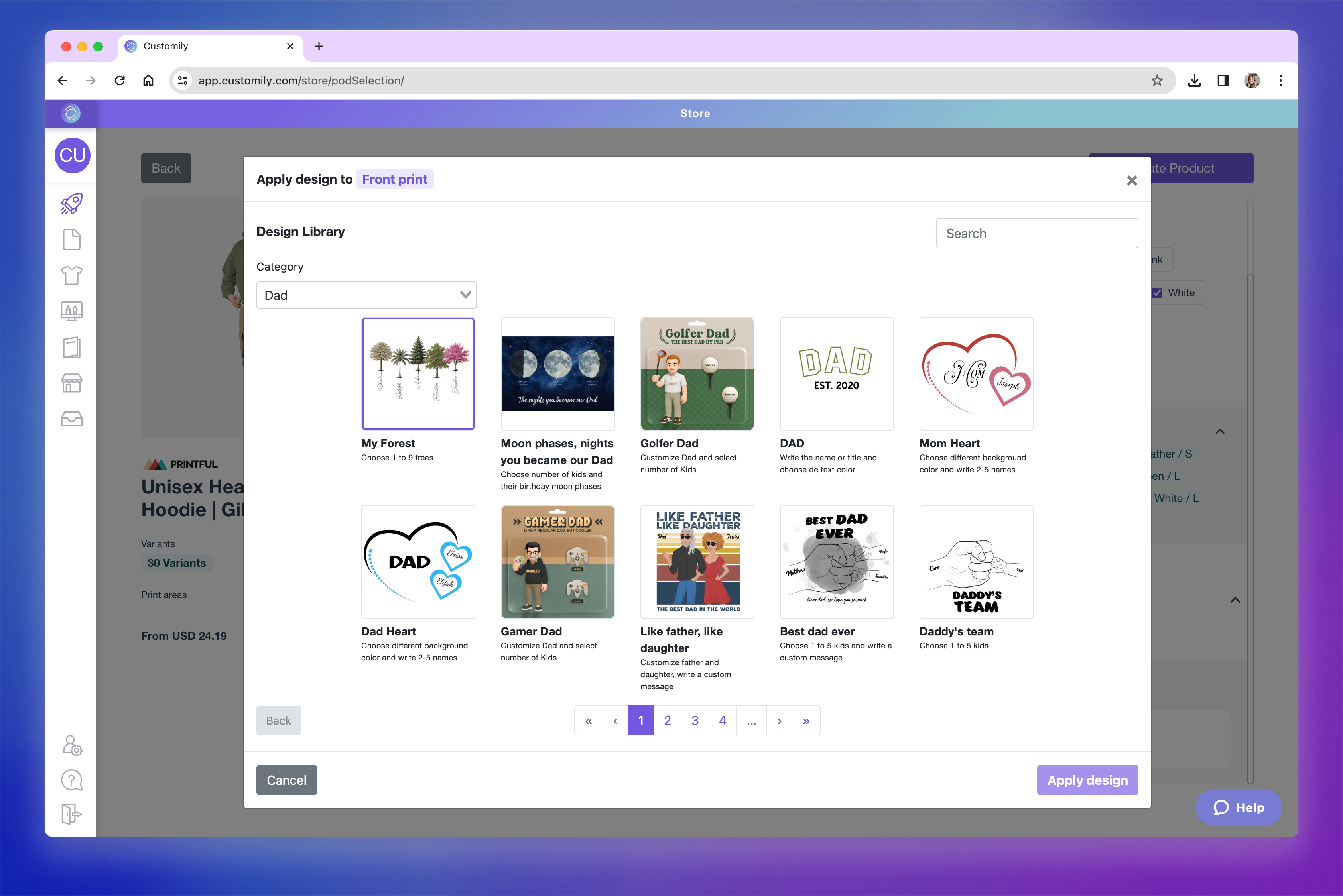
Choose a design to apply. It could be a Customily pre-made design or one of your own creations.
After selecting the design, you'll be able to place and scale it within the print area to ensure it fits the product just how you want. The print area is represented by the dashed red line.
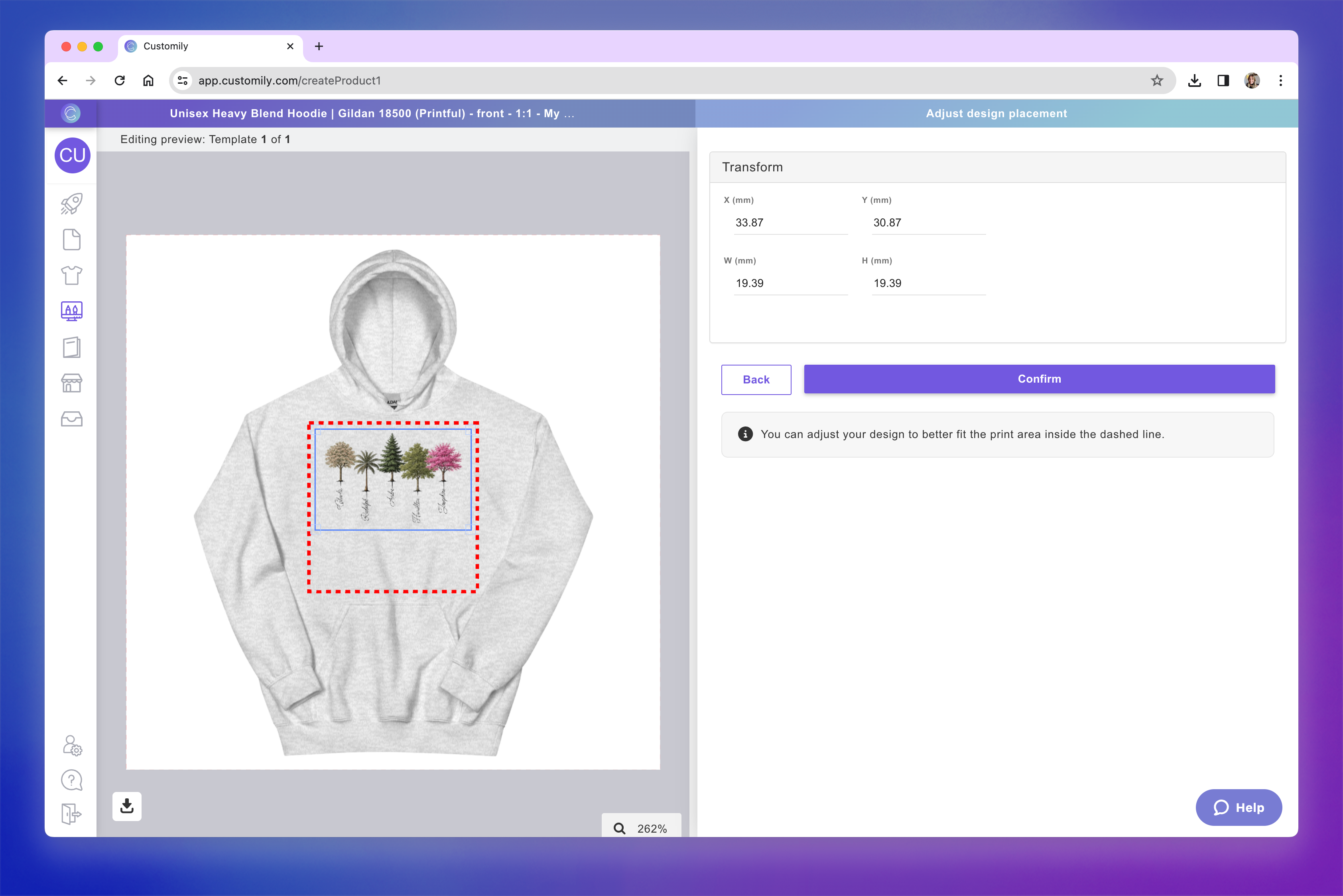
Once you confirm the placement of your design, you can continue creating the product to get it ready for your store!