How to Pre-fill or Pre-select an Option by Default
Last updated: April 28, 2026
If you want to guide your shoppers or streamline their personalization journey, you can pre-fill or pre-select an option so it already has a value when the page loads. This can save time, reduce confusion, and ensure required options don’t block the cart if left empty.
You can do this for:
Text inputs, by pre-filling the field with a default message.
Image uploads, by loading a default image automatically.
Dropdowns, swatches, or checkboxes, by selecting one of the values by default.
To Pre-fill Text Inputs
Open your Option Set and locate the text input option.
-
Under Initial Value, type the text you want to display by default, for example: "Dad", "Your Name Here", or "I love you!".
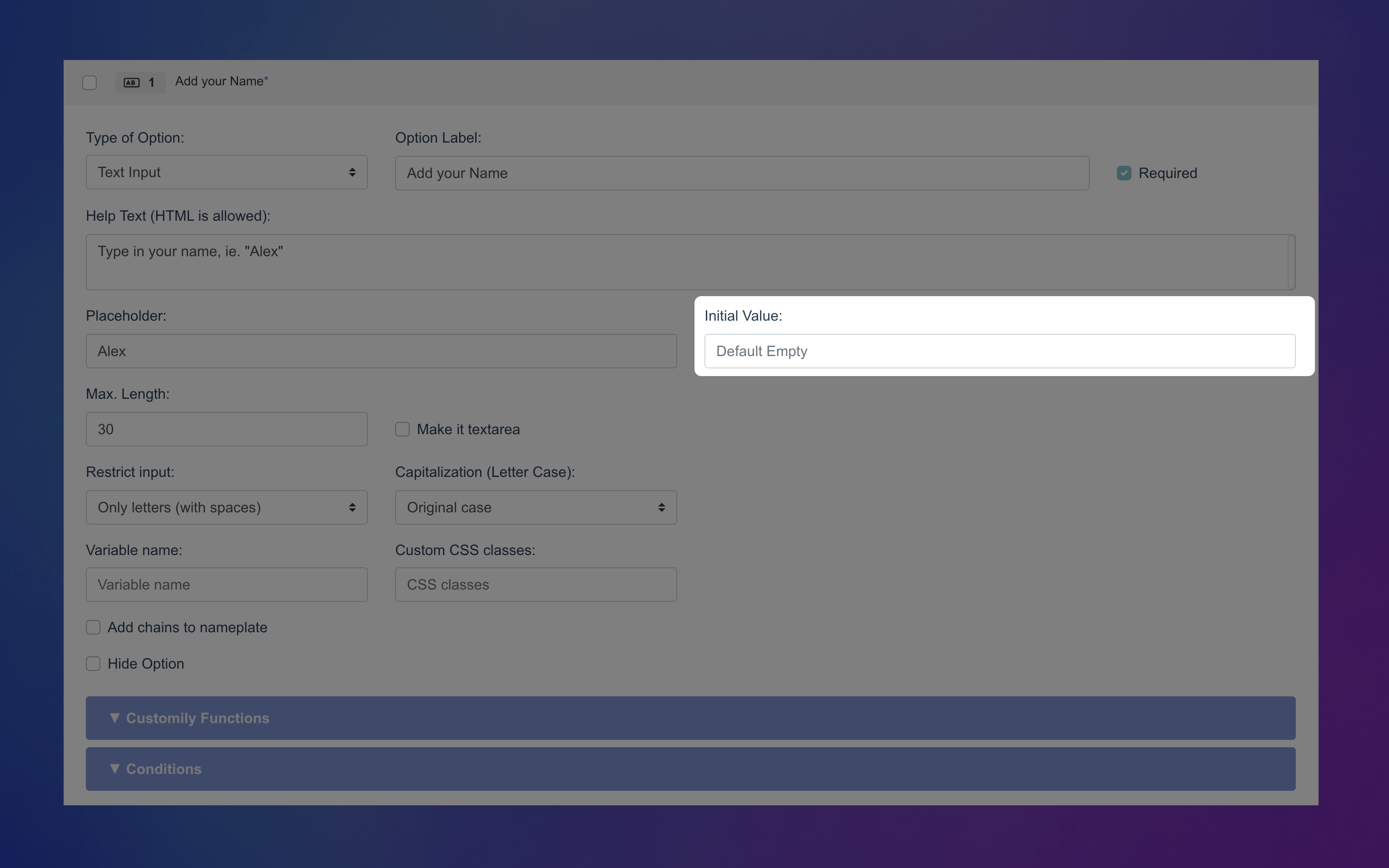
This text will appear written on the input and will show on the preview automatically when they start to personalize. They can still edit or replace the text.
Save your changes.
To Pre-fill Image Uploads
Open your Option Set and find the image upload option.
-
Under Initial Image, click Browse to upload the image you want to load by default.
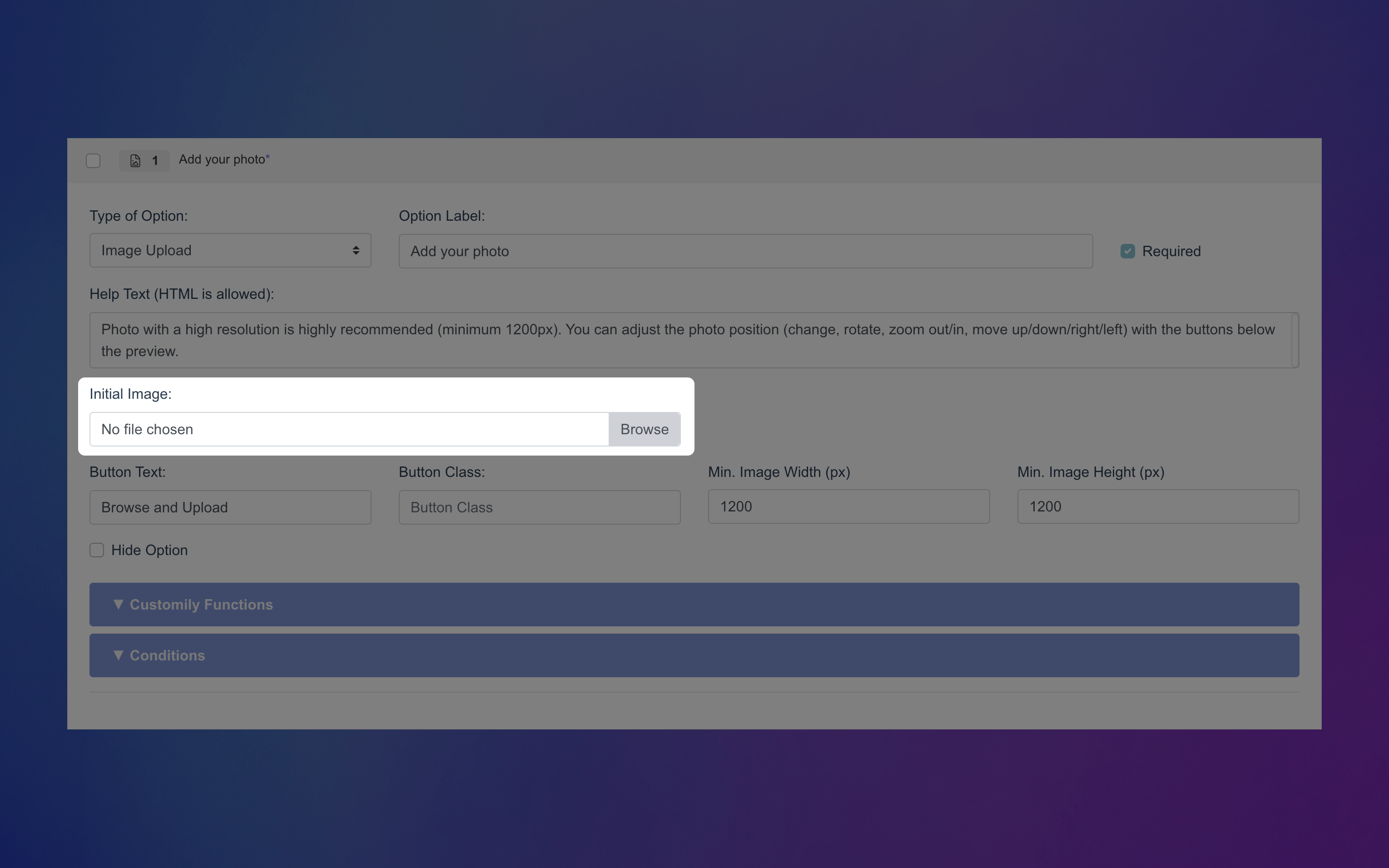
This image will show up in the preview automatically when they start to personalize. They can replace it by uploading their own image.
Save your changes.
To Pre-select Options (Dropdowns, Swatches, etc.)
This applies to any option that has predefined values to choose from — like dropdowns, swatches, dropdown swatches, text swatches, and more. You can choose one of the values to be pre-selected by default, so shoppers see it already selected when the product page loads.
Open your Option Set and find the option you'd like to edit.
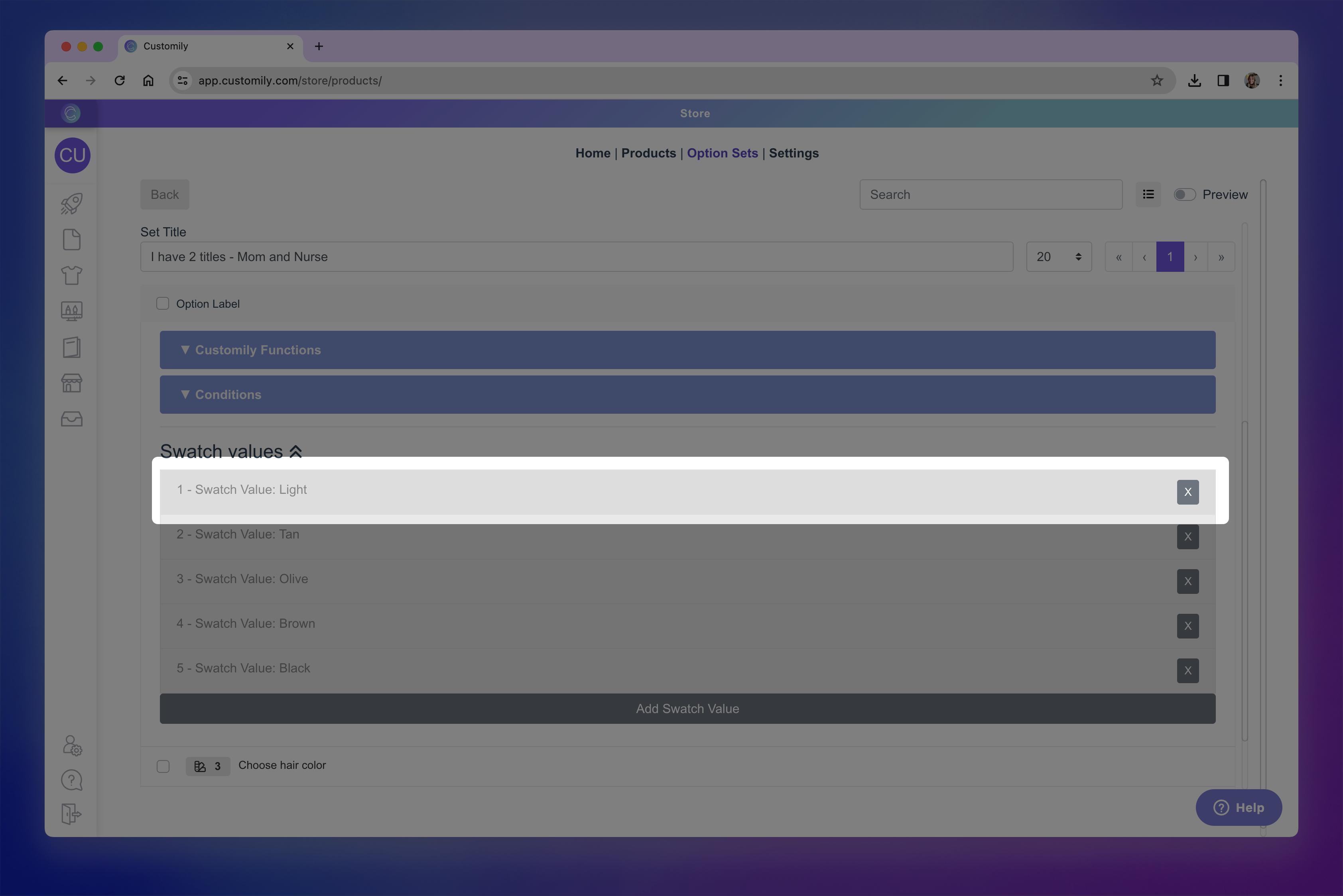
Scroll to the swatch values and click the value you want to select to expand it.
Check the Selected checkbox to mark the value as selected by default.
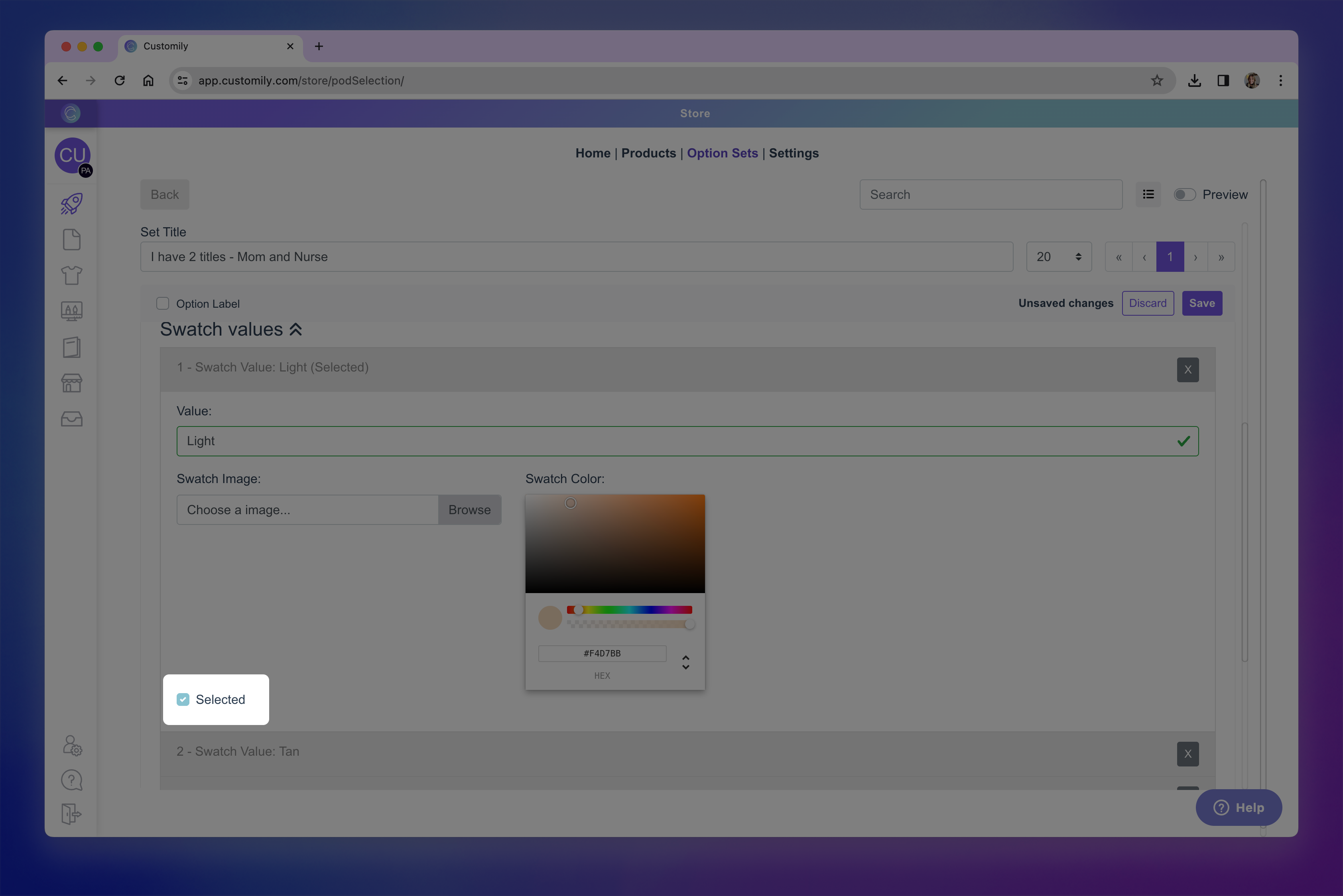
Save your changes.