Selecting multiple elements
Last updated: April 28, 2026
You can select multiple elements, from the workspace or the Layer panel, to move them or scale them together.
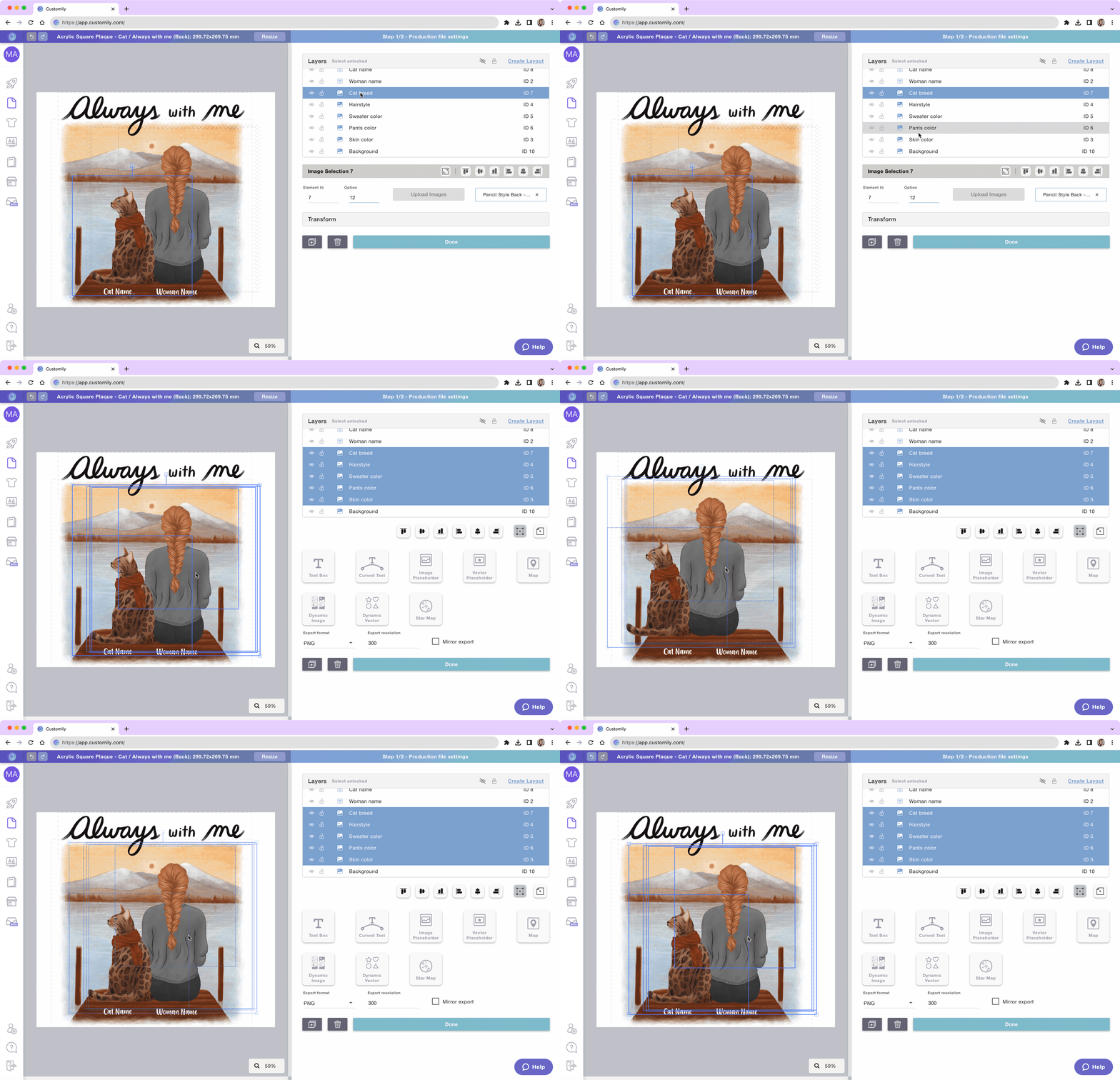
To select multiple elements in the Layer Panel
Shift + select two layers to select all the ones in between.
Tip
Use Ctrl + select on Windows or Cmd + Select on Mac to select specific, not consecutive, layers from the layer panel.
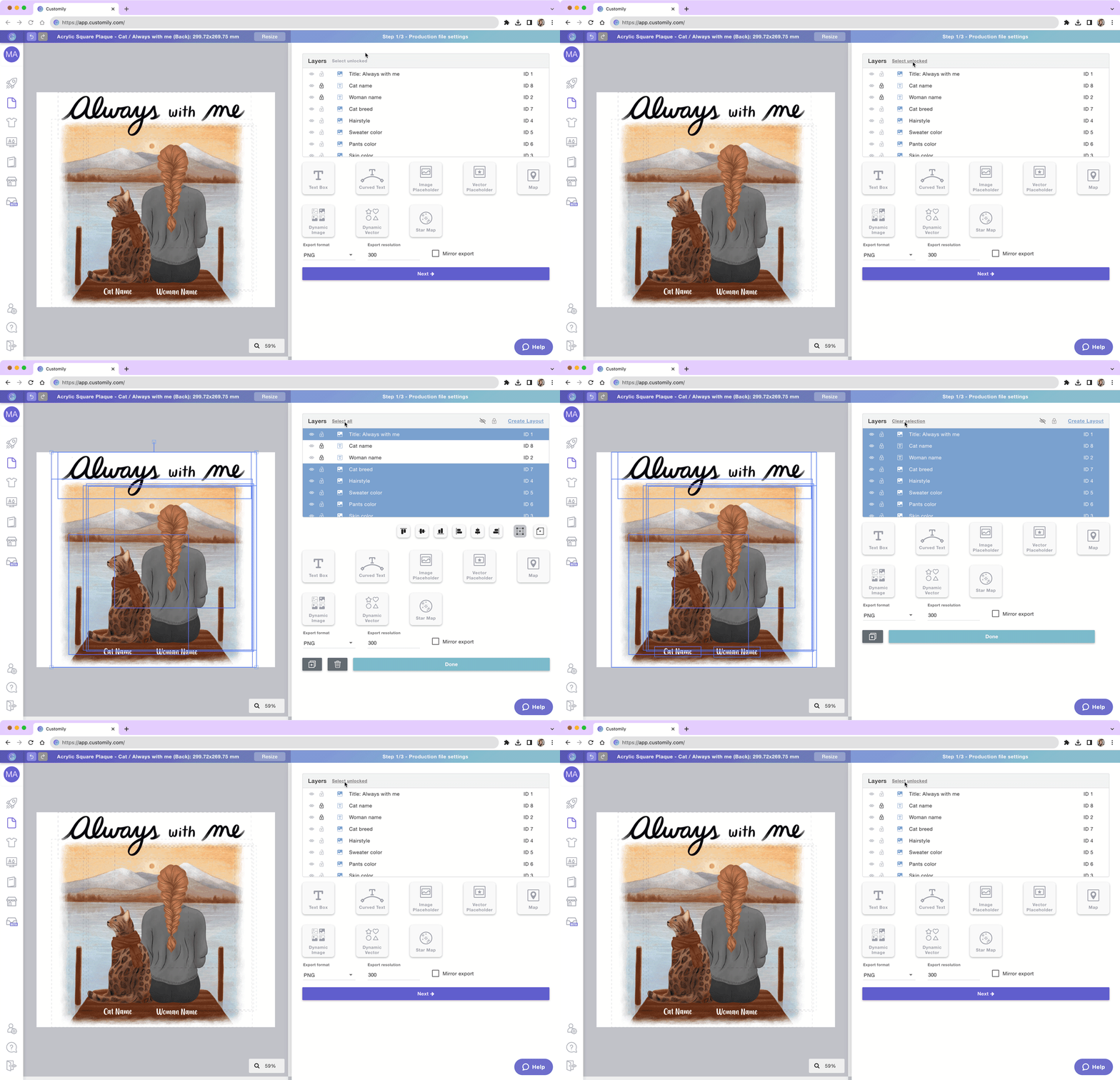
Use the Select Unlocked / Select All buttons to select all unlocked layers, and eventually all layers (no matter if they are locked
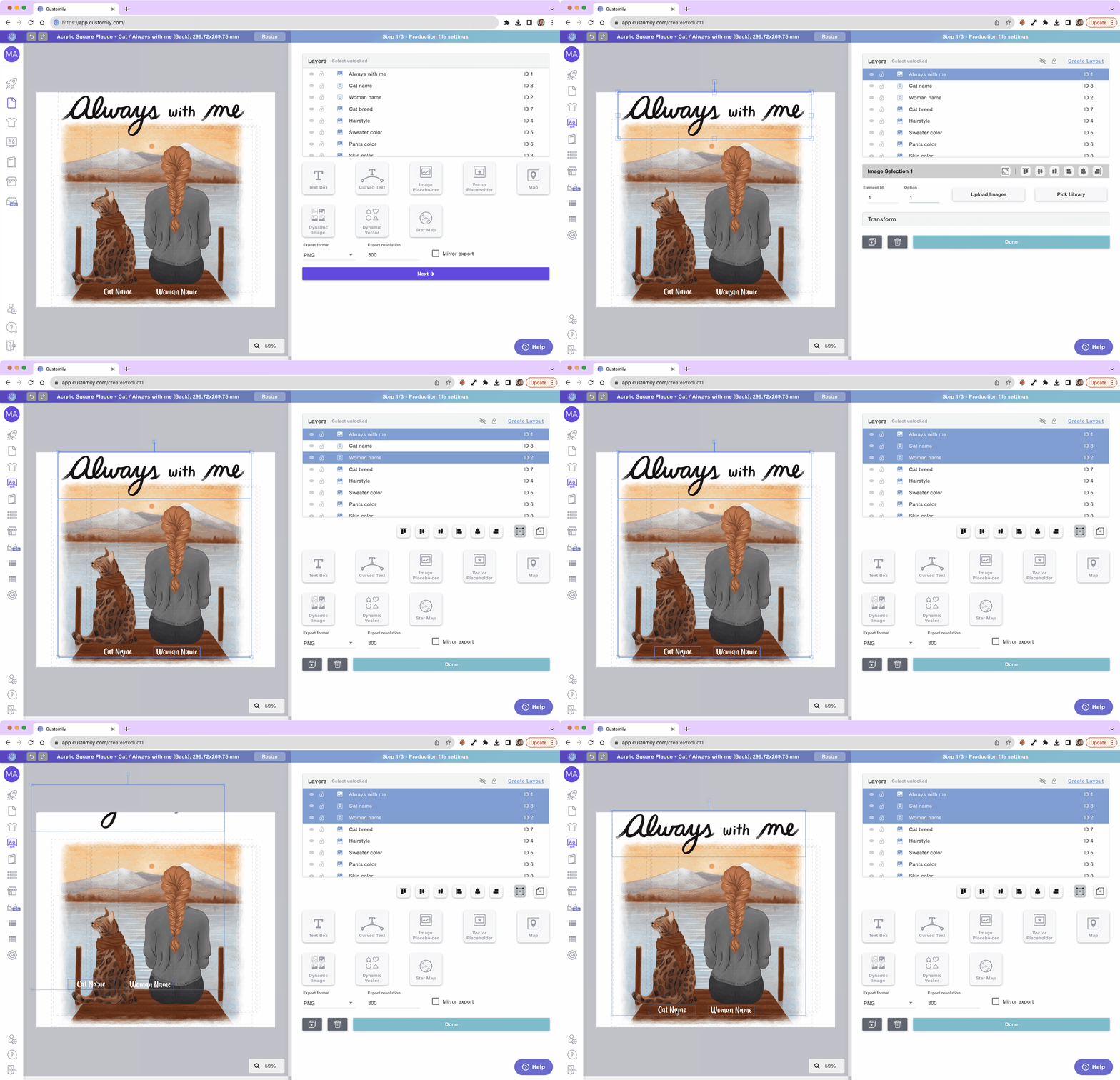
To select multiple elements in the workspace
Shift + click the elements you want to select on the workspace.
Click + drag the mouse over the elements you want to select
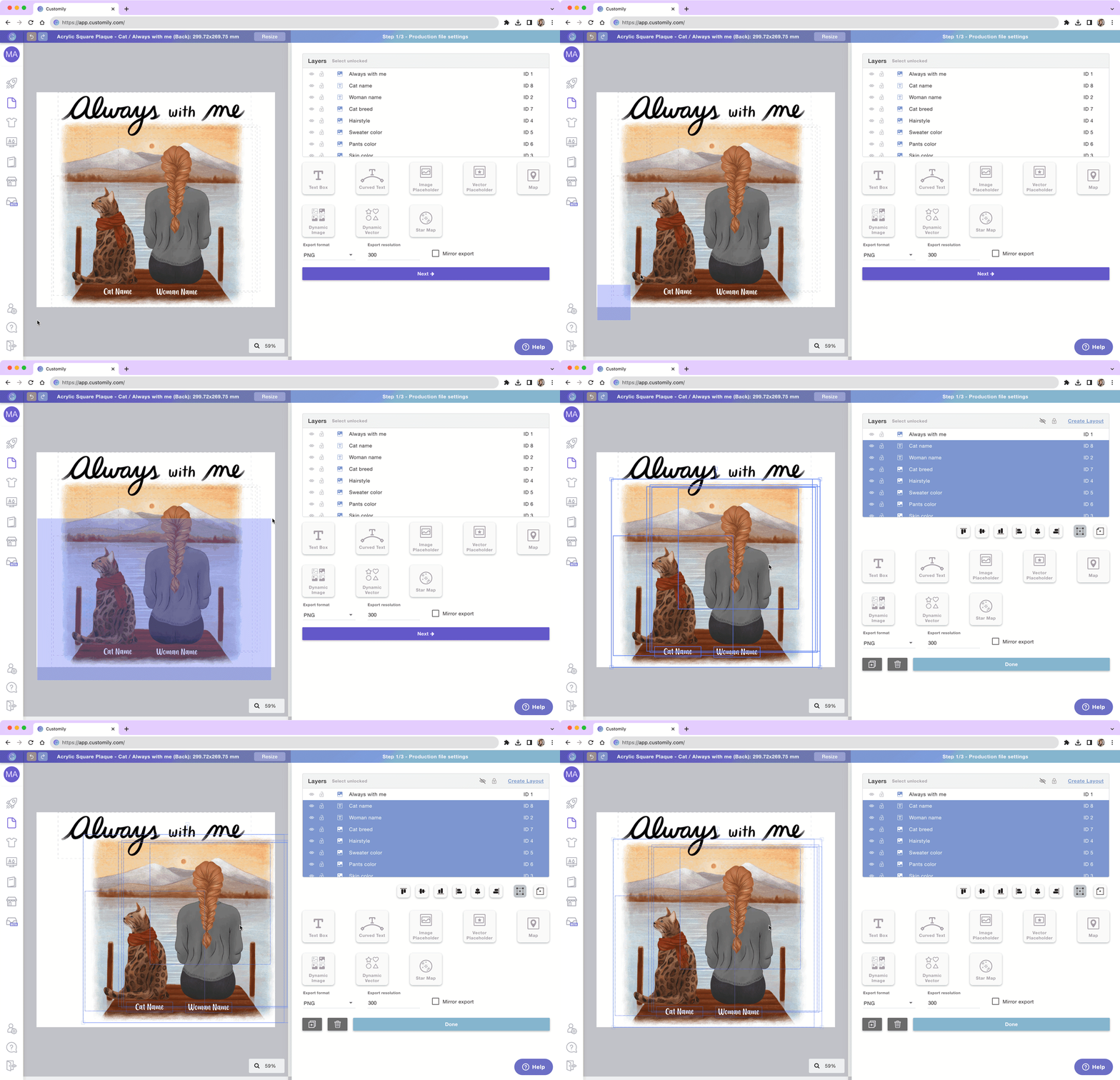
To unselect elements
Simply click anywhere on the workspace (outside of the elements you have selected). The easiest way is to click the grey area around your canvas!