Create Product Images and AI Mockups
Last updated: October 12, 2026
Create product images that showcase your personalization options and help shoppers visualize your products. With Customily, you can customize your main product image and use AI to generate realistic lifestyle mockups in different settings.
You can also create multiple images with different personalization examples to show shoppers what's possible with your product.
Customize your main product image
Your main product image is the starting point for generating AI mockups. You can customize it with different personalization options before creating new images.
Go to Products and open the product you want to edit.
In the Product Images section, hover over the first image and click Edit.
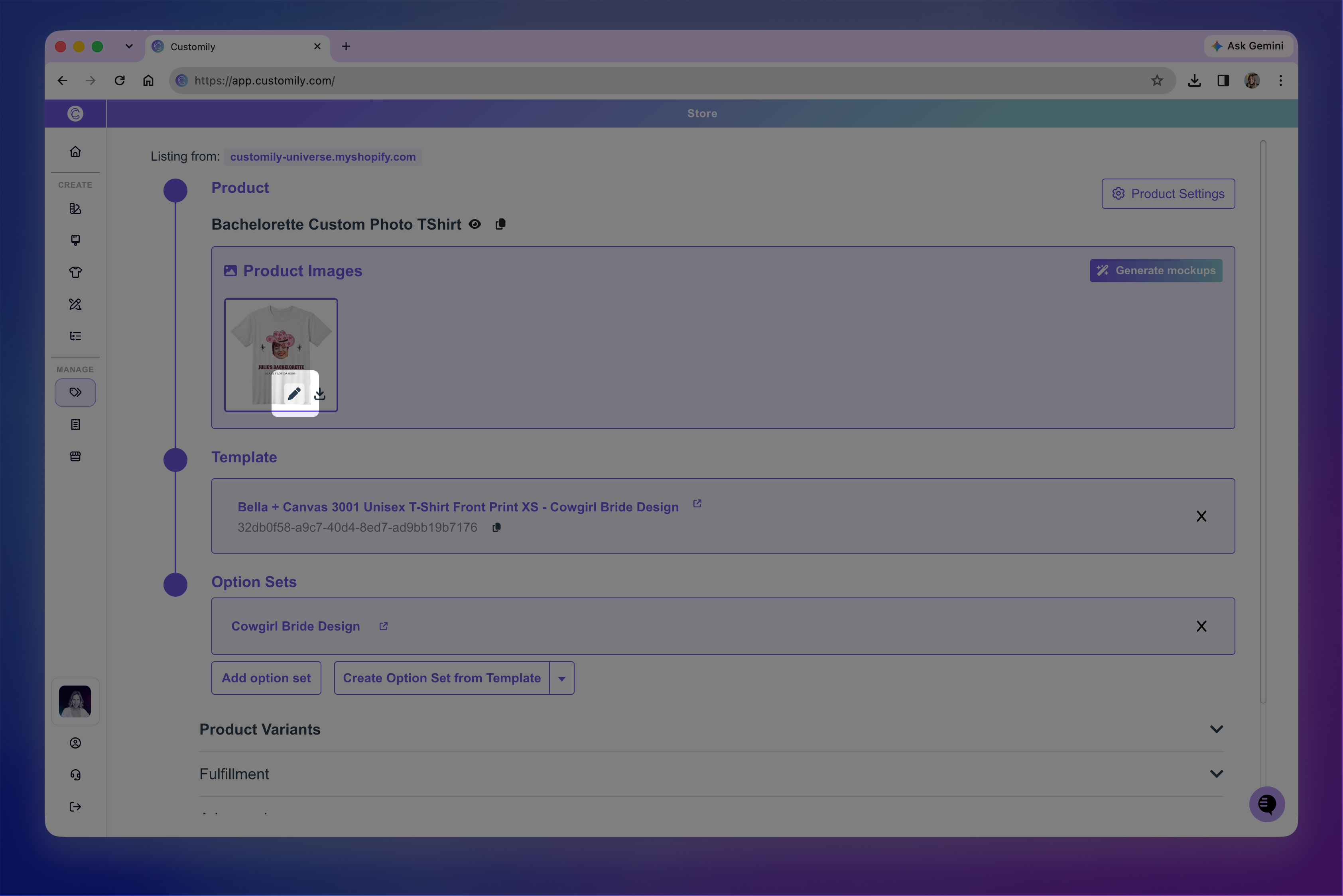
Use the live preview and personalization options to customize the product. You can change text, upload images, select colors, or use any other options available for that product.
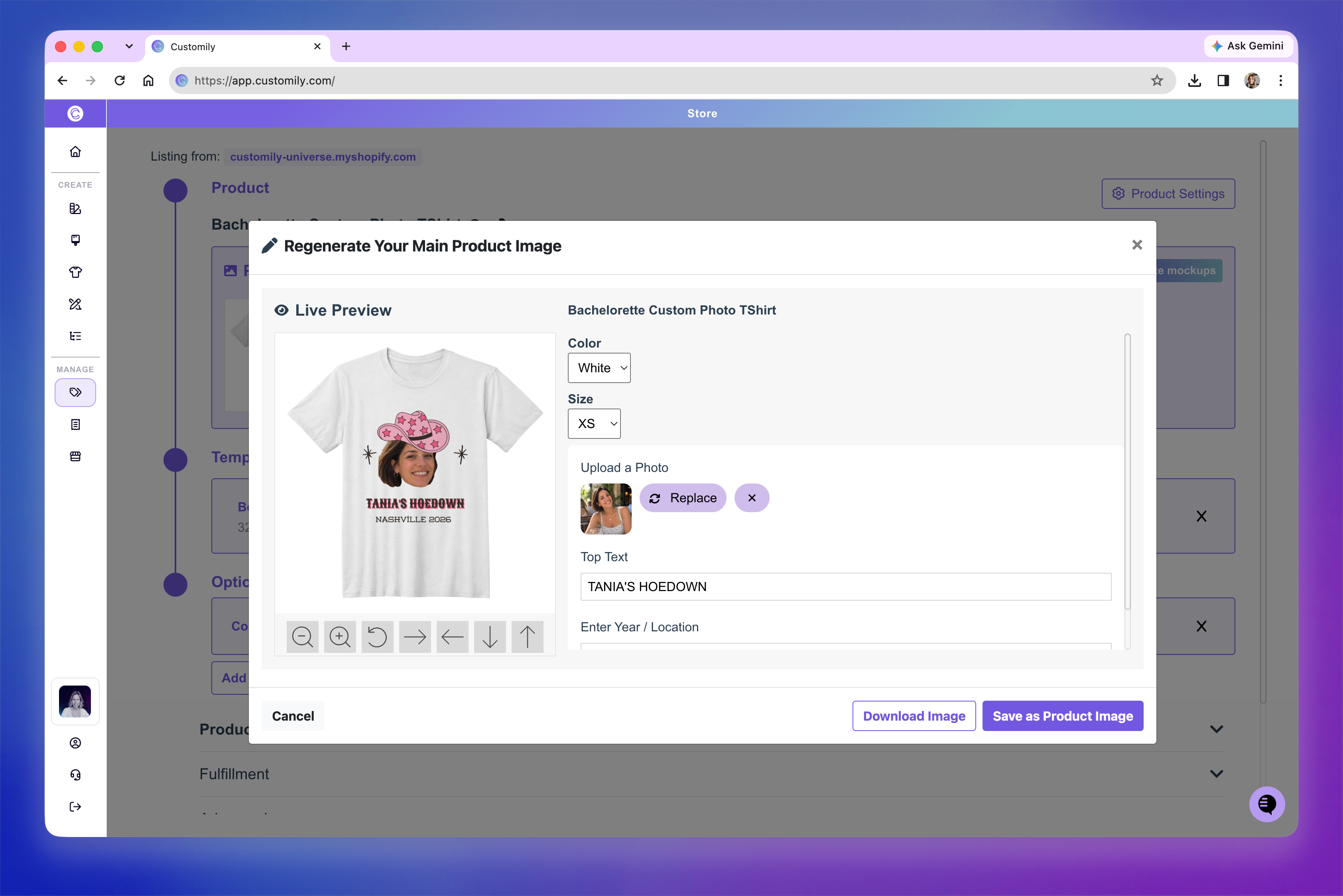
Click Save as Product Image to save your customized image.
You can also click Download Image to save a copy to your computer.
Generate AI mockups
Use Customily's AI mockup generator to place your product in realistic settings, such as lifestyle scenes, interiors, or outdoor environments.
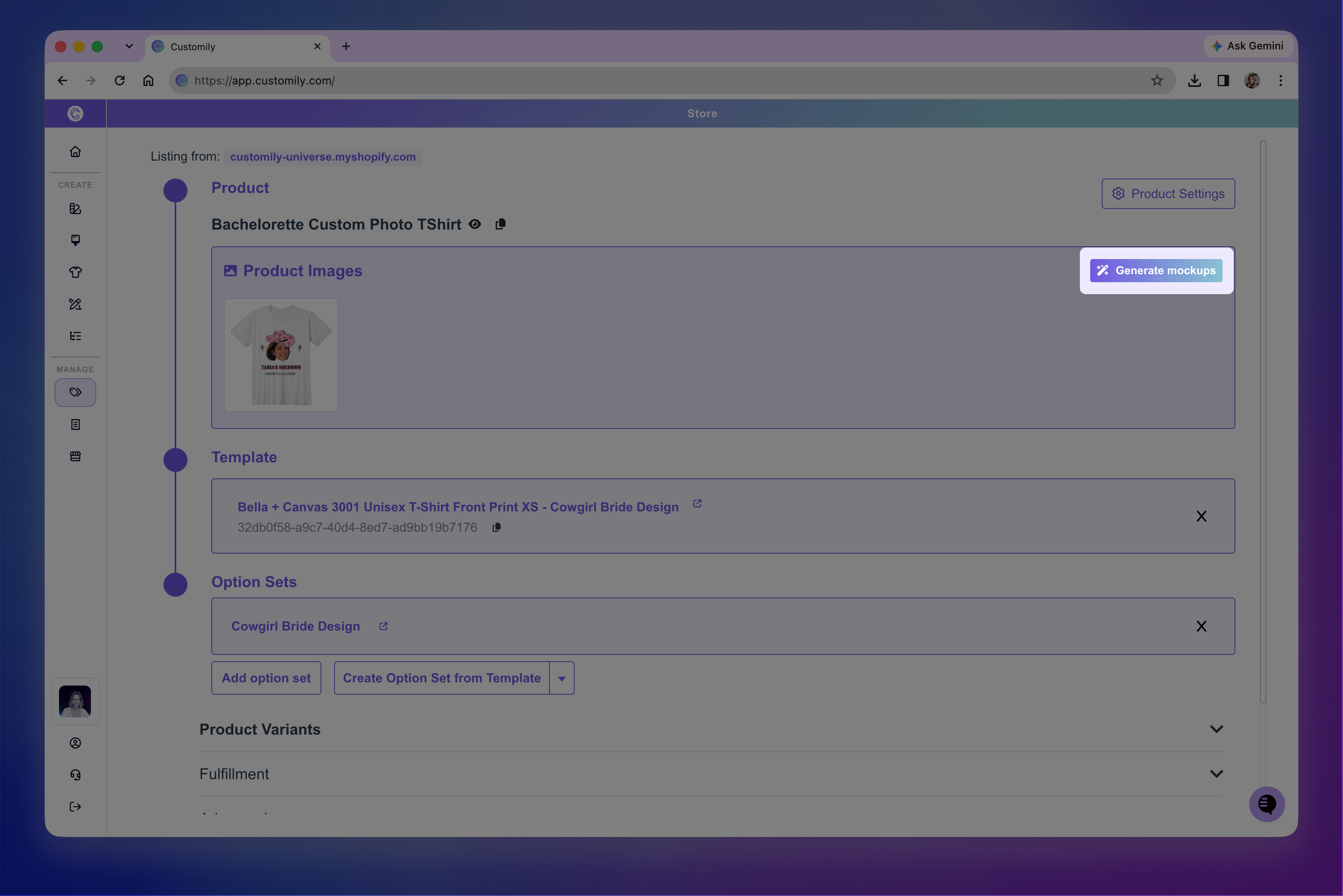
In the Product Images section, click Generate mockups.
Review the Reference Image on the left. This is your main product image, which Customily uses as the starting point for generating AI mockups.
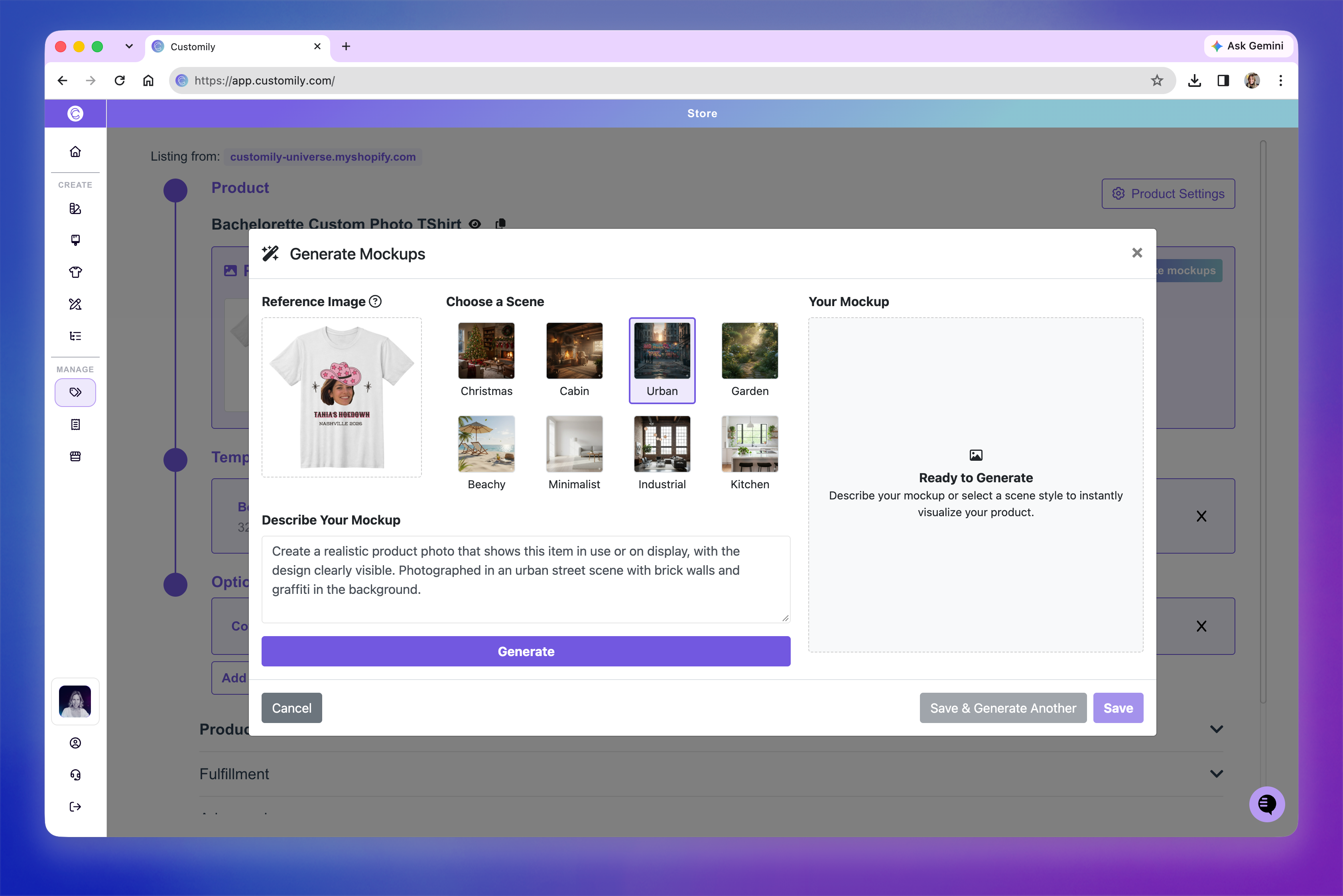
Choose one of the available scene presets, such as Urban, Garden, or Beachy, or write your own instructions in Describe Your Mockup.
Click Generate to create your mockup.
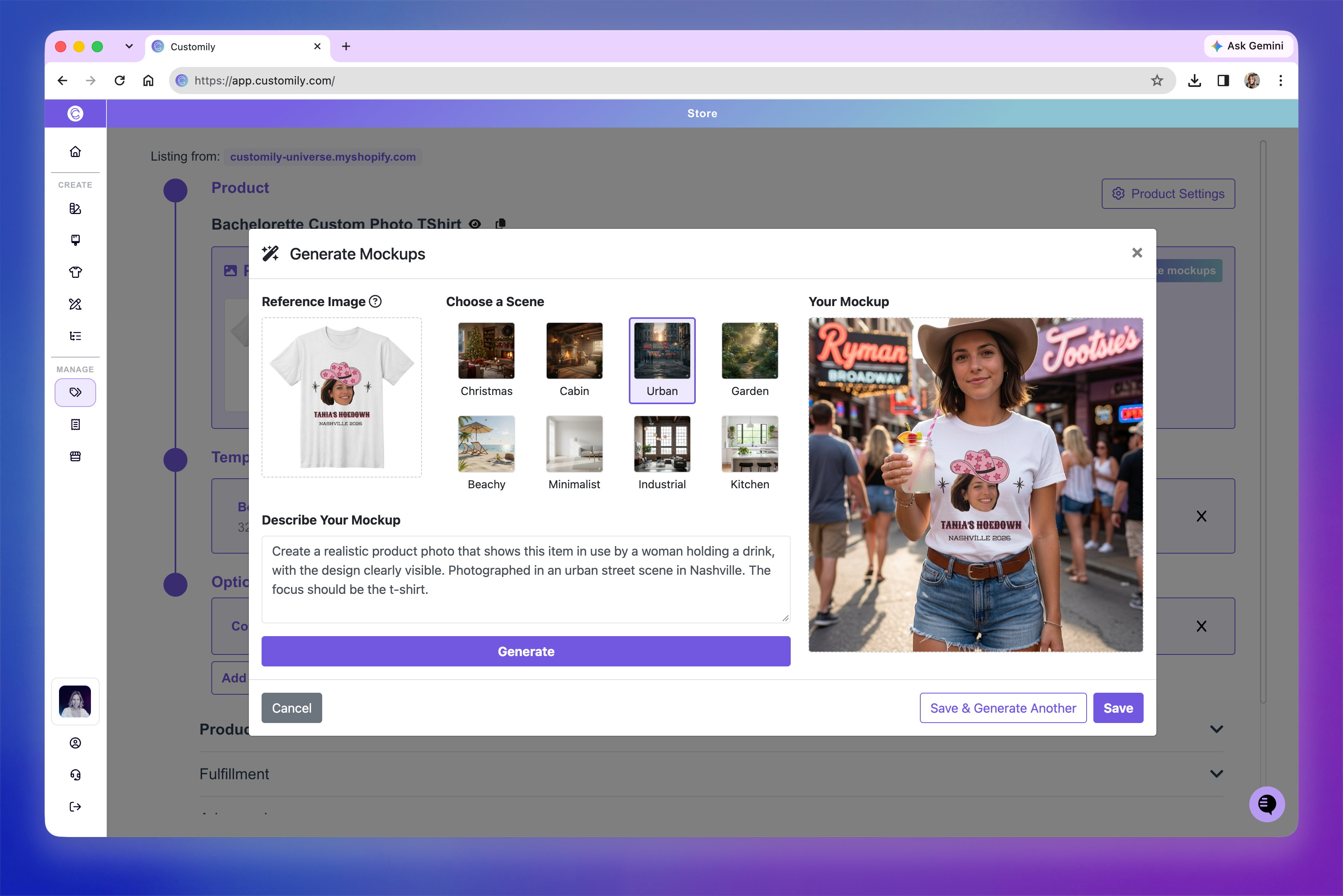
Review the generated image on the right.
Once you're happy with the result, choose:
Save to add the mockup to your product gallery.
Save & Generate Another to save the current image and continue creating more mockups.
You can also change the scene or description and click Generate again to try a different
There's no limit to how many mockups you can generate, but we recommend choosing a few that best showcase your product without overwhelming shoppers with too many gallery images.result.
Tip
You can repeat both processes to showcase different personalization examples. Customize your main image with a different name, photo, or text, then generate a new AI mockup using that version.
Manage your product images
All your product images appear in the Product Images section, including images you've already uploaded to your store.
You can add AI-generated mockups alongside your existing images without replacing them.
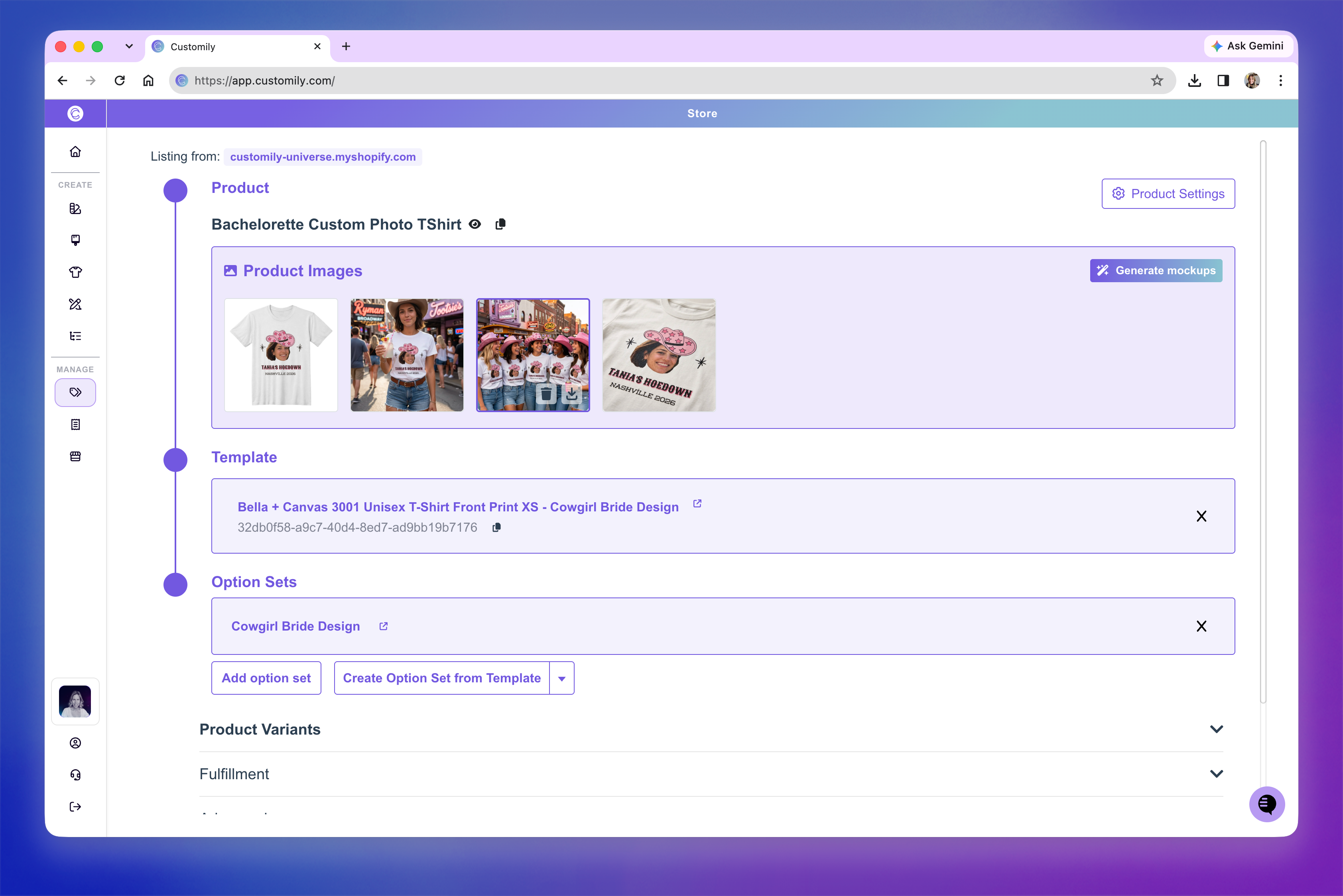
To download or remove a generated mockup, hover over the image and select Download or Delete.