Copy Settings from Another Product
Last updated: October 13, 2026
If you've already configured a product in Customily, you can copy its personalization setup to another product instead of setting everything up again. This is especially useful when selling similar products or the same product across multiple stores.
Copying includes the entire configuration, including the Template, Option Sets, variant functions, conditions, and other product settings.
How to copy settings from another product
Go to Products and open the product you want to copy settings to.
Expand the Advanced section.
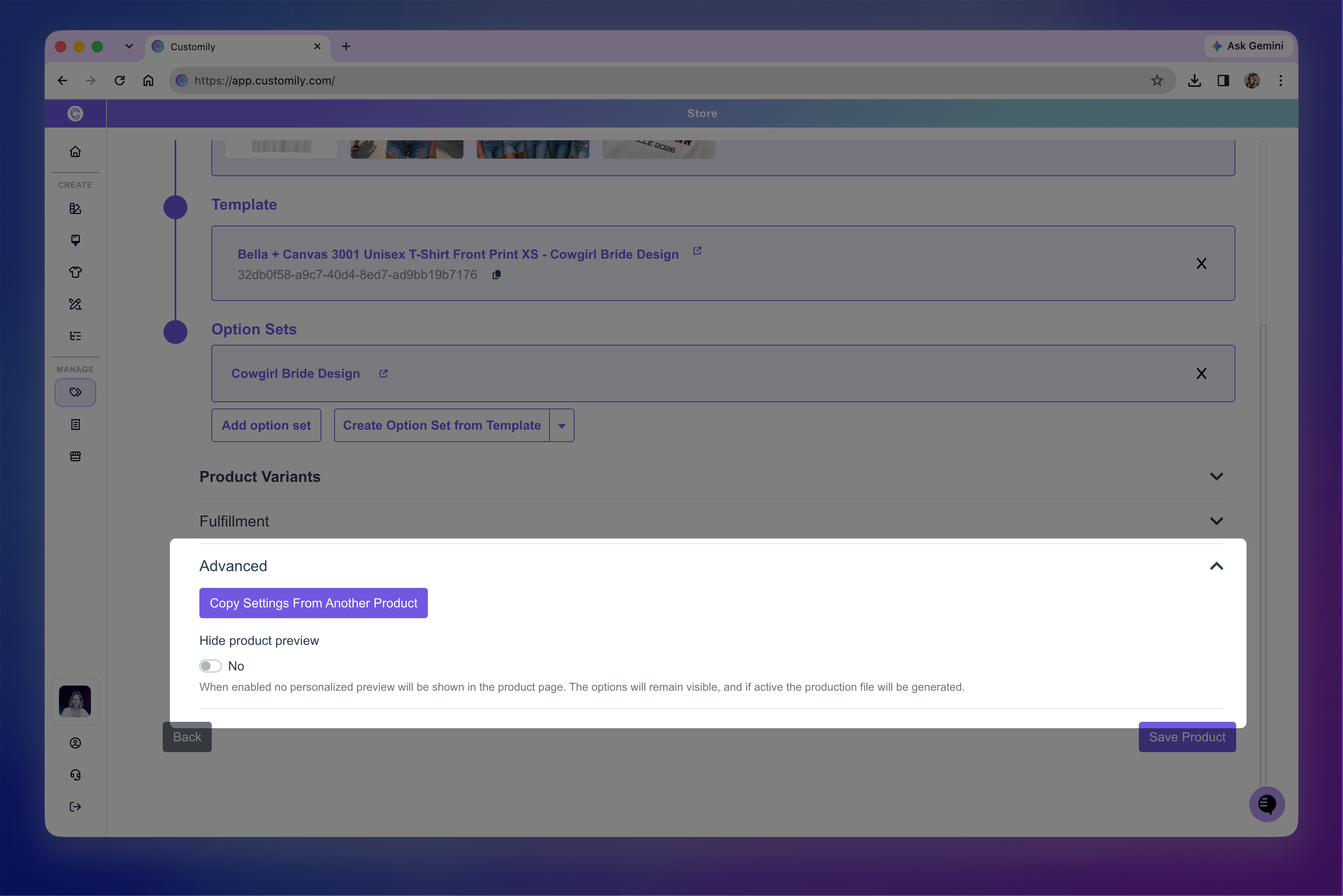
Click Copy Settings From Another Product.
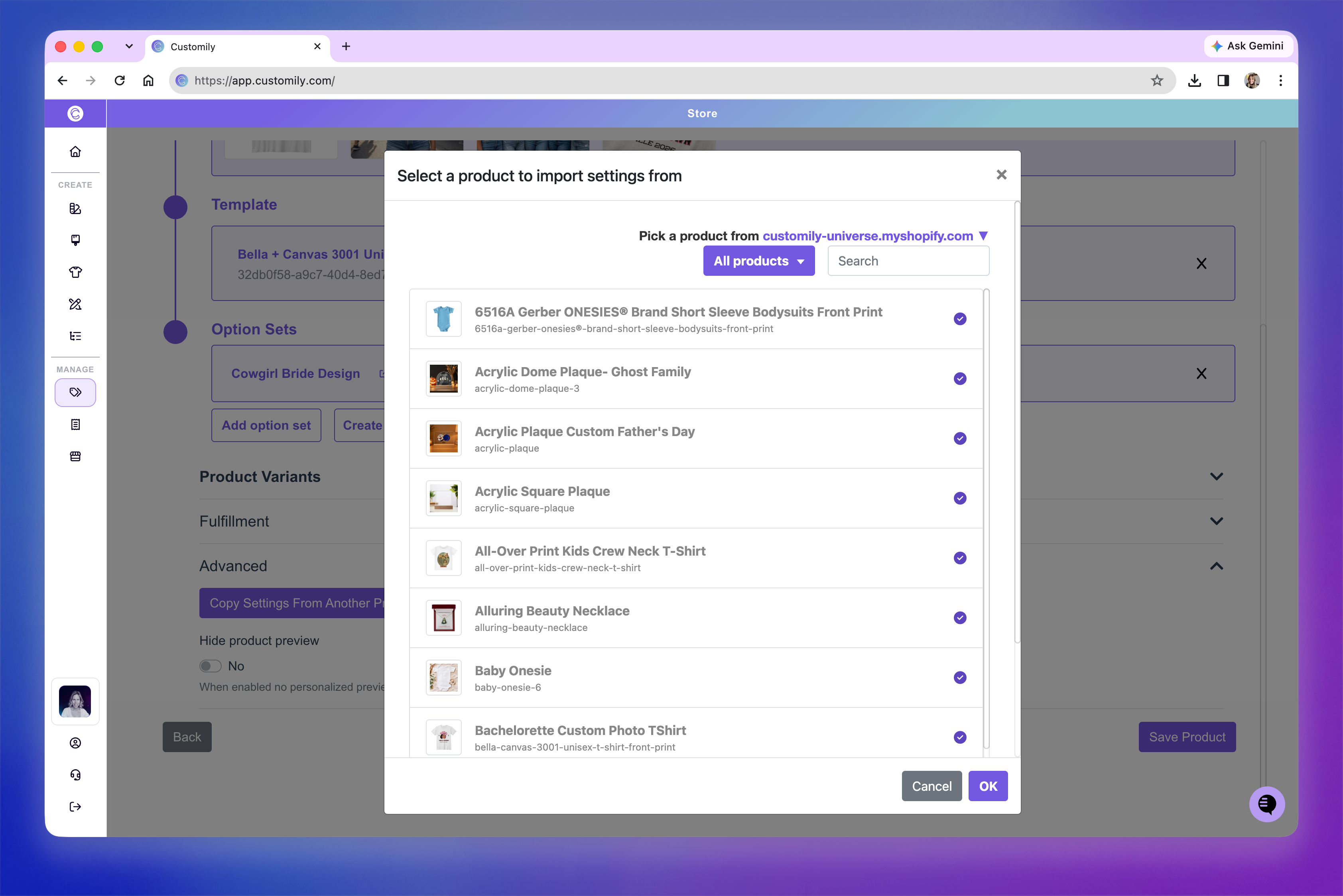
In the window that opens, find the product you want to copy settings from. You can use the search bar or filter the product list.
Tip
You can copy settings from products in another store connected to your Customily account. Use the store dropdown at the top of the window to switch stores.
Select the product and click OK.
Note
Copying settings immediately replaces the current product's configuration, including its Template, Option Sets, variant functions, and conditions. These changes are applied even if you don't click Save Product afterward.