Formatting an element
Last updated: April 28, 2026
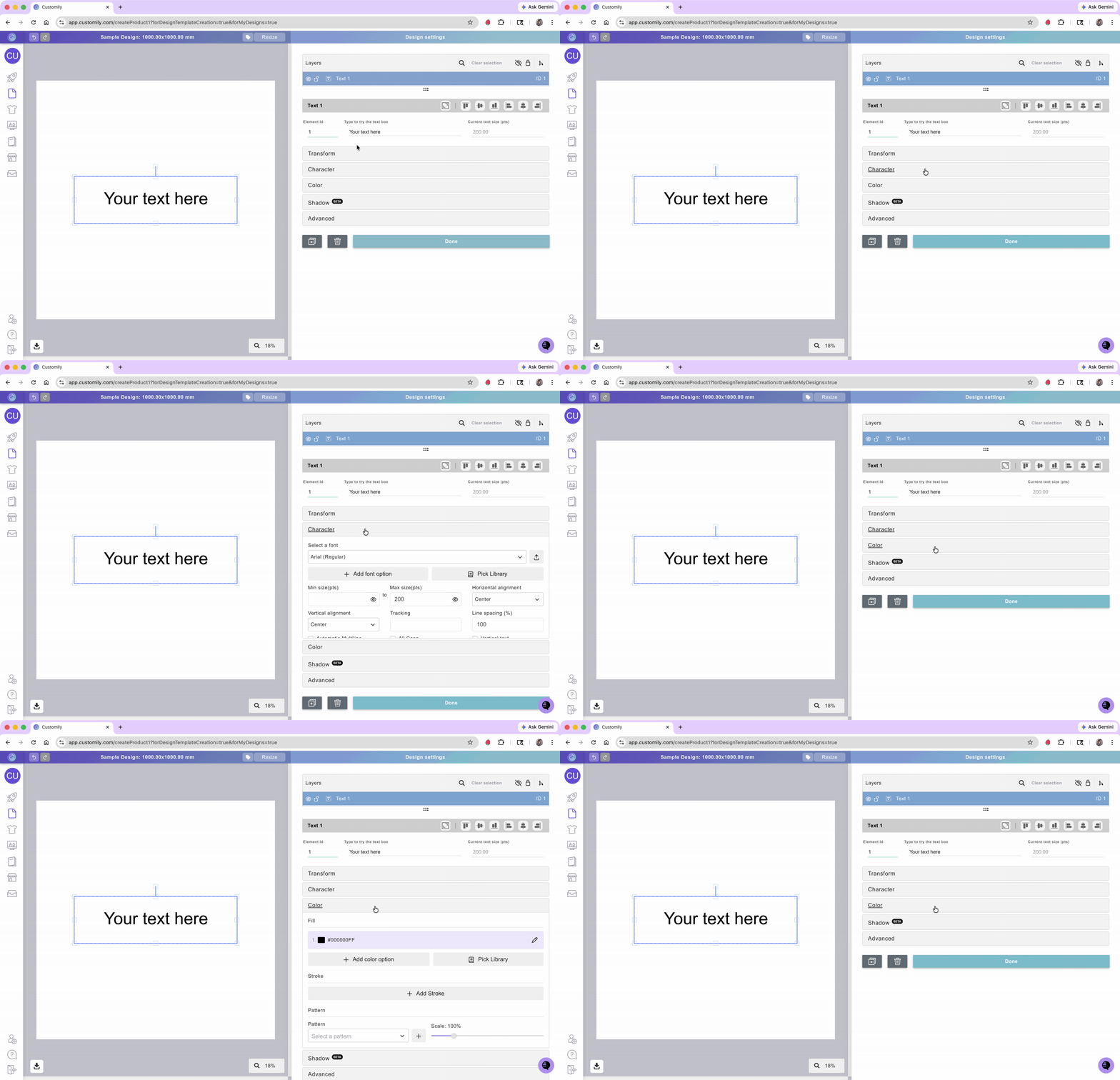
When you select an element in the Design Studio, the right-side panel will show the formatting options available for that element.
These options are grouped into expandable sections. The sections you see may change depending on the type of element you selected, because each element supports different settings.
For example, a text element will include settings related to fonts and text styling, while an image element may include settings related to image behavior or appearance.
This means you don’t need to look for the exact same options on every element. Instead, select the element you want to edit and expand the available sections to see what can be customized.
How to format an element
Select the element you want to edit.
Look at the panel on the right side of the Design Studio.
Expand the available sections to see the formatting options.
Adjust the settings you need.
Important
Formatting options are different for each element. This article explains the general process for working with them.
For details about the specific settings available for each element, refer to the article for that element type.