Add the preview image to order details
Last updated: October 2, 2026
Customily can include the personalized preview with each order, giving you a visual reference of the product the shopper created.
The preview appears in the order information on the merchant side, alongside the generated print file, and the shopper's personalization choices (line item properties). This makes it easy to compare the shopper's preview with the production file when reviewing or troubleshooting an order.
Show the preview on orders
Go to Store Settings > Advanced Settings → Order Information and make sure Add preview image to order is turned on.
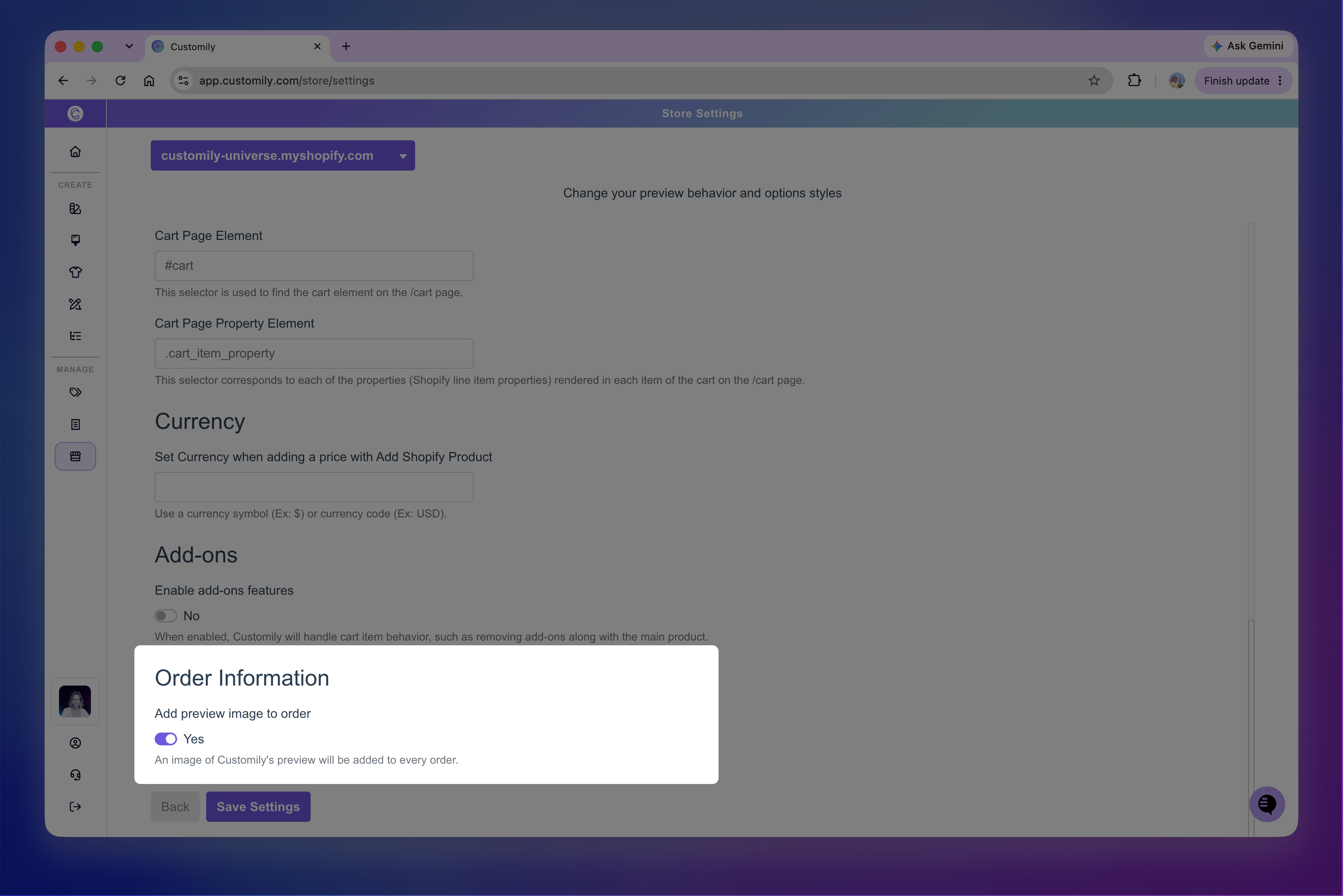
This setting is enabled by default. Turn it off if you don't want Customily to include the personalized preview in your order information.
Save your changes for the setting to take effect.
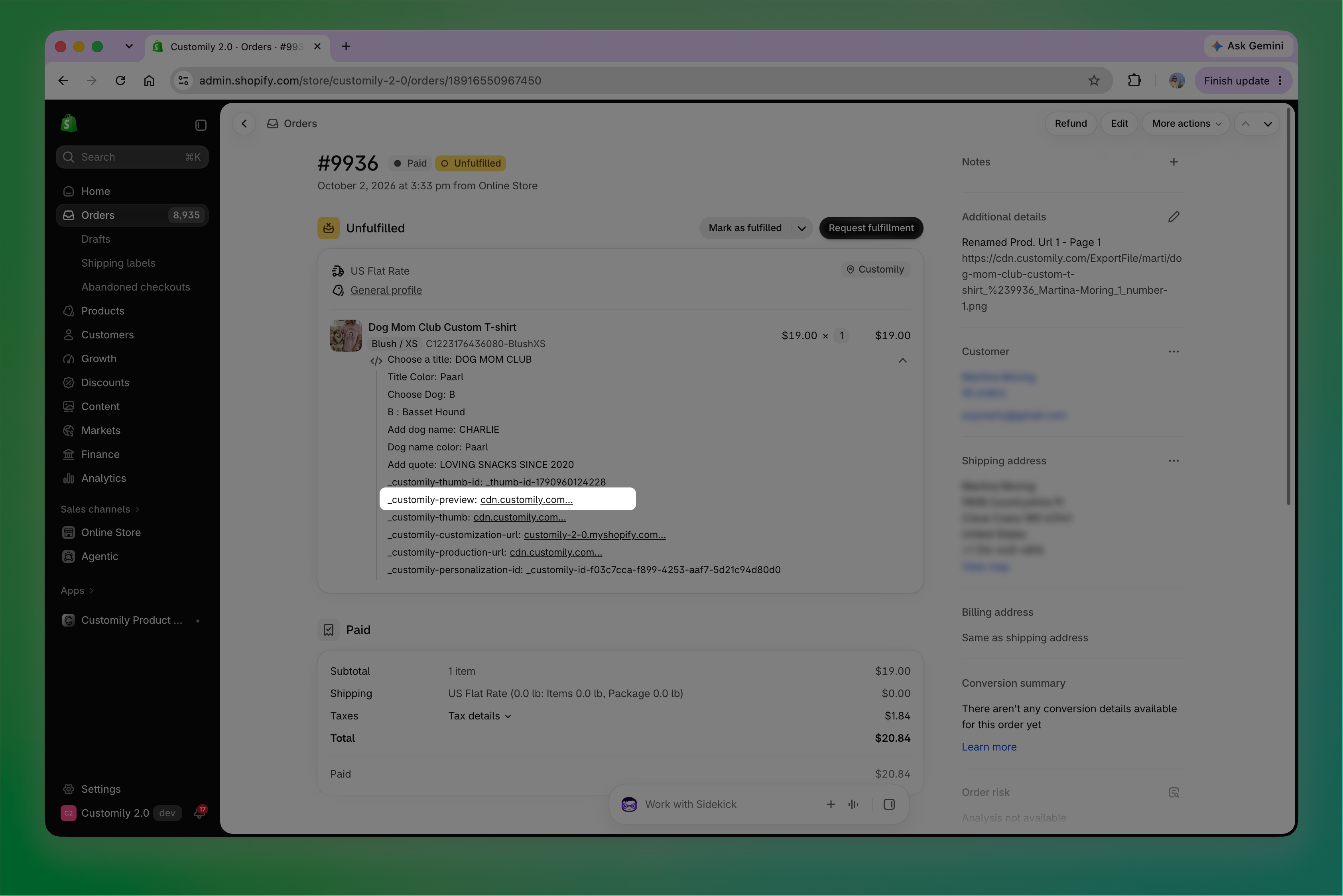
Why keep the preview on orders?
The preview gives you a quick visual reference of what the shopper saw when personalizing their product. It can be useful when reviewing an order, comparing the preview with the shopper's selections and generated print file, or troubleshooting a personalization issue.