Spotify Music Player
Last updated: October 27, 2026
The Spotify Music Player element lets you add personalized music players to your designs. Shoppers can search for a song, and Customily automatically displays its title, artist, album cover, and a scannable Spotify code.
You can customize the player's appearance by changing its fonts, colors, images, and controls, or rearranging its individual elements to match your design.
How It Works
When you add a Spotify Music Player to your design:
Shoppers search for a song or artist and select a track.
The player automatically updates to display the song title, artist, album cover, and Spotify code.
You can customize the appearance and position of each element in the player.
Shoppers can scan the Spotify code to open the selected track in Spotify.
How to add a Spotify Music Player
Open your Design or Template in the Design Studio.
Click Spotify Player to add a new element.
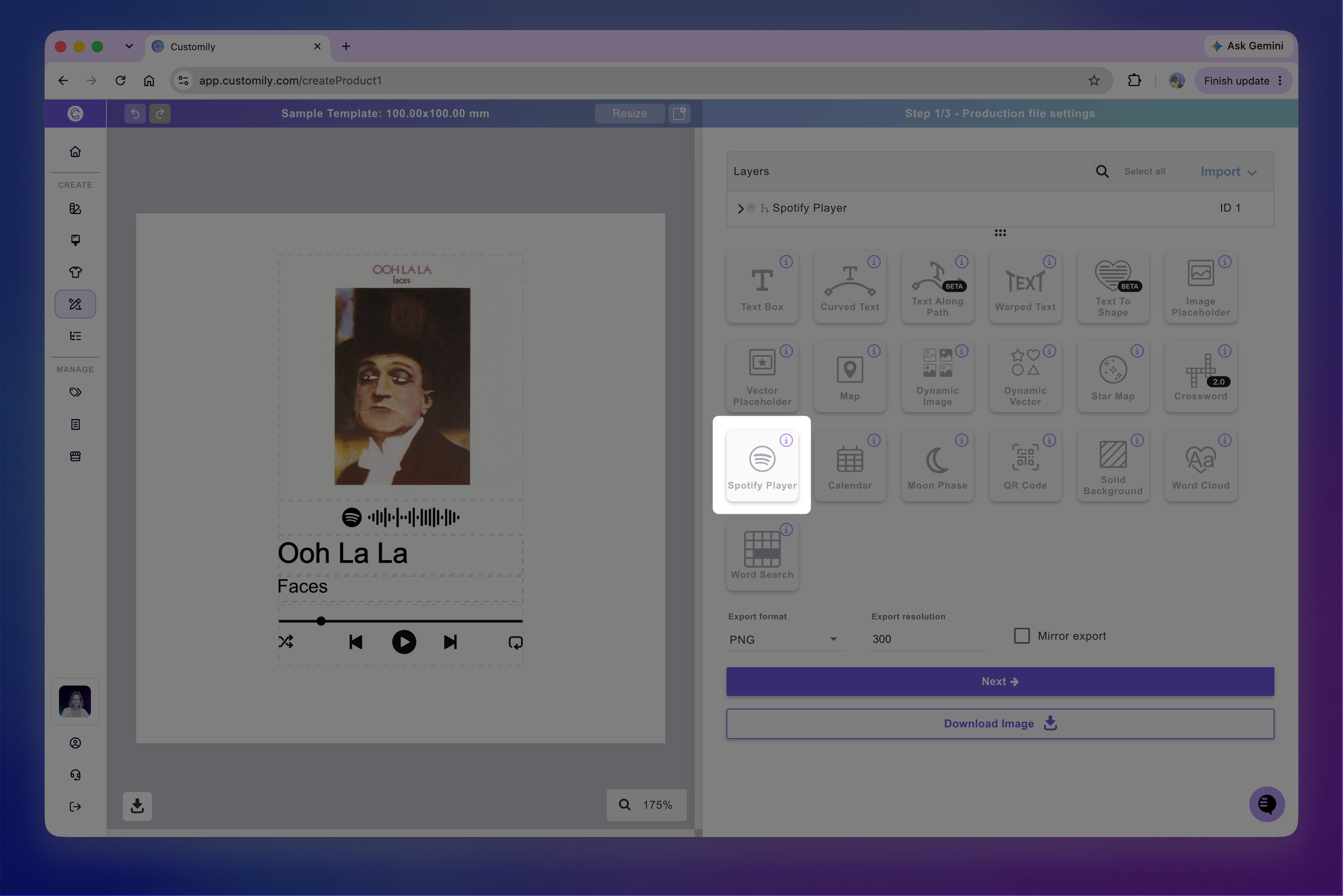
Each Spotify Music Player has a name you can edit and a unique ID to help you identify it.
Unlike other elements, the Spotify Music Player is added as a group of individual elements:
Image Placeholder: Displays the album cover.
Image Placeholder: Displays the Spotify code.
Text Box: Displays the song title.
Text Box: Displays the artist name.
Dynamic Vector: Displays the player controls, such as play and pause icons.
How to move, resize and transform the Spotify Music Player
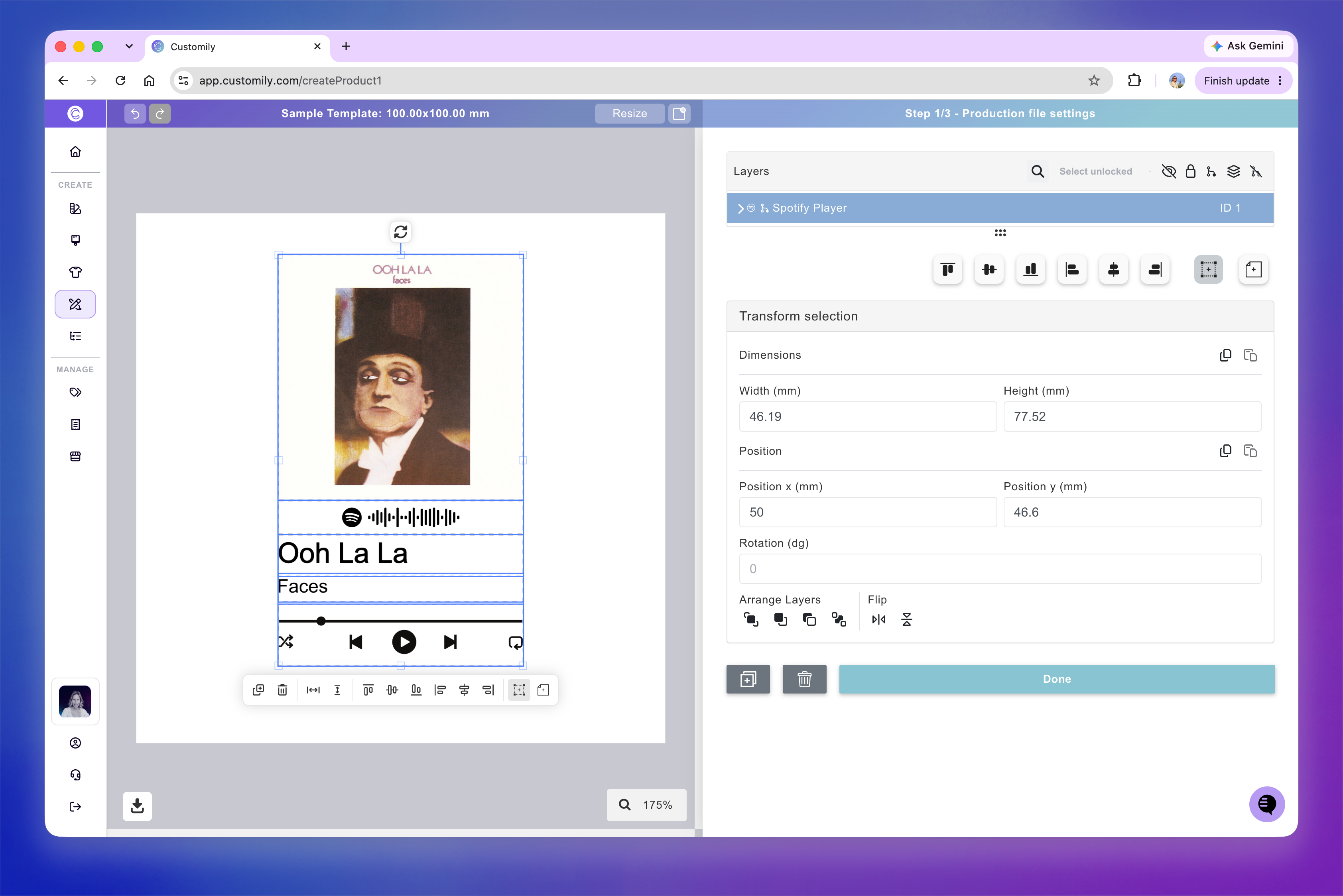
You can move, resize, and rotate the player directly on the canvas. You can transform the entire player as a group or select individual elements to move, resize, and arrange them separately.
When you select the player or one of its elements, a quick-action toolbar appears below it, with shortcuts to duplicate, delete, align, and distribute elements.
For more precise adjustments, expand the Transform toolbox. Use these controls to adjust the map's position, rotation, size, flip, and layer order.
How to customize the Spotify Music Player
Since the Spotify Music Player is made up of individual elements, you can customize each one using its corresponding toolbox.
You can change the appearance of the song title and artist name, adjust the album cover and Spotify code, customize the player controls, and rearrange the elements to create your preferred layout.
Customize the song title and artist name
Select either Text Box to change its font, size, color, alignment, and other text settings.
See 📄 Text box for more information on text customization.
Customize the album cover and Spotify code
Select either Image Placeholder to adjust its size, shape, and image behavior.
You can also configure the album cover placeholder to allow shoppers to replace the album artwork with their own uploaded image. See 📄 Image placeholder for more information on image upload customization.
Customize the player controls
Select the Dynamic Vector element to change the appearance of the player controls, such as the play and pause icons.
You can replace the available vector options, add or remove colors, or adjust their appearance to match your design. See 📄 Dynamic vector (clipart) for more information.
Rearrange or remove elements
You can move and resize individual elements to create your preferred player layout.
You can also hide or delete elements you don't want to display, or replace them with other design elements.
Note
The Spotify Music Player relies on the IDs of its individual elements to display the correct song information. Make sure to preserve these IDs when customizing the player.
Test how the shopper's Spotify Music Player will look
While configuring your Spotify Music Player, you can search for a sample song to see how the player will look in your design.
Select any element within the Spotify Music Player.
Enter a song or artist in the search field.
Select a track from the search results.
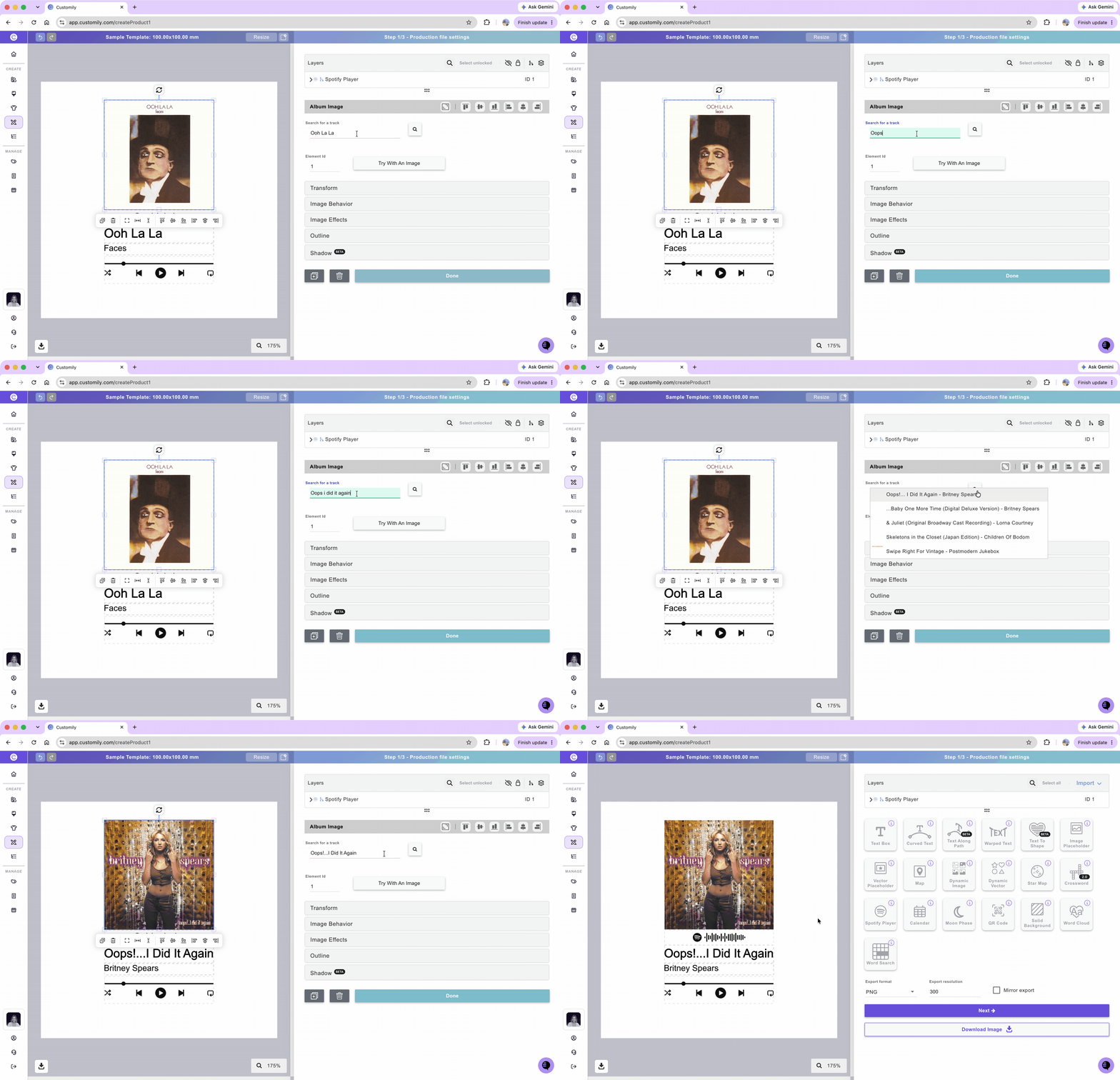
The player will update to display the selected song's title, artist, album cover, and Spotify code.
This song is only for testing. Your shoppers will be able to search for and select their own songs during personalization.
How to use your own Spotify credentials
By default, Customily uses its own Spotify API credentials to retrieve song information. During periods of high traffic, Spotify may apply rate limits that affect song searches.
You can connect your own Spotify credentials to use your own API access.
Open the Spotify Developer Dashboard and log in.
Create a new app and complete the required information.
Copy your Client ID and Client Secret.
In Customily, go to Account → Integrations.
Enter your credentials in the Spotify section.
Using your own credentials can help reduce the impact of rate limits associated with Customily's shared Spotify credentials.