Templates with multiple previews
Last updated: May 5, 2026
Templates can include multiple previews, allowing you to display your product in different ways while using the same template.
Each preview is a different mockup of the same product.
Important
This feature is currently available for Shopify
When should you use multiple previews?
Use multiple previews when you want to:
Show different views of the same product (e.g., front and back)
Display different visual contexts (e.g., clean mockup vs lifestyle image)
How do multiple previews work?
On the design studio
You can add multiple previews to your template, and each preview can be configured independently.
Each preview can have its own background
Elements can be resized and rearranged independently in each preview
You can show or hide elements independently on each preview
You can add dynamic images to each preview independently
Multiple previews only affect how your product is displayed — they do not change the production file.
Keep in mind
Multiple previews are different from multiple pages:
Multiple pages → generate multiple production files
Multiple previews → show multiple mockups of the same product
You can use each feature independently, or combine them depending on your product.
For example a t-shirt with personalization on the front and back
You would use multiple pages to generate a print file for each side
And multiple previews to show the front and back views separately
On your store
Each preview becomes a selectable option for shoppers
Shoppers can switch between previews to view different versions of the product
Previews can also change automatically:
When a shopper interacts with a personalization that belongs to a specific preview, the view will switch accordingly. For example, if you have a front/back setup and the shopper edits a field placed on the back, the preview will automatically switch to the back view
All personalization options remain visible at all times, even if they belong to different previews (e.g., front and back)
Important
Do not show or hide personalization options based on the selected preview.
Previews only control how the product is displayed — not how personalization works.
If options are hidden depending on the preview:
Some required inputs may not be filled
This can result in missing personalization details when the product is added to the cart
How to create multiple previews
Open your template in the Design Studio
Go to Preview Setup
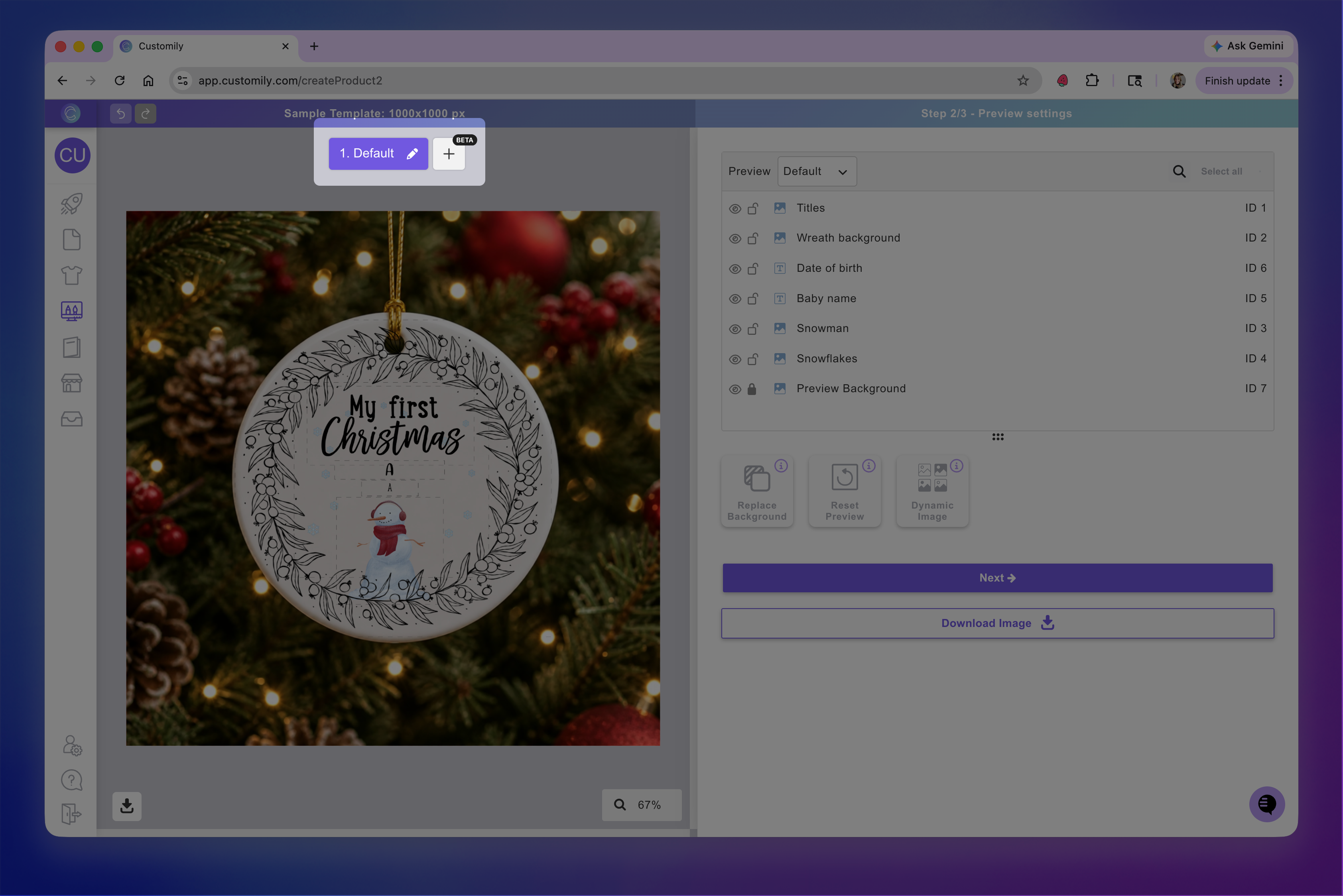
On the top of the Canvas you will it's displaying the Default Preview, you can rename this preview if needed. Click the “+” button next to it to create a new preview
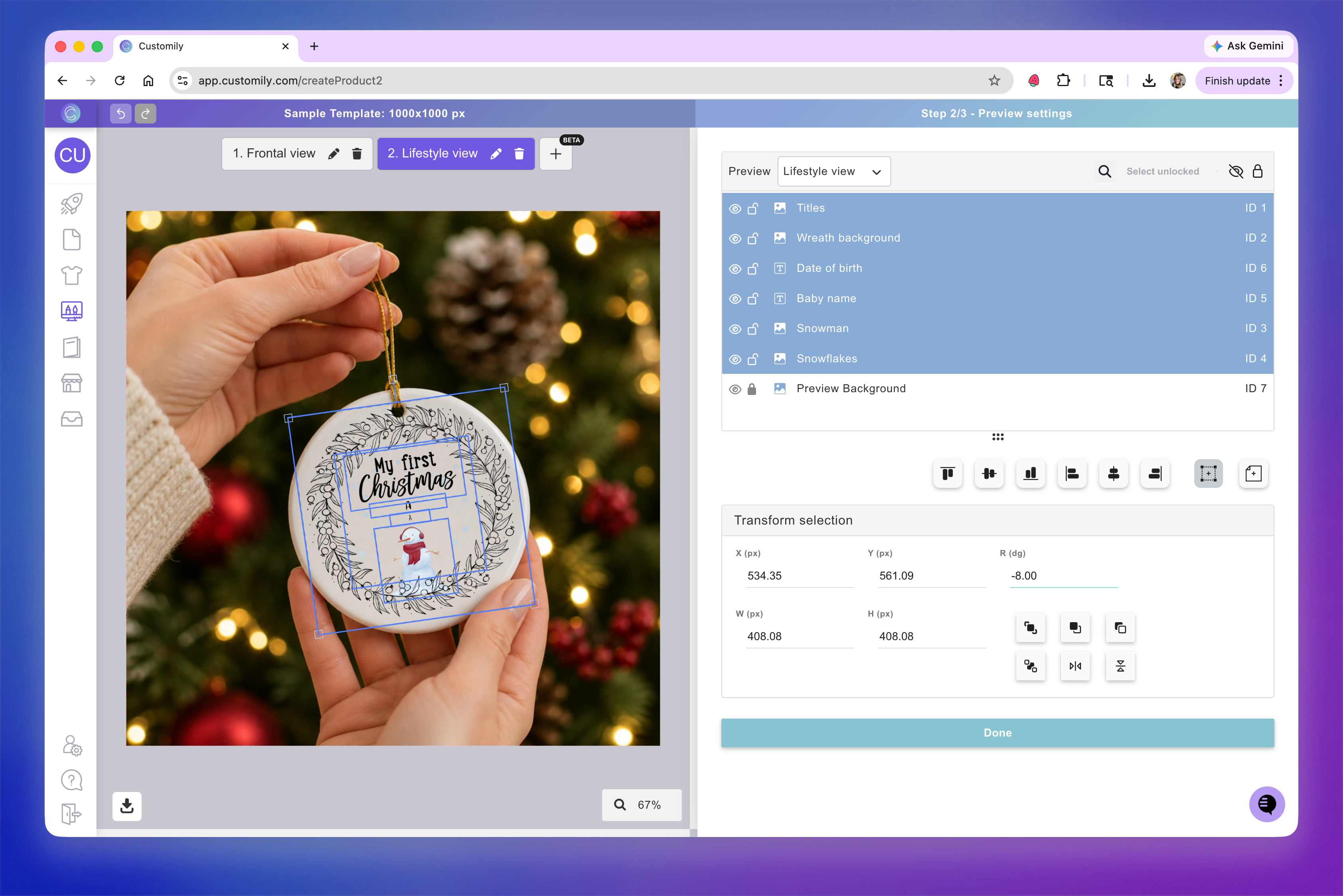
Adjust your design for that preview. You can add a background and choose to show or hide specific elements depending on the selected preview. You can also add dynamic images on each preview independently, to have different effects and results.
Tip
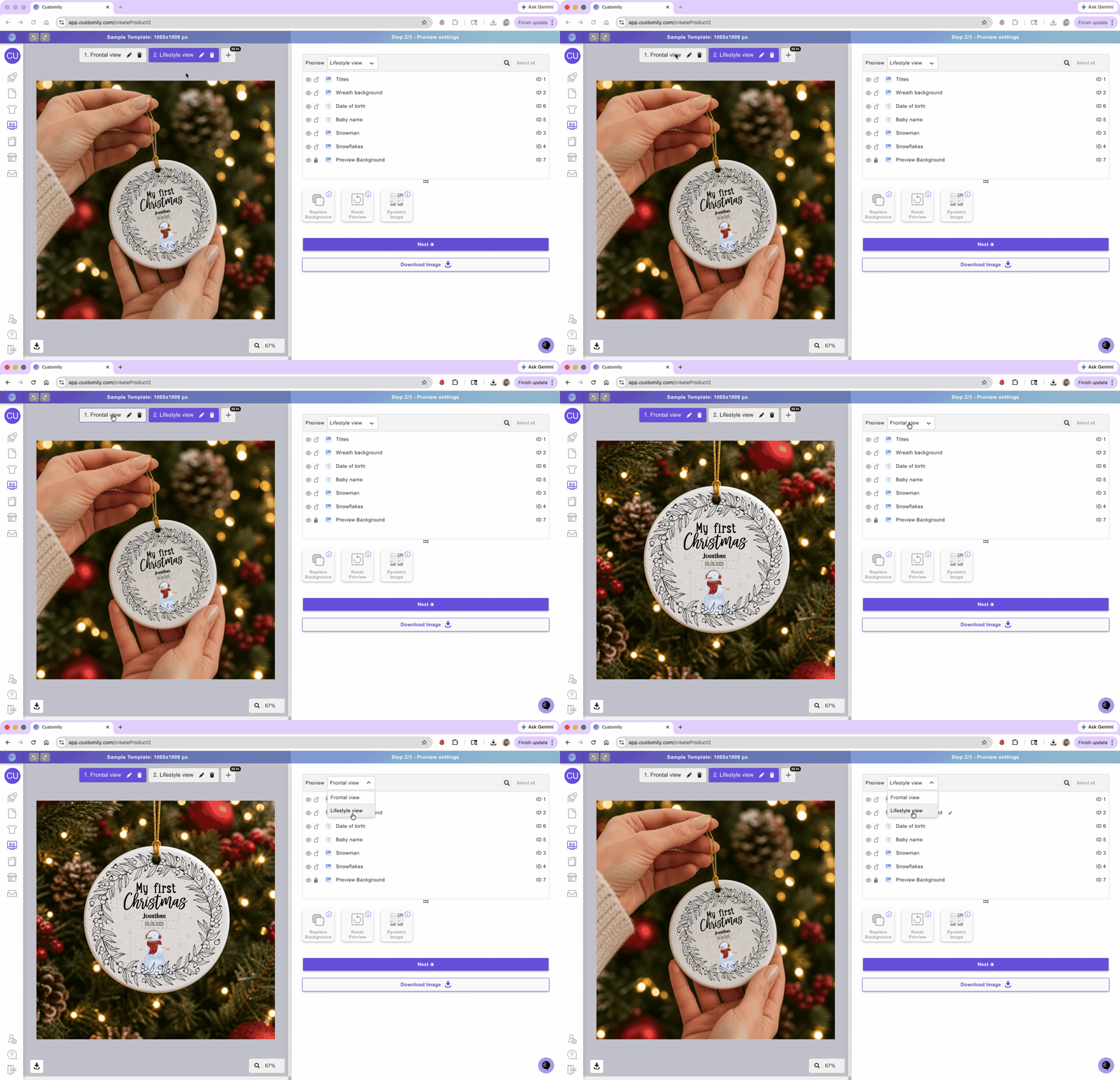
You can switch between previews using the controls at the top of the canvas or at the top of the layer panel.
Each preview has its own version of the layer panel, allowing you to show or hide elements independently.
Using multiple pages and multiple previews together
In some cases, you’ll want to use both features together.
This is common when your product has multiple print files (e.g., front and back), and you also want to display them clearly to shoppers.
How it works
Use multiple pages to generate a production file for each part of the product
Use multiple previews to show each part separately in the mockup
On your store:
The preview will switch automatically when a shopper interacts with a personalization that belongs to a specific view. For example, if a shopper edits text placed on the back, the preview will switch to the back view
Shoppers can also switch between previews to view each side of the product manually
How to set it up
Create multiple pages in your print file
Add one page for each part of the product (e.g., front and back)
Add your design elements to each page
Configure the personalization for each side as needed
Go to Preview Setup
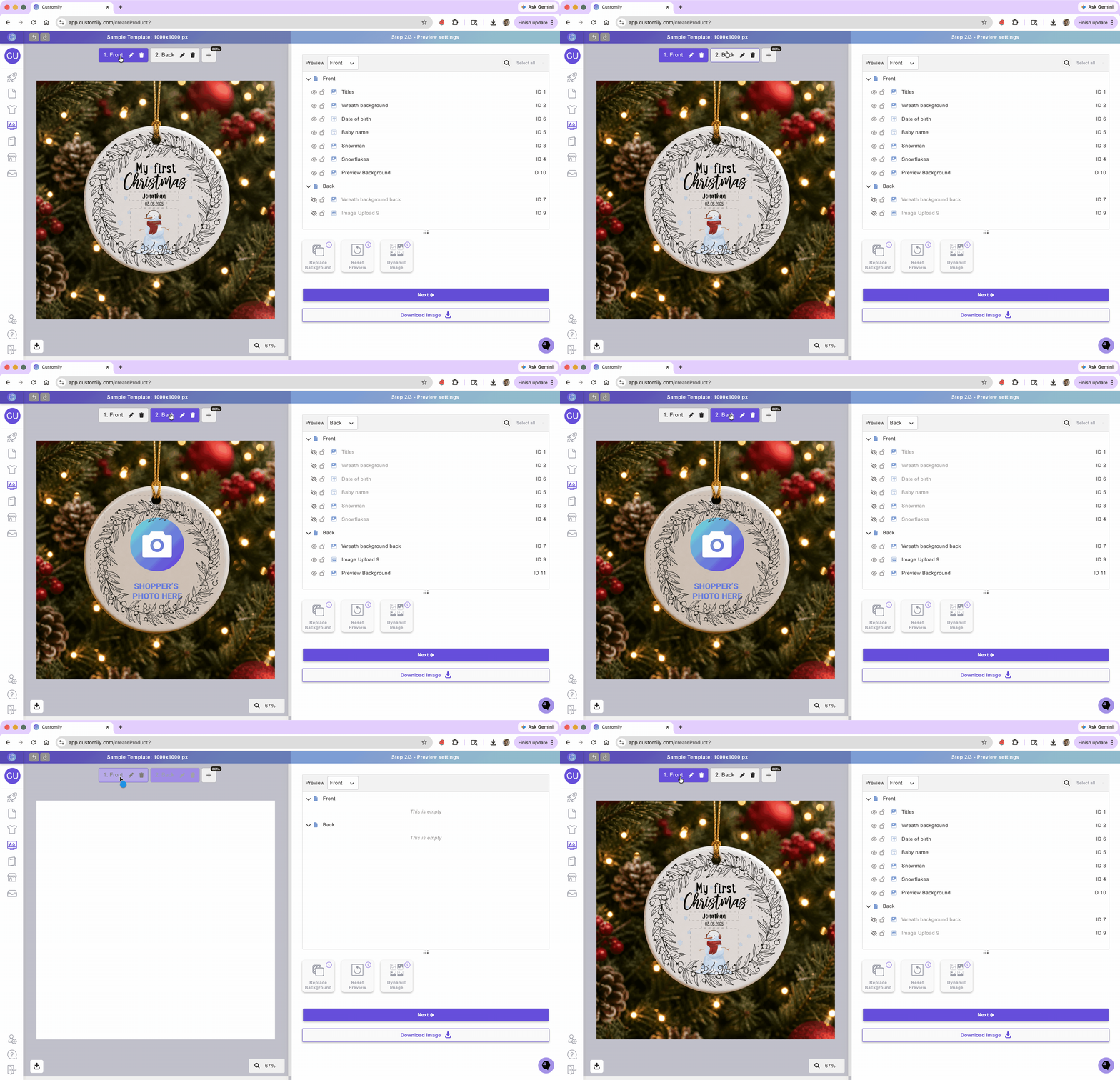
Create a preview for each view
One preview for the front
One preview for the back
Adjust each preview
Show only the elements that belong to that view
Position and scale them to match the product
Tip
You can add as many previews as needed and control what each one shows by turning layers on or off.
For example, you can create:
A front view
A back view
A side view
A combined view showing multiple sides together