Manage a product in Customily
Last updated: October 12, 2026
When you open a product from Products, you'll access its product settings, where you can manage how that product works with Customily.
From here, you can connect or update its personalization setup, review its current configuration, and manage product-specific settings.
Open a product
Go to Products and click the product you want to manage.
The product settings page will show its current Customily setup and the options available for that product.
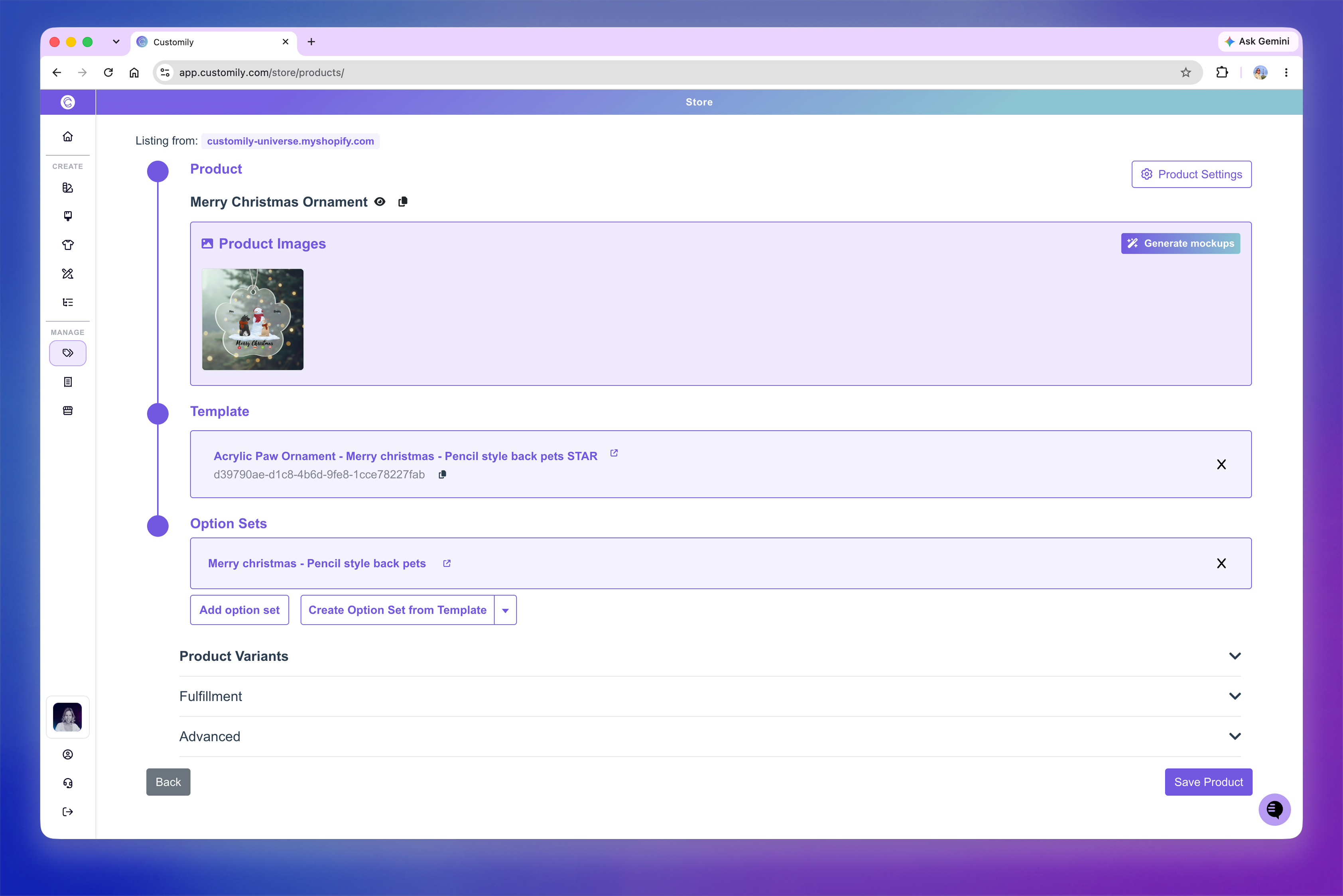
View your product
At the top of the page, you'll see the product name along with shortcuts to view or share the product on your storefront.
Click the eye icon to open the product on your storefront.
Click the copy icon to copy the product URL.
Product Images
The Product Images section displays the images currently included in your product gallery.
To create additional product images, click Generate mockups. You can use AI to generate new images using your personalized product preview and a prompt.
Template
The Template section shows the Template currently connected to the product.
The Template powers the personalized design, including the live preview and the print-ready file generated for orders.
From here, you can open the Template or change the Template connected to the product.
Option Sets
The Option Sets section shows the personalization options currently connected to the product.
From here, you can open existing Option Sets, add another Option Set, or create an Option Set from the connected Template.
Product Variants
In the Product Variants section, you can configure how personalization responds to the variants shoppers select in your store, such as color or size. Expand it to view the variants available for the product and configure how they work with Customily.
You can:
Assign Customily functions to product variants: Automatically update the product preview when shoppers select a variant. See 📄 How to Add Functions to Product Variants.
Add conditions based on product variants: Show or hide personalization options depending on the selected variant. See 📄 How to use Conditions with Product Variants.
Note
Product variants are created and managed in your e-commerce platform, not in Customily.
Fulfillment
Expand Fulfillment to view the product's fulfillment setup.
If the product is connected to a print-on-demand provider, its fulfillment information will appear here.
Advanced
The Advanced section includes additional tools for managing the product setup, including the option to copy its settings to another product.
Product Settings
Click Product Settings at the top right to configure Customily settings specifically for this product.
Product Settings let you override your general Store Settings when a product needs different behavior or styling. Settings configured here apply only to this product, while products without specific overrides continue using your Store Settings.