Customize progress indicators
Last updated: October 1, 2026
Progress indicators help shoppers see where they are in the personalization process. Depending on your Preview Style and how your Option Set is organized, Customily can display a Step Counter or a Progress Bar for Sections.
Customize the Step Counter
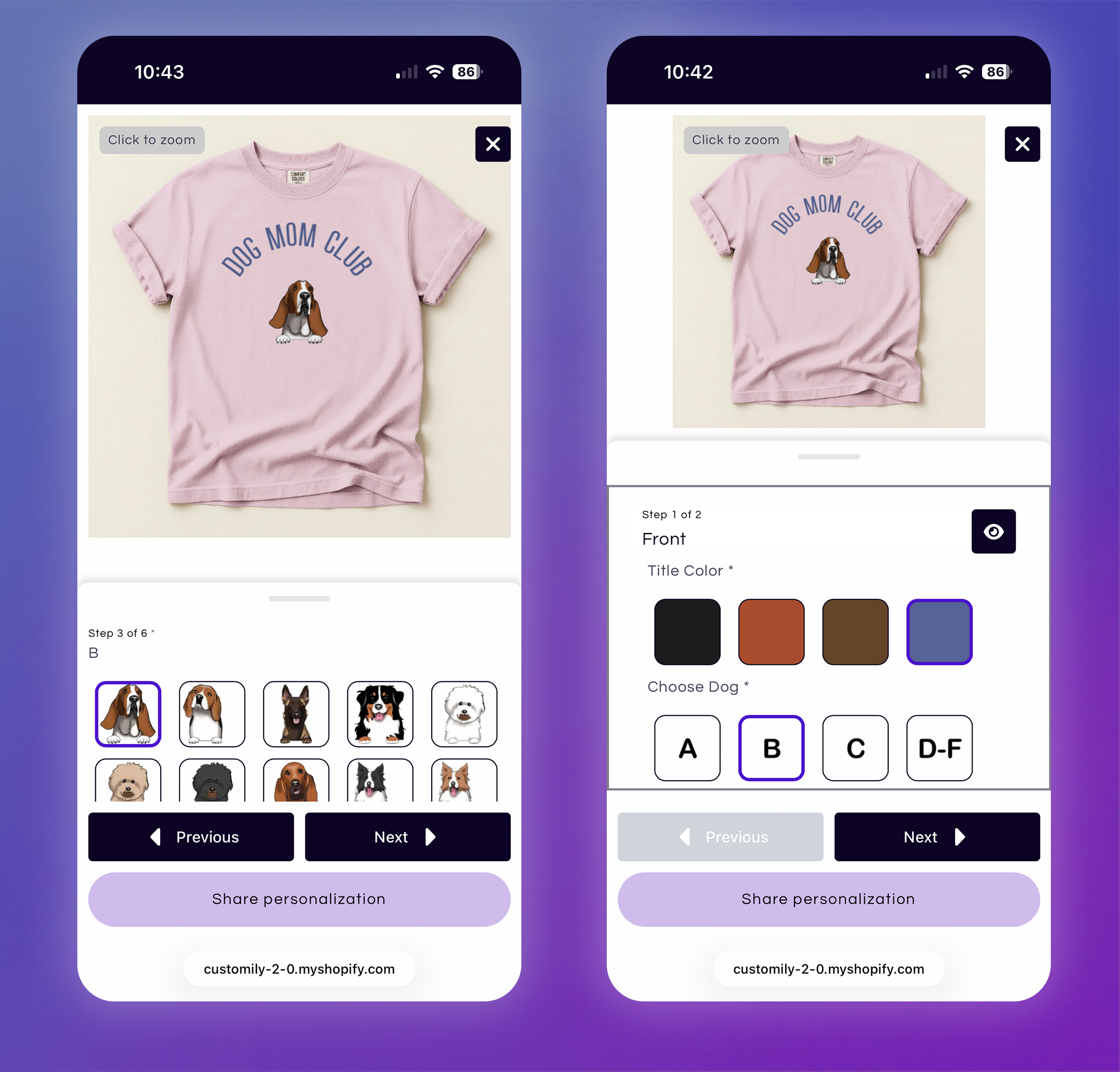
The Step Counter appears automatically when using Modal Preview on mobile and shows shoppers their current position in the personalization flow.
If your Option Set doesn't use sections, the counter follows the individual personalization options. If your Option Set uses sections, it follows the sections instead.
The text displayed before the numbers comes from your Step Counter settings, so you can choose the wording that best fits your personalization flow.
Customize the Step Counter text
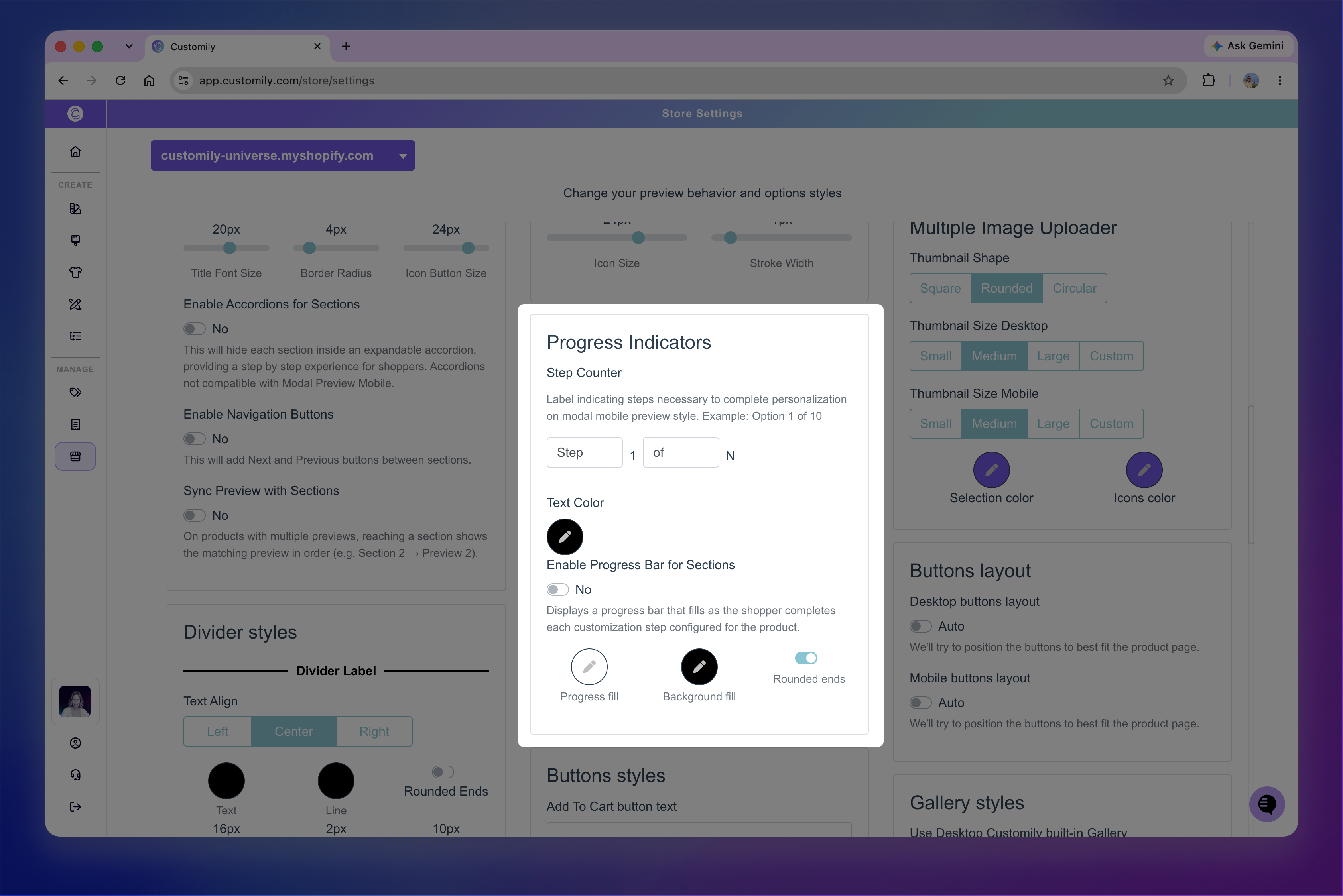
Go to Store Settings > Styles → Progress Indicators to customize the text and Text Color used by the Step Counter.
You can customize the label displayed before the current step and the text displayed between the current and total number.
For example:
Step 3 of 6
Choice 3 / 6
Show a progress bar for sections
If your Option Set uses sections, you can display a progress bar when shoppers navigate through them one section at a time.
The progress bar is available when:
Enable Navigation Buttons is turned on.
Enable Accordions for Sections is turned off.
Go to Store Settings > Styles → Progress Indicators, then turn on Enable Progress Bar for Sections.
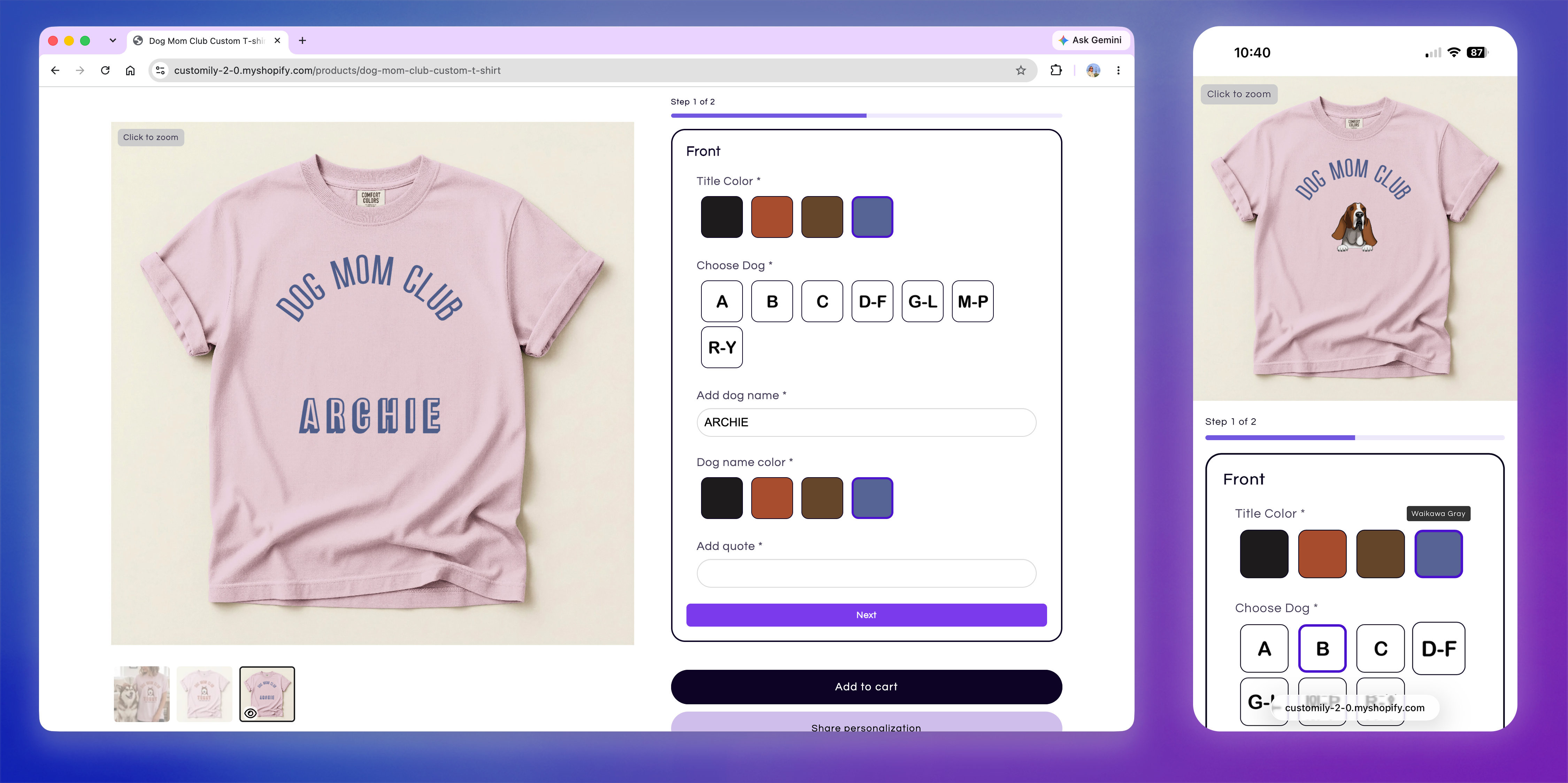
The progress bar is divided according to the number of sections in your Option Set and advances each time the shopper selects Next. Progress is based on navigation, so shoppers don't need to complete the options in a section for the bar to advance.
When the progress bar is enabled, the Step Counter also appears above it, showing the shopper's current section and the total number of sections.
Note
The Progress Bar for Sections can be used with Product Page Preview on desktop and mobile, and Modal Preview on desktop. It isn't supported with Modal Preview on mobile.
Customize the progress bar
You can customize:
Progress fill color: Changes the color showing completed progress.
Background fill color: Changes the color of the remaining progress bar.
Rounded ends: Rounds the ends of the progress bar.
The Step Counter displayed above the progress bar uses the same Step Counter settings described above. You can customize its label, separator text, and Text Color to match your personalization flow.