Customize dropdowns
Last updated: October 1, 2026
Customize how shoppers browse and select choices from dropdowns. You can add a search field to make long lists easier to navigate and customize how images appear inside Dropdown Swatches.
Add search to dropdowns
For regular Dropdowns with many choices, add a search field so shoppers can quickly find an option without scrolling through the entire list.
Go to Store Settings > Styles → Dropdown Search and turn on Enable search in dropdown.
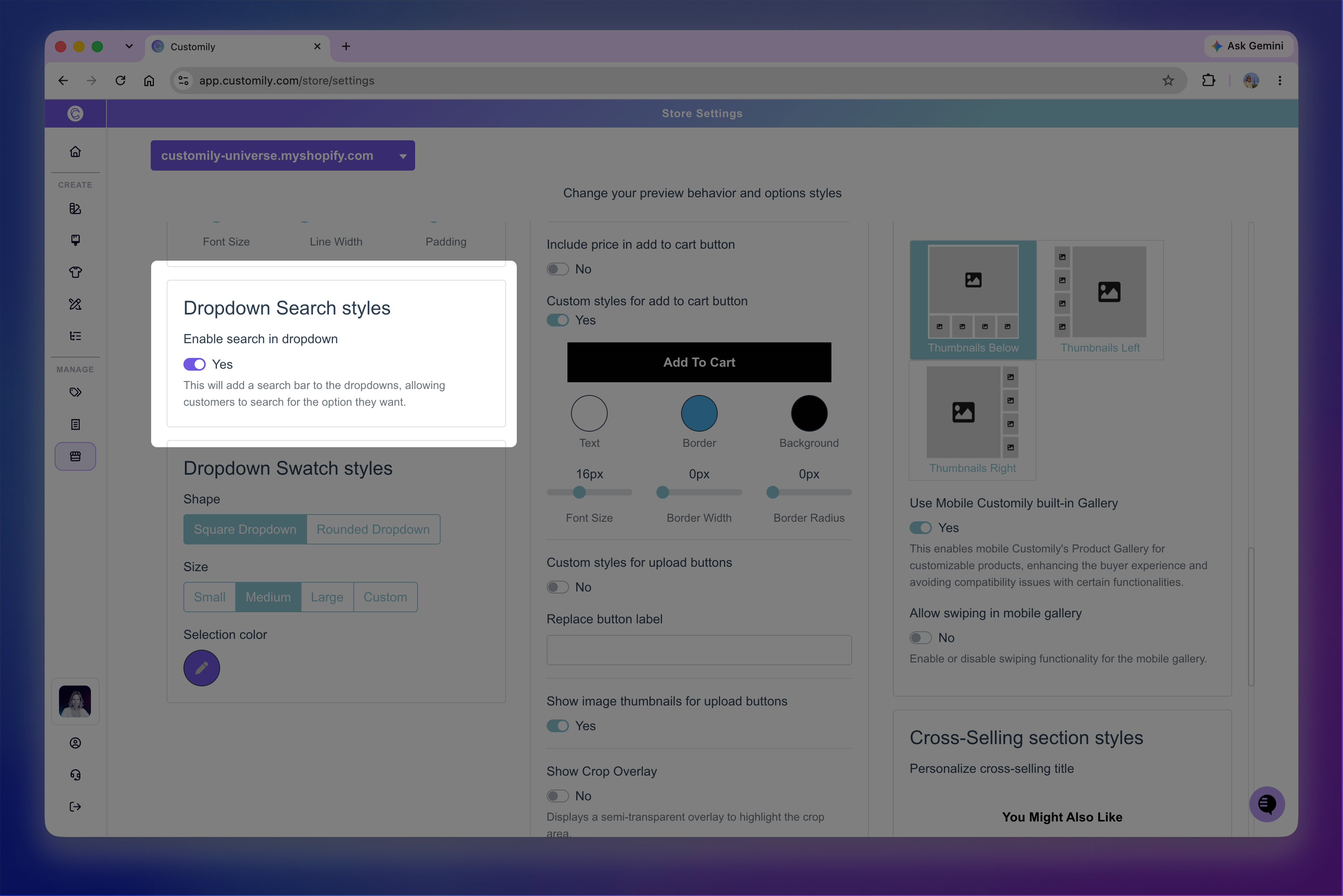
The search field appears when the Dropdown contains at least 5 values. For Dropdowns with fewer than 5 values, it won't be displayed.
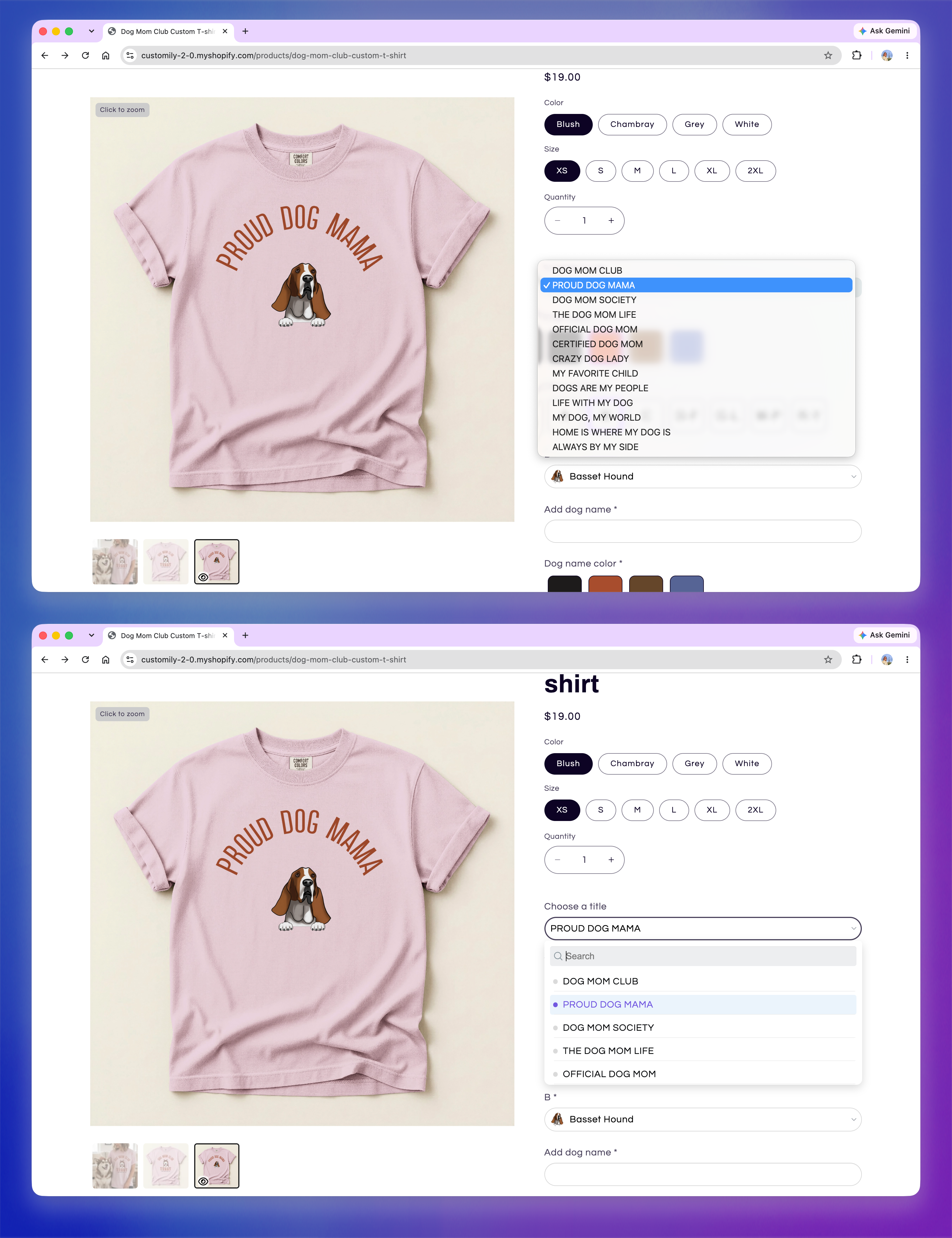
Enabling search also changes how the expanded Dropdown is displayed. Instead of using the standard dropdown menu, choices appear in a searchable list with the selected value highlighted.
Use Selection color to customize the color used to highlight the selected choice.
Note
Dropdown Swatches include search automatically when they contain at least 5 values, so you don't need to turn on Enable search in dropdown for them.
Customize Dropdown Swatches
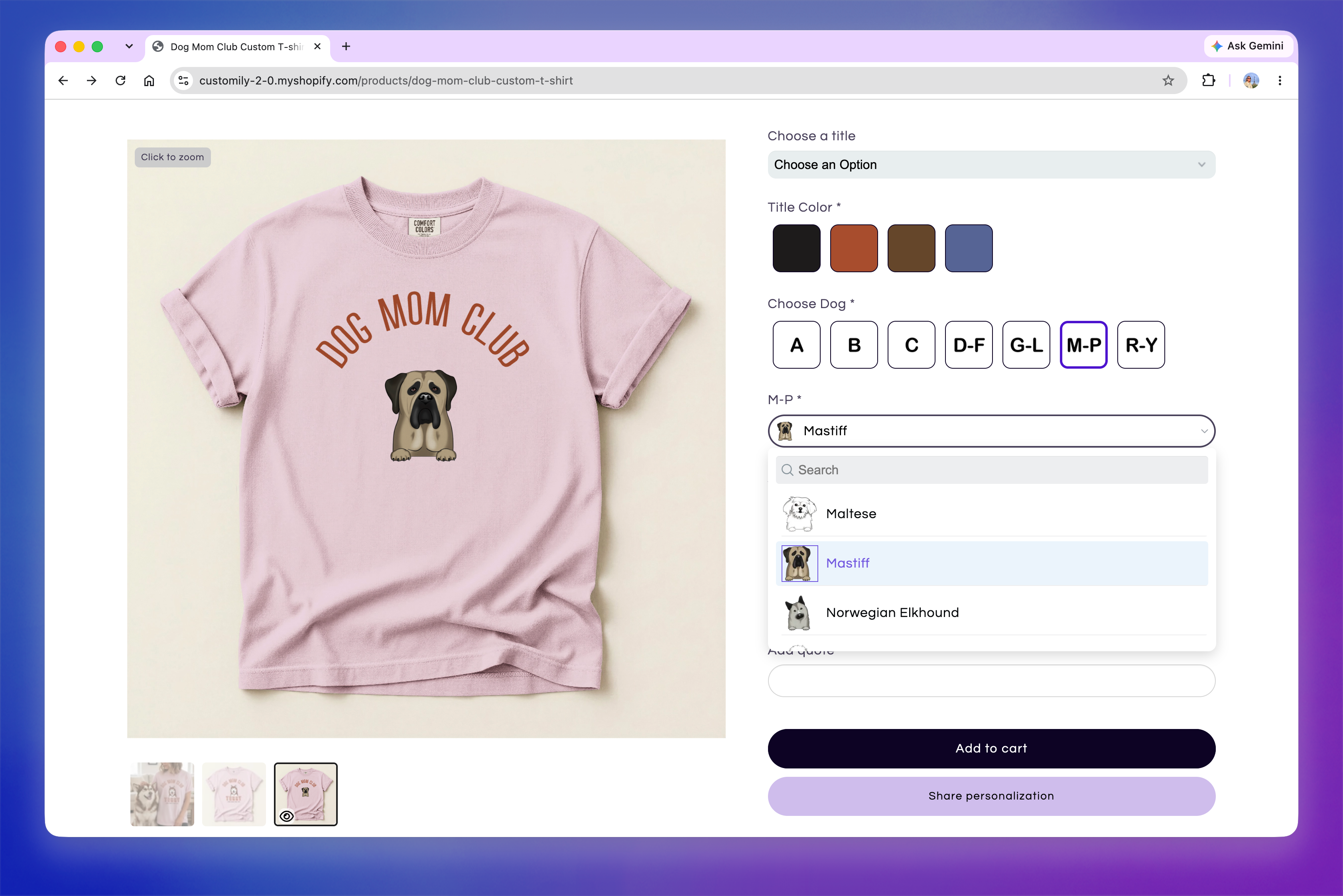
Dropdown Swatches display an image alongside each choice, making it easier for shoppers to visually browse the available options.
Go to Store Settings > Styles → Dropdown Swatch to customize how the swatches appear.
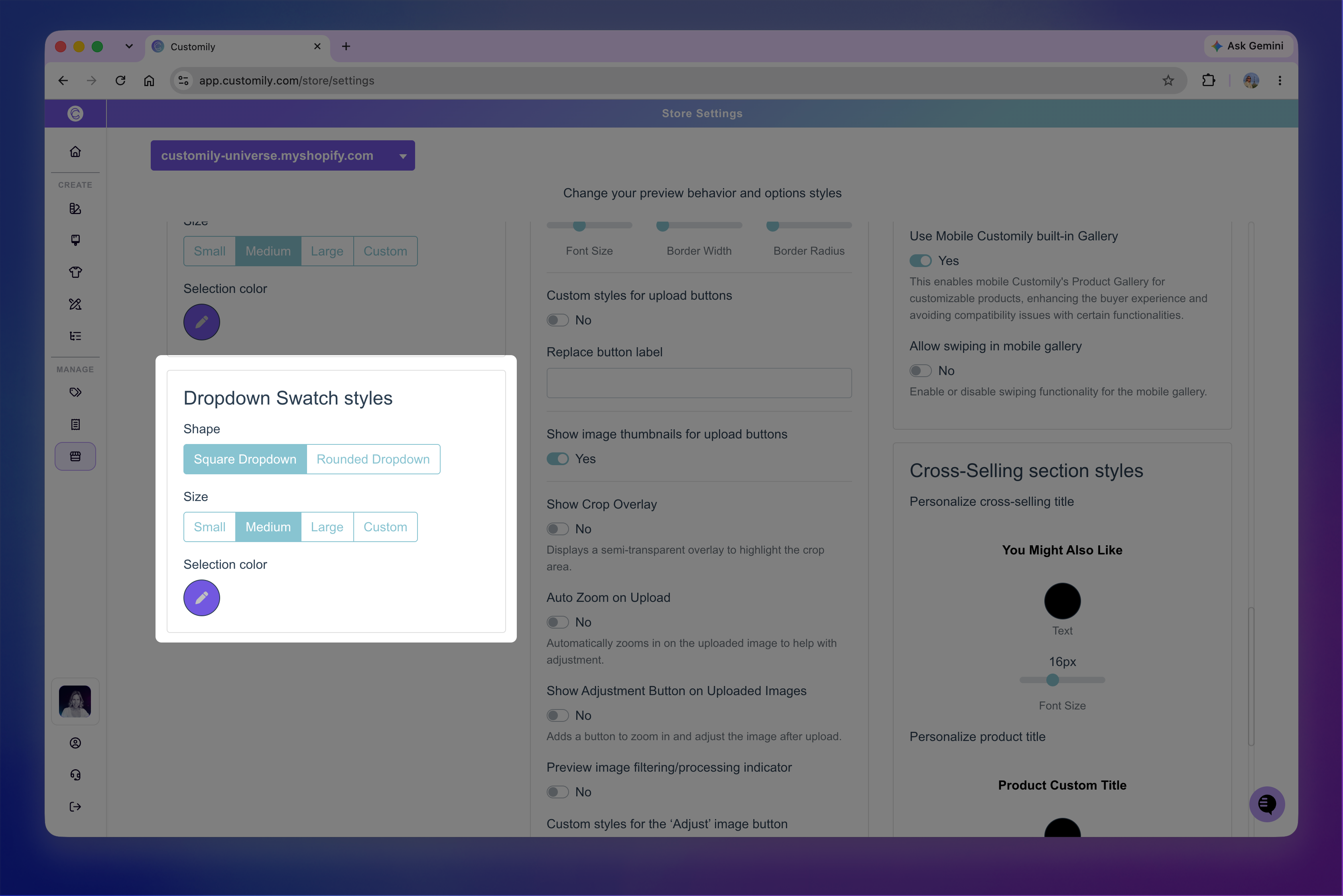
You can customize:
Shape: Displays the swatches as squares or circles.
Size: Changes the size of the swatches displayed in the dropdown.
Selection color: Changes the text color of the selected choice and adds a matching outline around its swatch.
Note
Dropdown Swatches include search automatically when they contain at least 5 values.