Customize the Personalize button
Last updated: October 1, 2026
The Personalize button gives shoppers access to the personalization experience. Depending on your Preview Style and settings, it can be an essential part of the shopping flow.
The button is displayed when:
You're using Modal Preview, where shoppers click Personalize to open the personalization modal.
Make personalization optional is enabled, where shoppers click Personalize to begin personalizing instead of purchasing the product as-is.
Customize the Personalize button
Go to Store Settings > Styles → Buttons styles to customize the text and appearance of the Personalize button.
You can customize:
Personalize button text: Changes the label displayed on the button.
Custom styles for personalize button: Lets you customize the text color, border color, background color, font size, border width, and border radius.
When custom styles are enabled, the preview updates as you make changes.
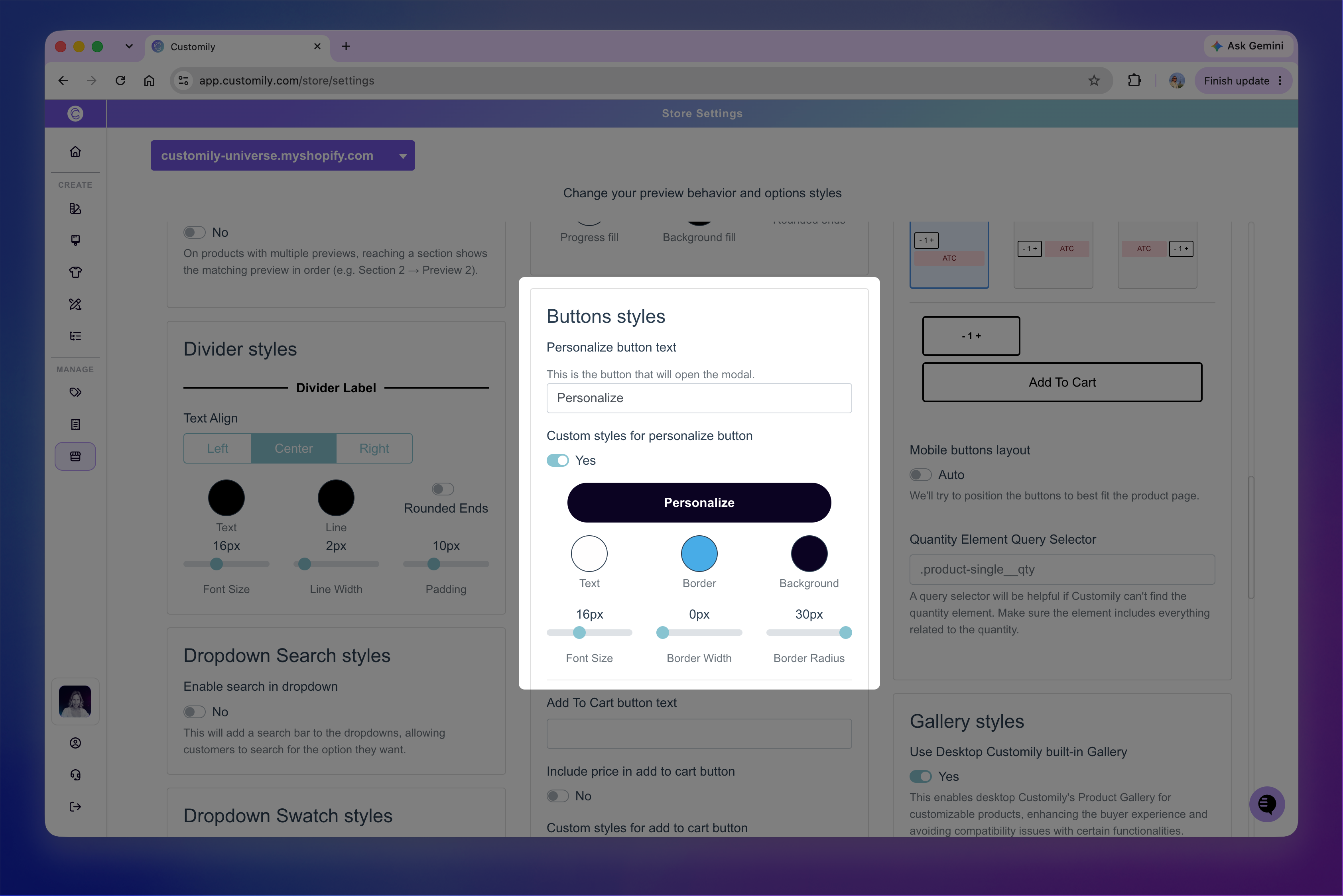
The styles are applied anywhere the Personalize button is used as part of the product's personalization flow.
Tip
If you're using Make personalization optional, consider giving the Personalize button a distinctive style from the Add to Cart button so shoppers can easily tell the two choices apart.
If you're using Modal Preview, consider matching the Personalize button to your Add to Cart button. In this flow, Personalize is the primary call to action on the product page.