Styles overview
Last updated: September 23, 2026
Use Styles to customize the appearance and behavior of the personalization experience in your store.
Styles provide a simple way to customize your storefront using predefined settings, without needing to write code. You can adjust how different parts of the personalization experience look and behave, including:
The personalization form and sections
Swatches, dropdowns, and other personalization options
Image upload controls
Buttons and navigation
The product gallery
Progress indicators and other visual elements
Access your Styles settings
To customize your Styles:
Go to Store Settings.
Open the Styles tab.
Adjust the settings you want to customize.
Save your changes.
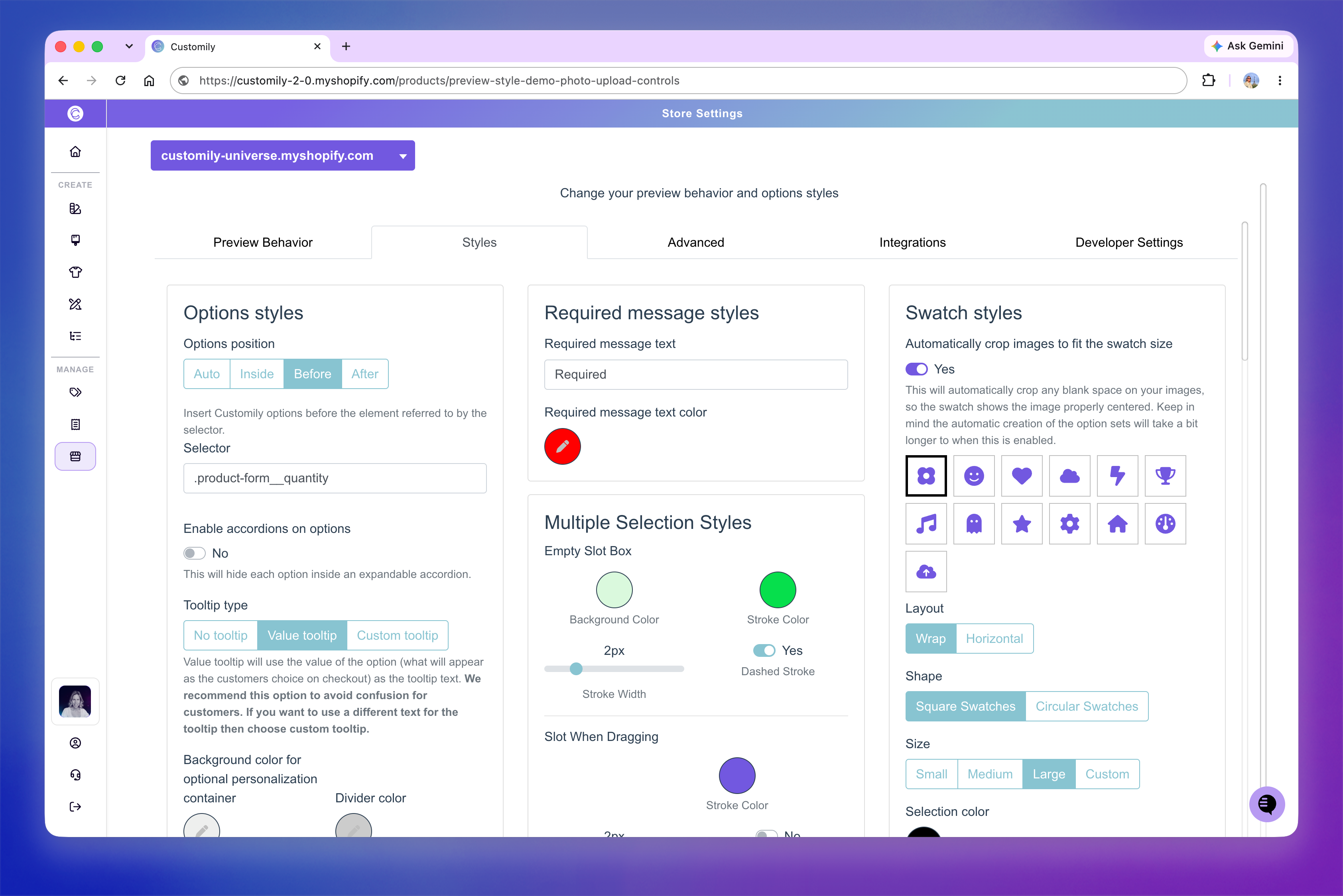
How Styles work
Changes made under Store Settings → Styles apply across your store, giving you a consistent personalization experience across your products.
If a specific product needs different settings, you can override your Store Settings from that product's Product Settings. The override will apply only to that product.
Each group of Style settings controls a different part of the personalization experience. Check the articles in this section to learn what each setting controls and how to configure it.
Customize further with CSS
The Styles settings are designed to make common visual and layout changes easy, using predefined options you can configure directly from Customily.
If you need more control over your storefront's appearance, you can also apply your own CSS styles from Developer Settings. This lets you customize the personalization experience beyond the options available under Styles.
Tip
Start with the predefined Styles settings whenever possible. Use custom CSS when you need styling that isn't available through the built-in options.