Set up the Customily product gallery
Last updated: October 1, 2026
Customily includes a built-in product gallery designed to work seamlessly with personalized products and the live preview. Using the Customily gallery helps avoid layout and compatibility issues that can sometimes occur with theme galleries or custom product galleries.
When you're using Product Page Preview, the Customily gallery also integrates the live preview directly into the product gallery. Your existing product images remain available, and an additional live preview thumbnail is added alongside them. As shoppers personalize the product, the preview thumbnail updates to show their current personalization.
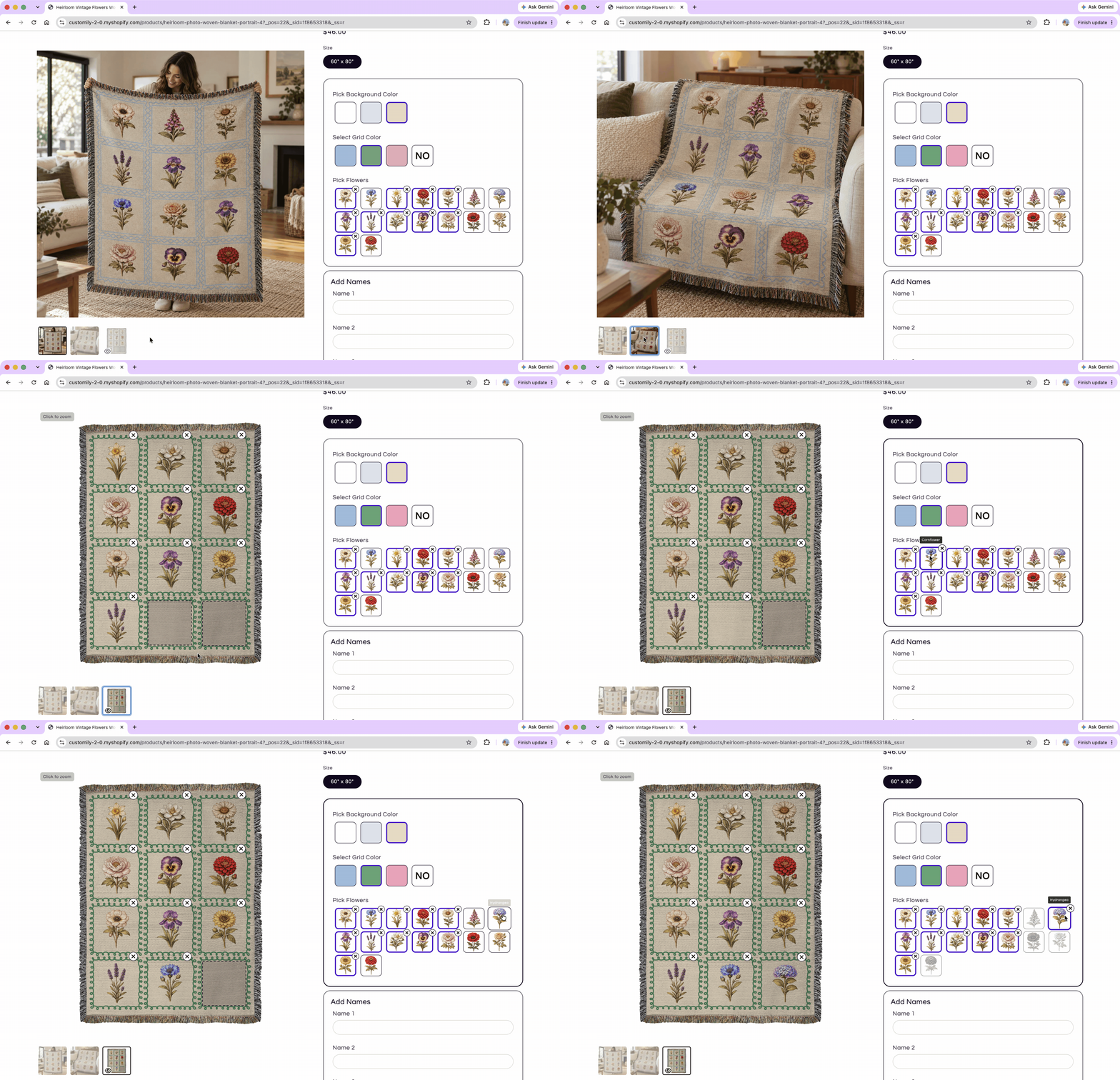
You can enable the Customily gallery independently for desktop and mobile.
Enable the Customily gallery on desktop
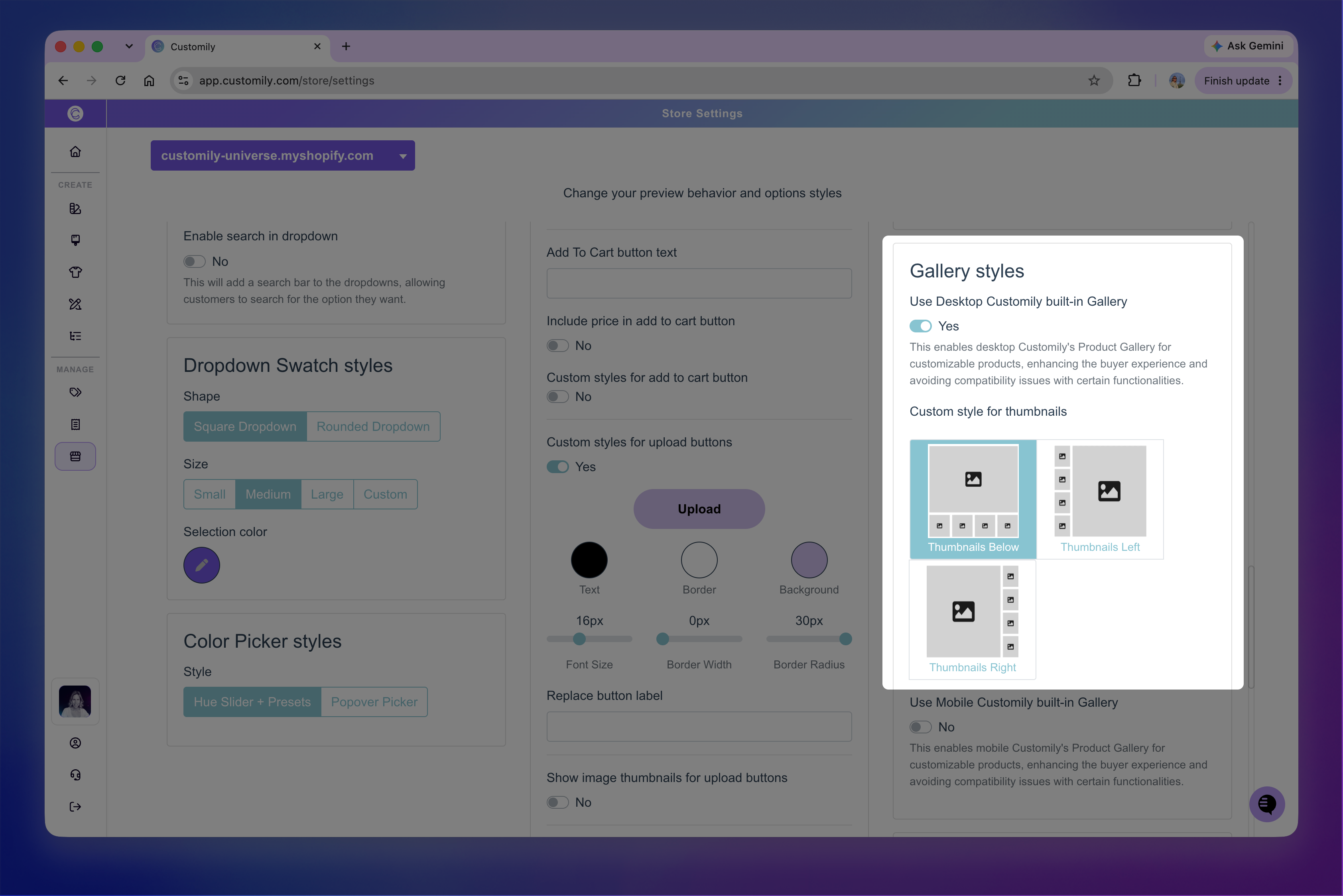
Go to Store Settings > Styles → Gallery styles, then turn on Use Desktop Customily built-in Gallery.
You can also choose where the gallery thumbnails appear:
Thumbnails Below: Displays thumbnails below the main product image.
Thumbnails Left: Displays thumbnails to the left of the main product image.
Thumbnails Right: Displays thumbnails to the right of the main product image.
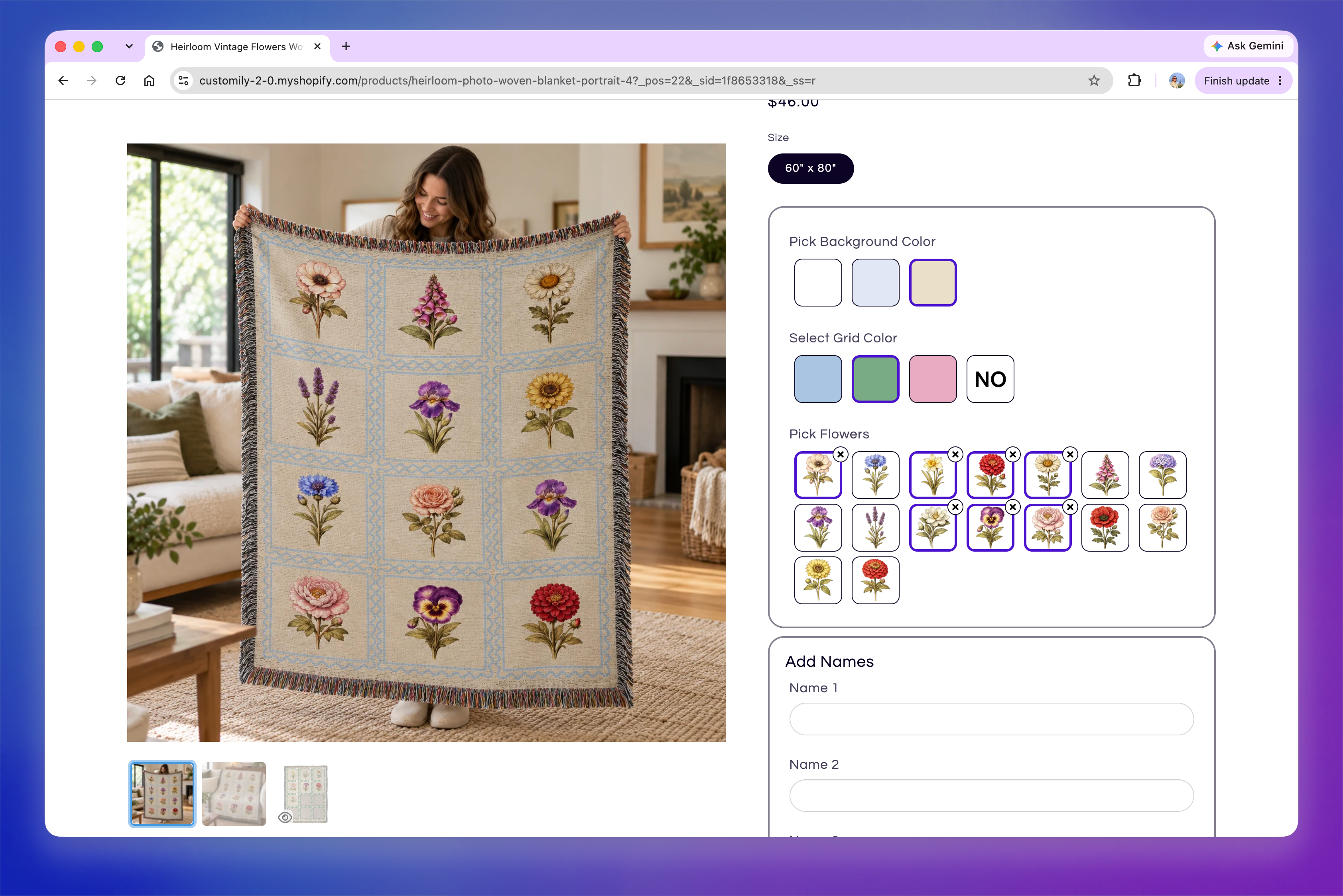
When you're using Product Page Preview, each gallery layout displays your existing product images together with an additional thumbnail for the live personalization preview. The preview thumbnail is identified by an eye icon and updates as the shopper makes changes.
Enable the Customily gallery on mobile
Desktop and mobile galleries are configured independently, so you can choose to use the Customily built-in gallery on one or both device types.
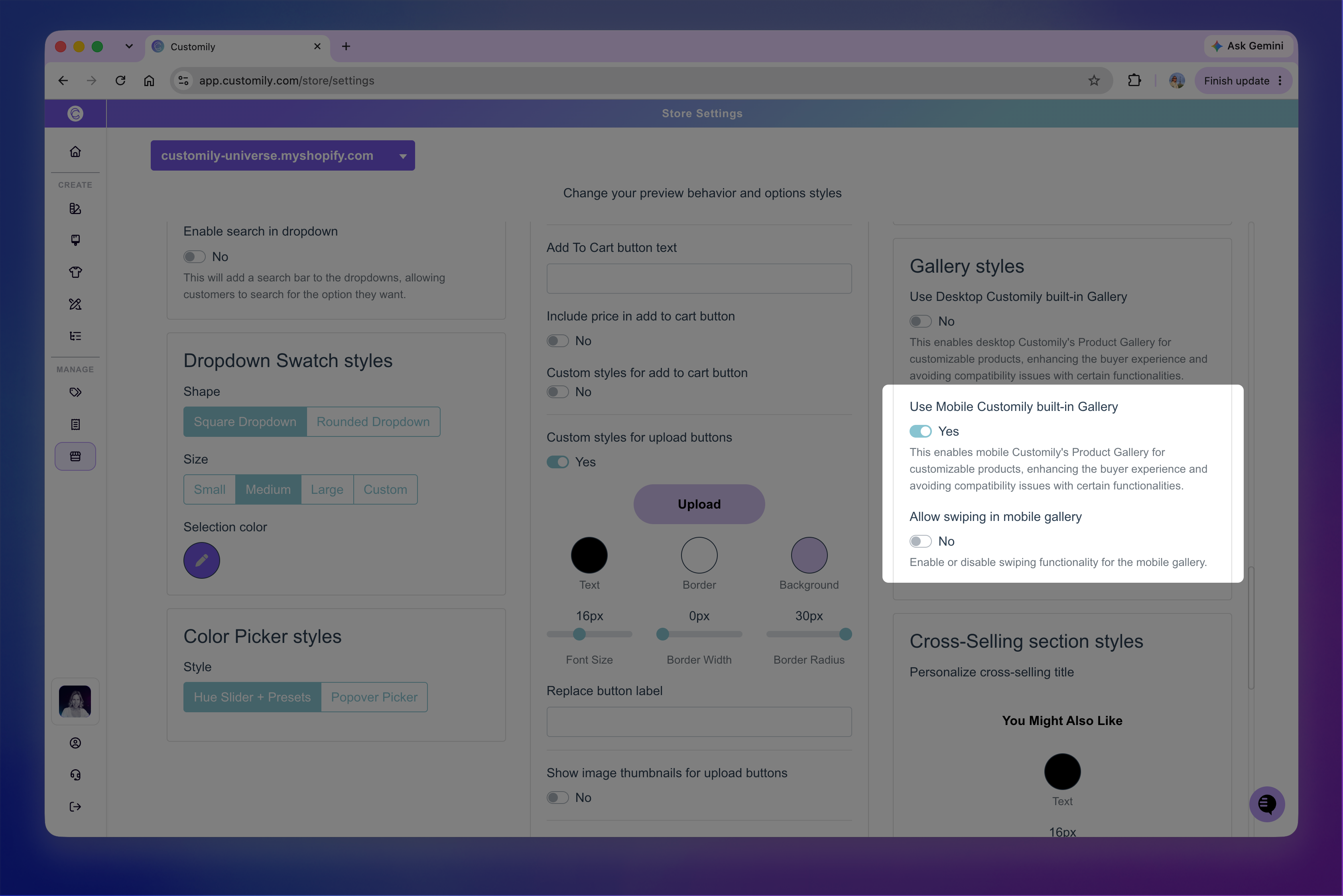
Go to Store Settings > Styles → Gallery styles, then turn on Use Mobile Customily built-in Gallery.
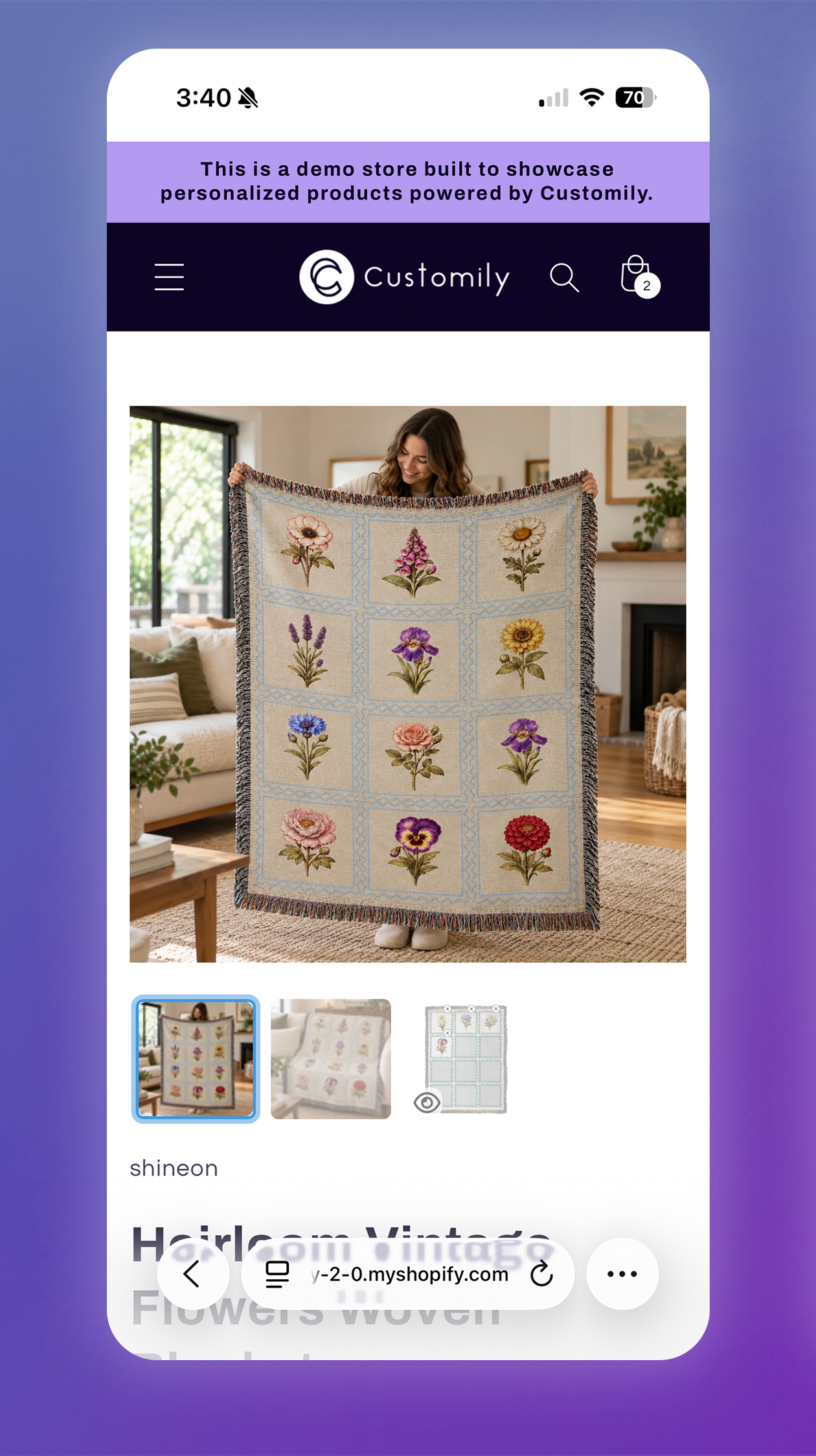
On mobile, there are no additional layout options. Thumbnails are always displayed below the main product image.
When you're using Product Page Preview, the mobile gallery includes the live preview as an additional thumbnail, identified by the eye icon. Just like on desktop, it updates as the shopper personalizes the product.
Allow shoppers to swipe through the mobile gallery
By default, shoppers navigate between gallery images by selecting the thumbnails below the main image.
To also let shoppers move between images by swiping horizontally, go to Store Settings > Styles → Gallery styles, then turn on Allow swiping in mobile gallery.
With swiping enabled, shoppers can swipe across the main image to move through the product images and live preview.
Tip
Consider keeping gallery swiping disabled if you're using mobile touch controls for image uploads. This allows shoppers to use touch gestures directly on the preview to move, resize, and rotate their uploaded image without those gestures also navigating the gallery.