Find and manage your Libraries
Last updated: October 19, 2026
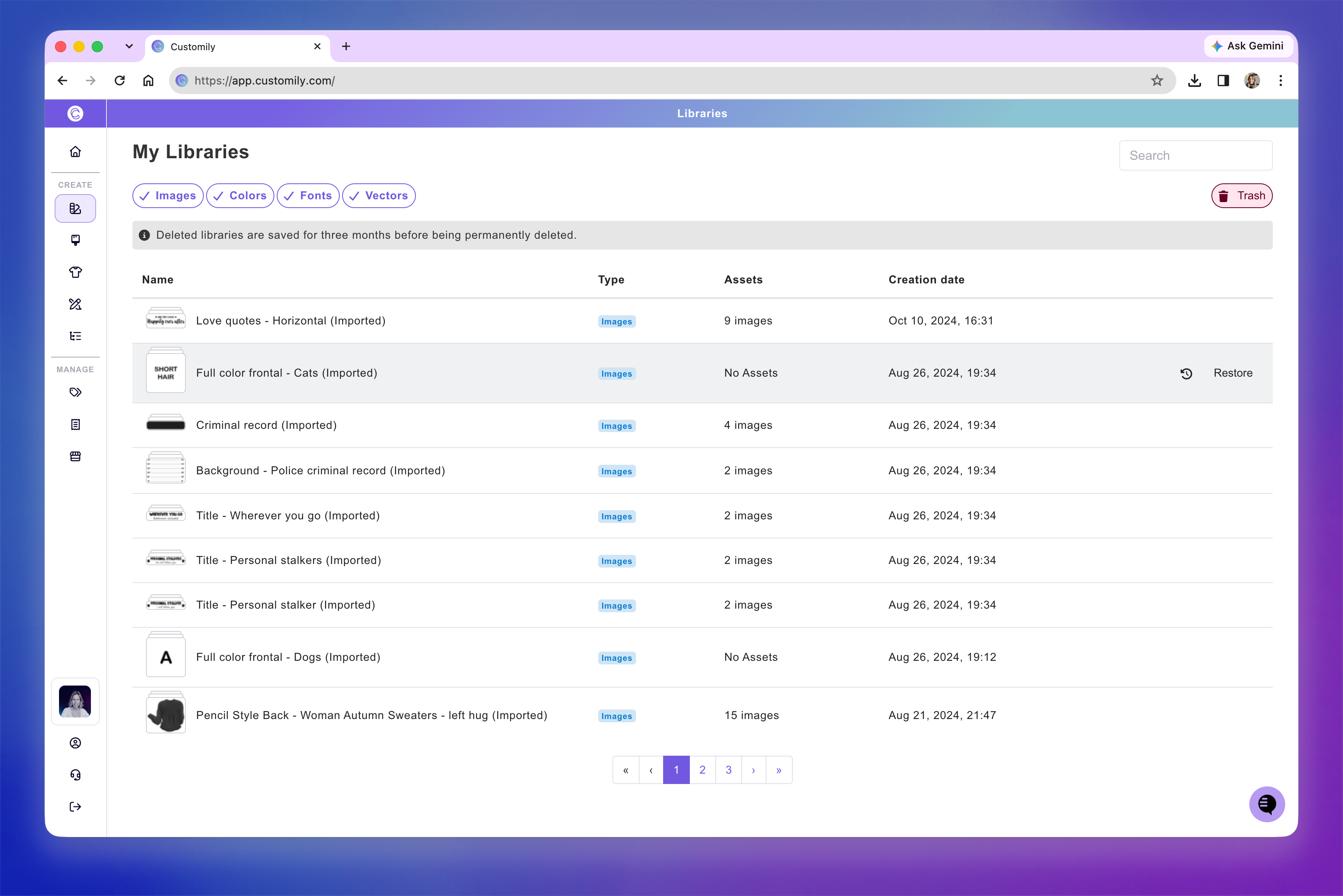
The Libraries page shows all the Libraries in your Customily account. From here, you can find and open existing Libraries, create new ones, rename or clone them, check where they're being used, and recover deleted Libraries.
Find your Libraries
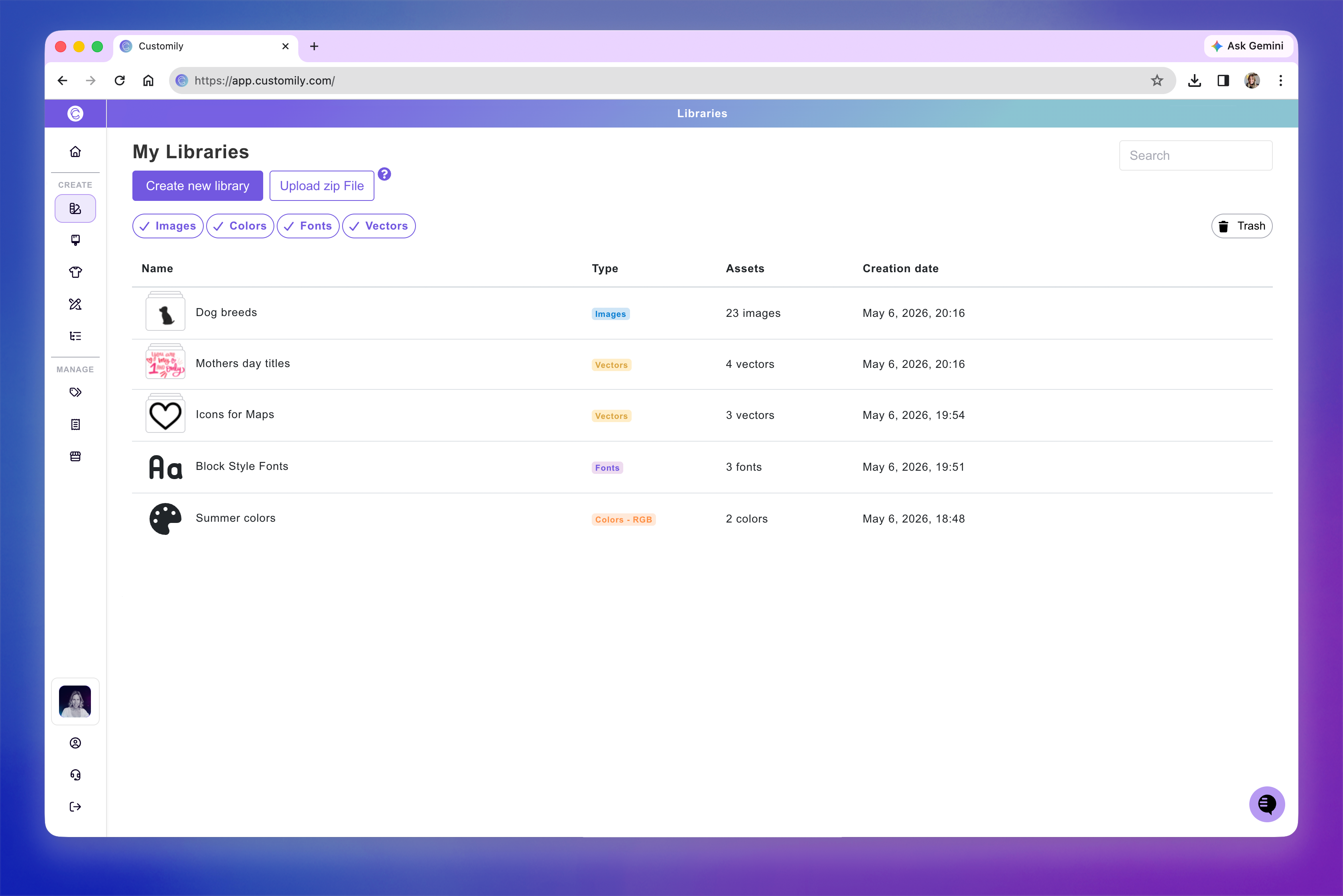
Use the search bar to find a Library by name, or filter your Libraries by type:
Image
Color
Font
Vector
Create or upload Libraries
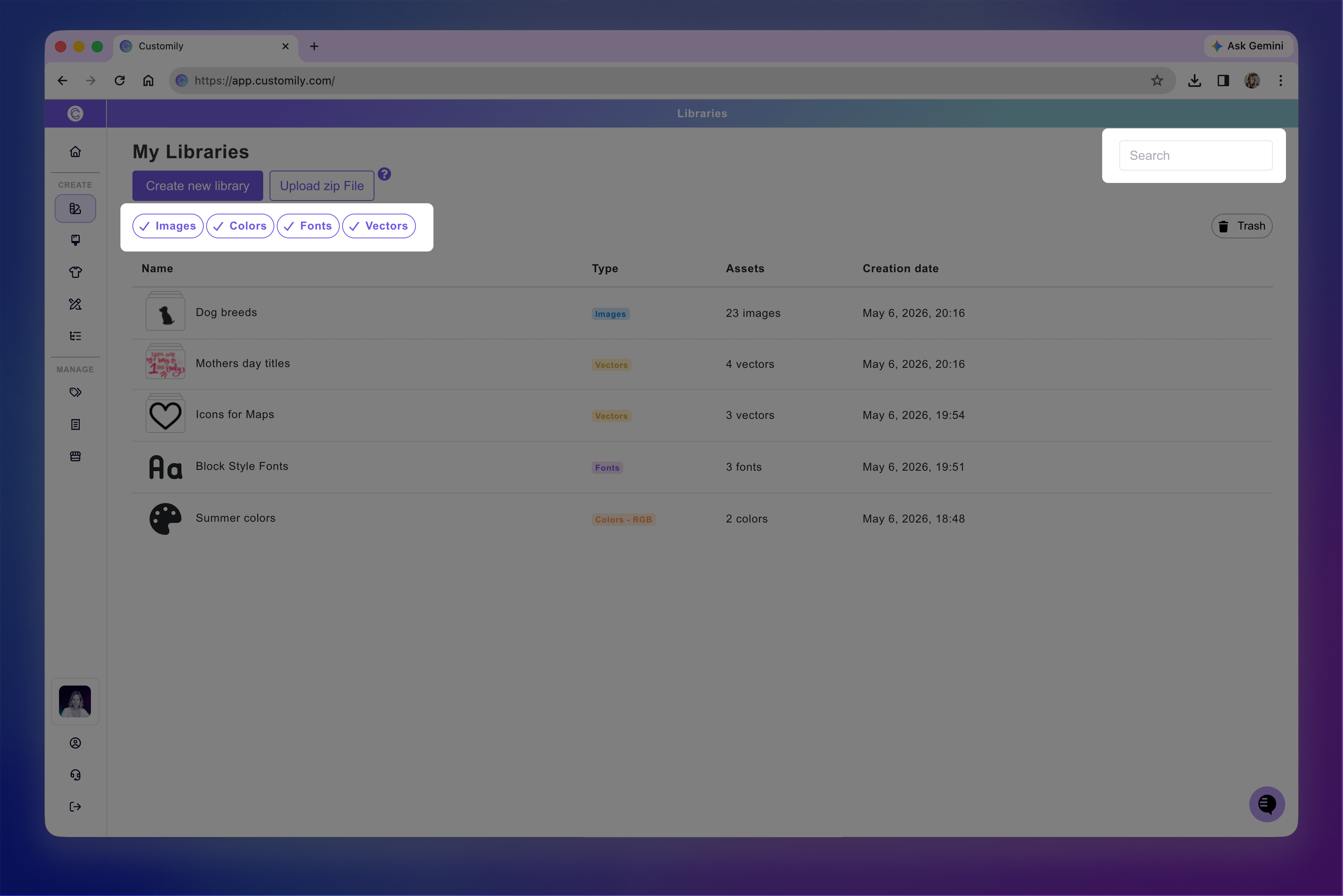
To create a Library, click Create new library. You'll be asked to select the Library type and enter a name before adding your assets.
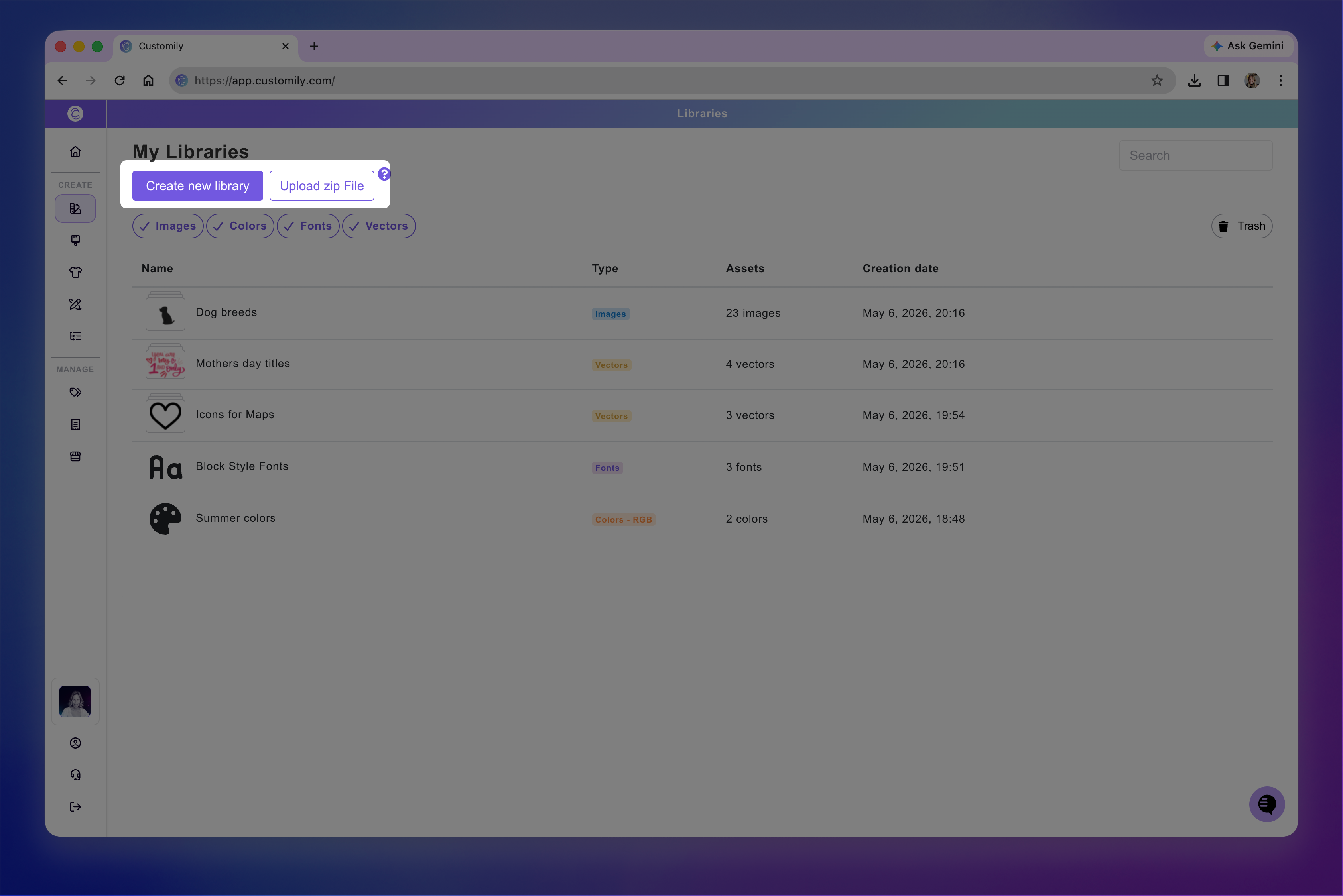
You can also use the ZIP upload option to create and populate Libraries in bulk.
For detailed instructions, see:
Manage your libraries
Rename a librry
Click the pencil icon next to the Library's name.
Enter the new name and press Enter.
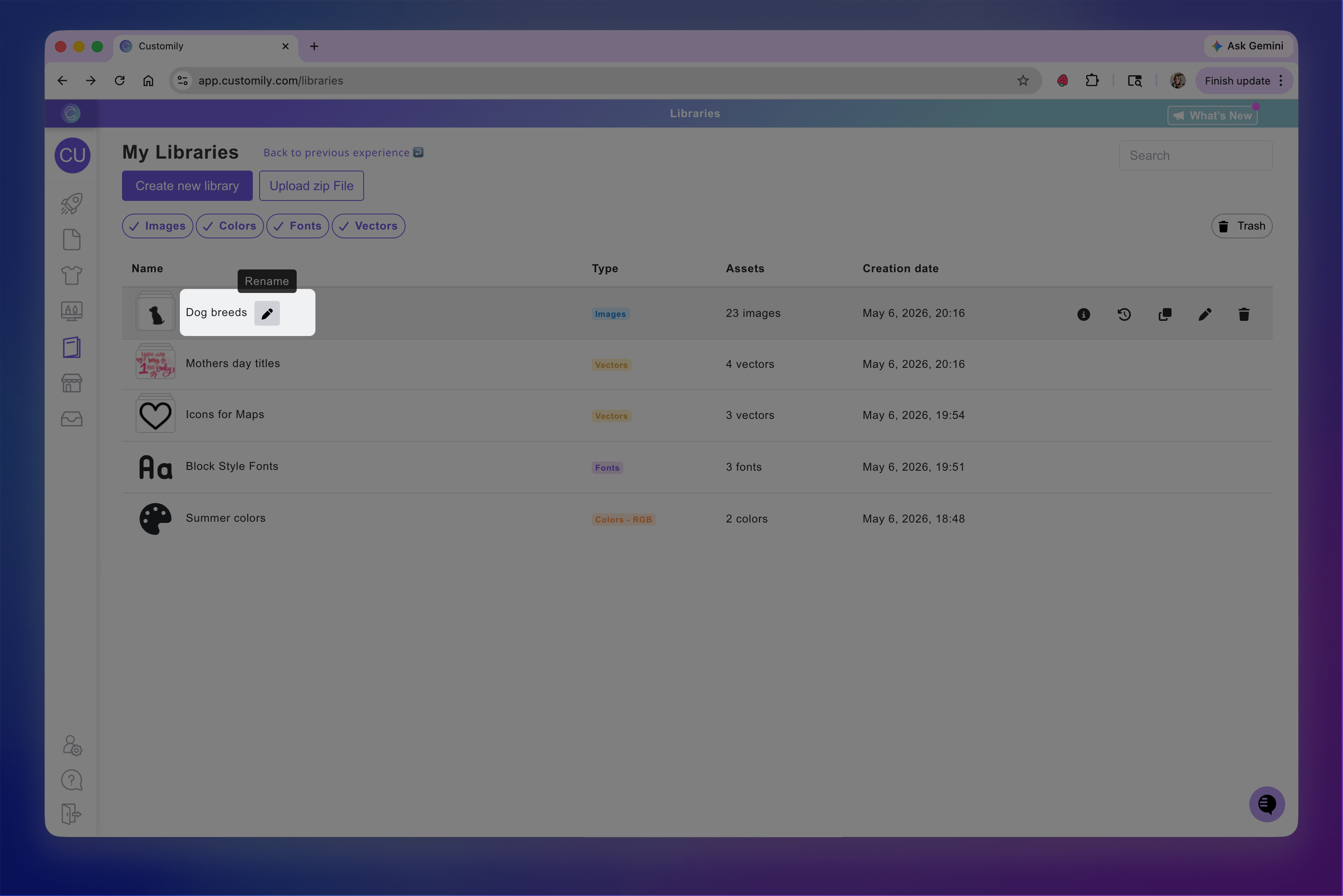
You can also click outside the name to finish renaming.
Edit a Library
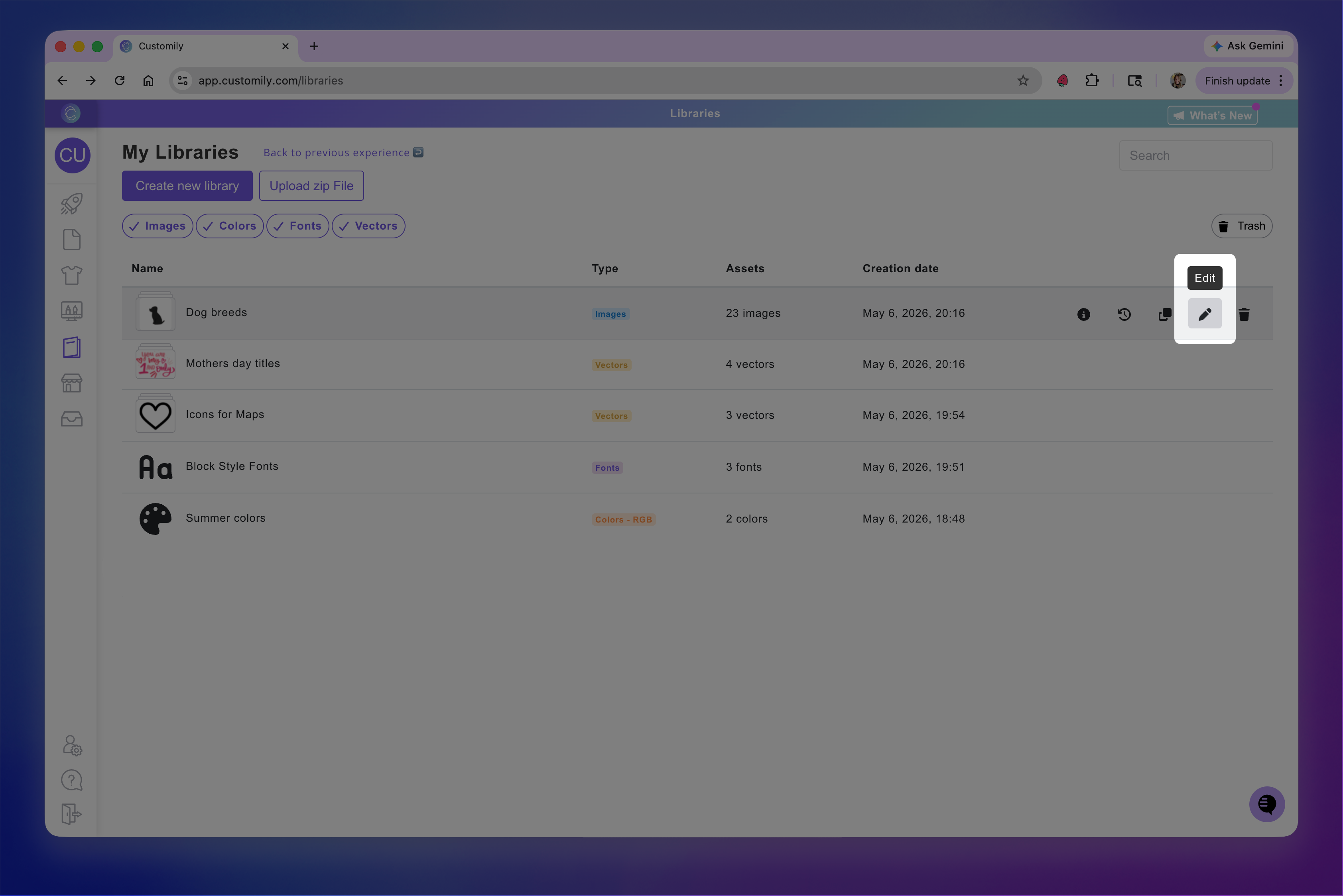
Click a Library to open it and edit its contents. You can also use the Edit button on the right.
For more information about adding and organizing assets, see 📄 How to create libraries
Clone a Library
Hover over the Library you want to duplicate.
Click the Clone button on the right.
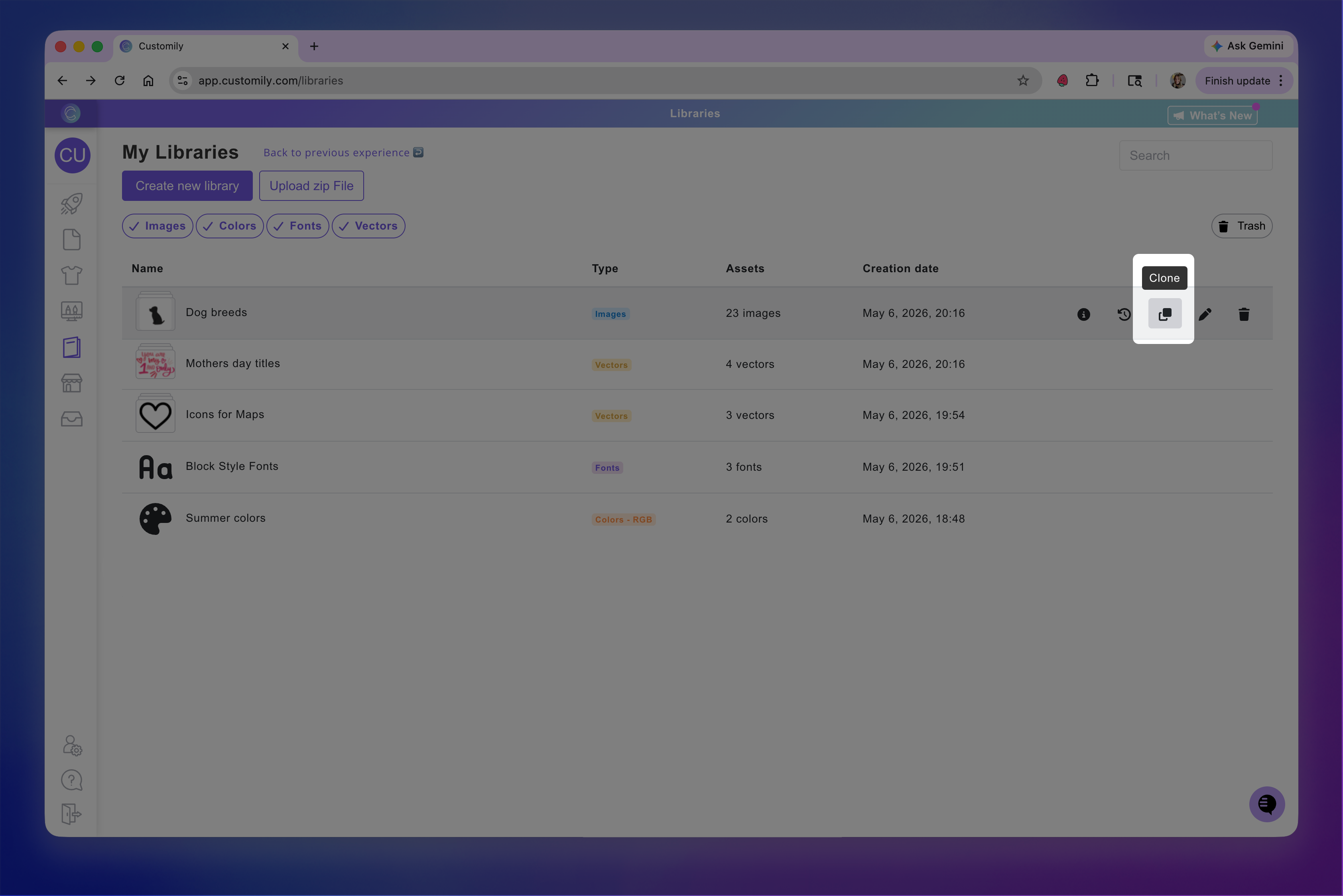
The duplicated Library will appear below the original, with “cloned” added to its name.
Check where a Library is used
You can see if a library is being used across your designs, templates, and products. This helps you understand how changes to a library may affect your products.
To check the library usage:
Hover over the Library you want to check.
Click the Usage info button on the right.
A window will display the Templates, Products, and Option Sets connected to that Library.
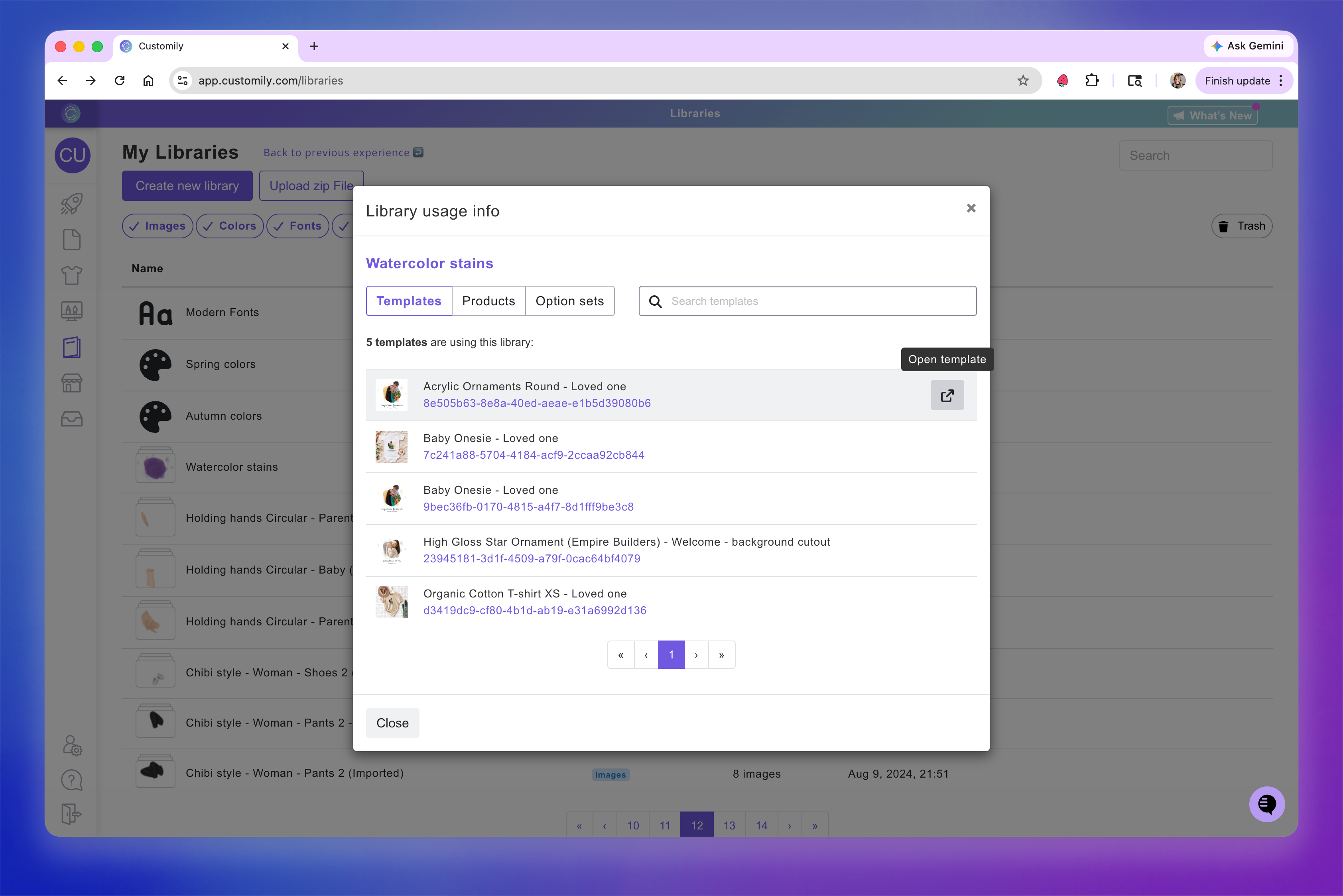
Use the tabs to switch between them, and click the arrow next to an item to open it in a new tab.
View library history
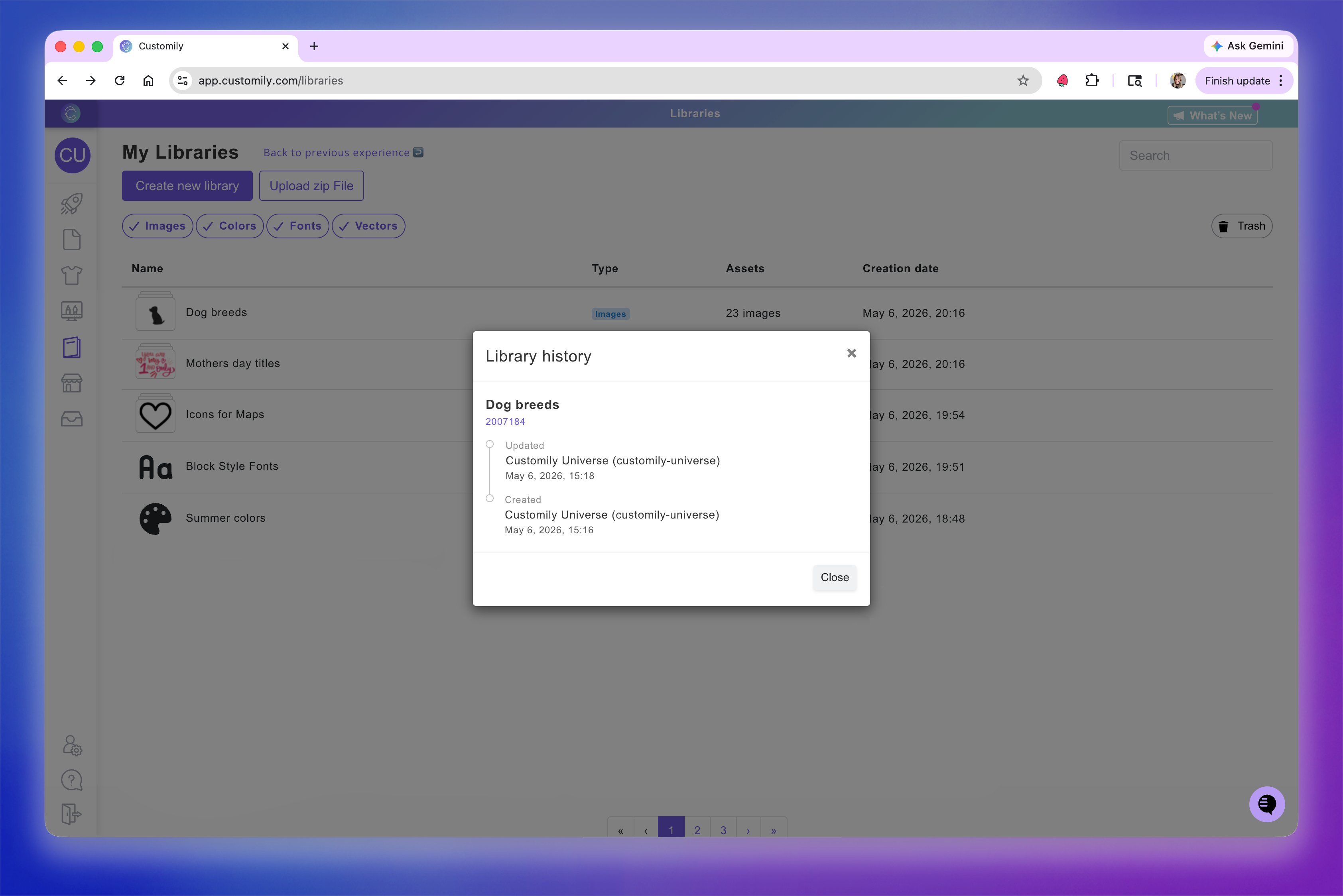
Library history lets you review changes made to a Library, including when it was created, what was changed, and who made the changes.
Hover over the Library you want to check.
Click the clock icon on the Library.
Review the changes in the history window.
Delete and recover libraries
Delete a Library
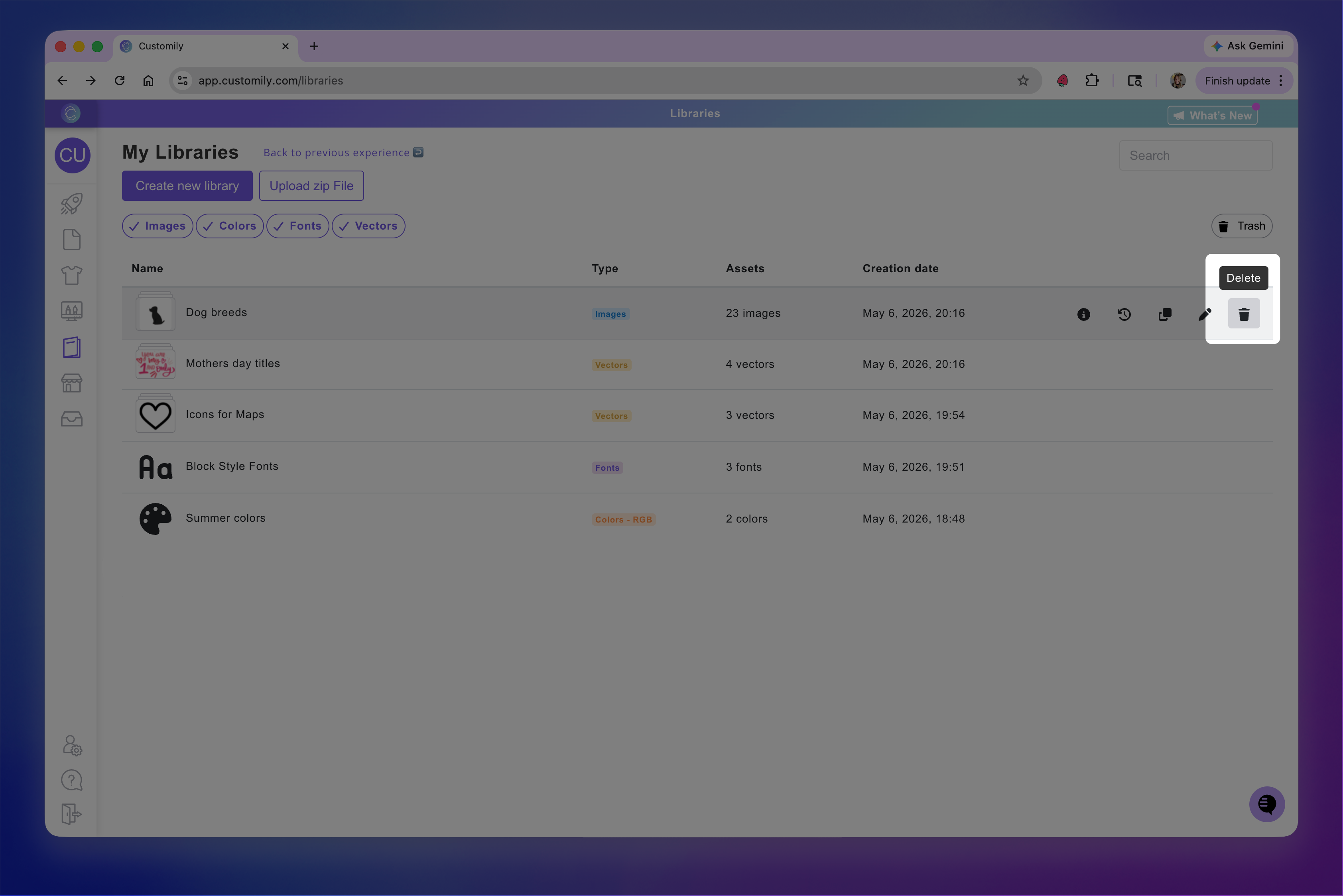
Click the trash icon on the Library you want to delete.
Confirm the deletion.
Deleted Libraries are kept in Recently Deleted for 90 days.
Important
You can't delete a Library that's currently in use. If the Library being used in any Designs or Templates, Customily will show where. You'll need to remove the library from those places before deleting it.
Recover a deleted Library
Open Recently Deleted using the trash icon on the Libraries page.
Find the Library you want to recover.
Click Restore.
After 90 days, libraries are permanently deleted and cannot be restored.