Bulk uploading Libraries using a ZIP file
Last updated: October 19, 2026
Bulk uploading lets you create multiple Libraries at once by uploading a single ZIP file. You can use this method for Image, Vector, and Font Libraries.
Organize your files into folders before compressing them. Customily uses the folder structure to automatically create Libraries and categories, so you don't have to set them up individually.
The same folder structure works for all three Library types.
Prepare your ZIP file
Before uploading, organize your assets into folders and compress them into a ZIP file. Customily uses the folder structure to automatically create your Libraries and categories.
You can bulk upload Image, Vector, and Font Libraries using the same folder structure.
Organize your folders
Your ZIP file should follow these rules:
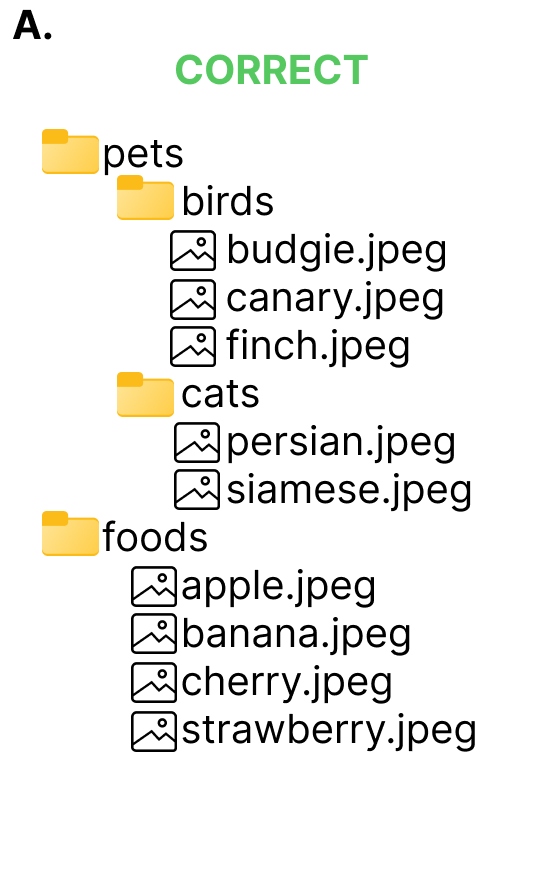
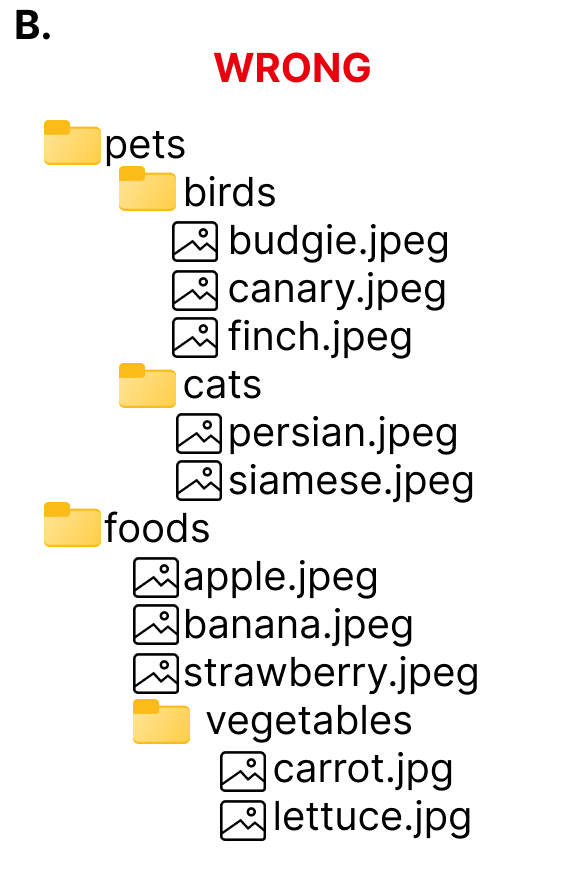
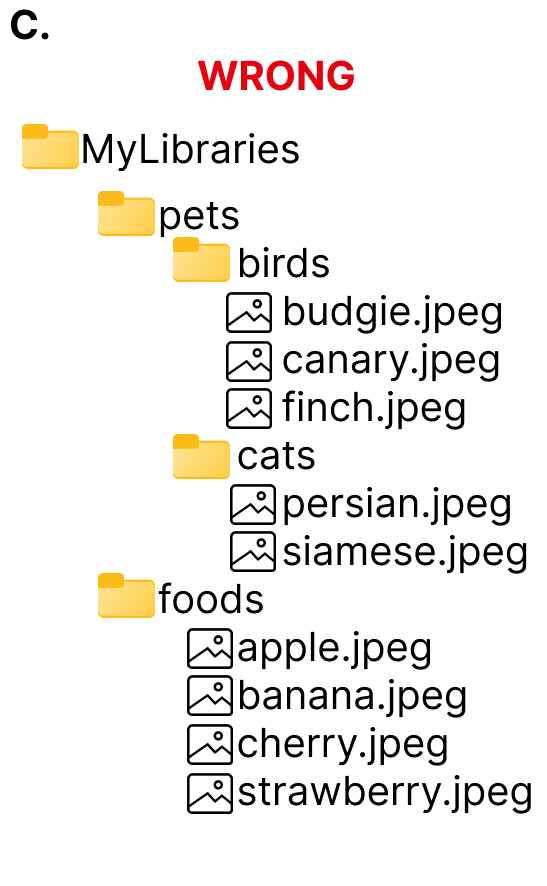
Each folder at the root of your ZIP file becomes a Library, using the folder name as the Library name. Don't place all your Library folders inside an additional enclosing folder.
Subfolders become categories, using their folder names as category names.
Files inside each folder become assets in the corresponding Library or category.
You can create Libraries with or without categories, but you cannot mix files and category subfolders inside the same Library folder.
ZIP file requirements
Maximum ZIP file size: 1 GB.
Maximum options per Image Library: 2,000.
Maximum options per Vector Library: 500.
Supported font formats:
.ttfand.otf.
Note
If your ZIP file doesn't follow the required folder structure, the upload will fail.
Upload your ZIP file
Once your ZIP file is ready, you can upload it to Customily to create all your Libraries at once.
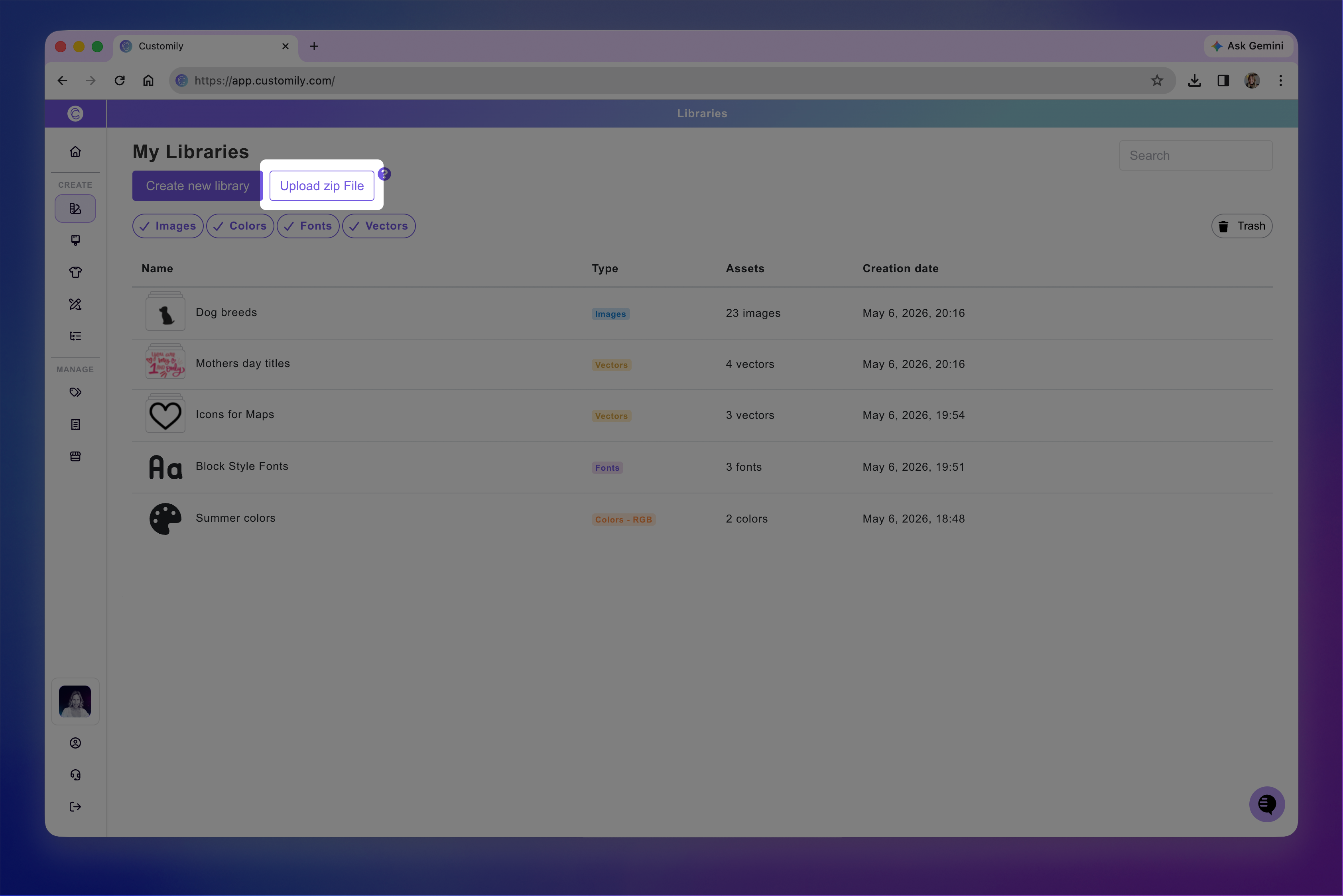
Go to Libraries from the left menu.
Click Upload libraries.
Upload your ZIP file.
Wait for Customily to finish processing the upload.
How Customily organizes your uploaded Libraries
Once the upload is complete, Customily automatically creates your Libraries, categories, and assets based on the folder structure in your ZIP file.
Library and category names are taken from the corresponding folder names.
Assets are arranged alphabetically by filename.
Category thumbnails use the first image in each category by default. You can also assign a custom thumbnail when preparing your ZIP file, as explained below.
Create categories with custom thumbnails
To use a specific image as a category thumbnail, place it inside that category's folder and name it +++ followed by its extension (for example, +++.png).
Customily will use this image as the category thumbnail, but it won't be included as a selectable asset.
If you want shoppers to be able to select that image too, include another copy in the same folder with its regular filename.
Edit your Libraries after uploading
You can always make changes to your Libraries after uploading them. You can rename Libraries, categories, and assets, change thumbnails, reorder choices, and more.
To learn how to make these changes, see 📄 Create and organize a Library