Customize the personalization form
Last updated: September 29, 2026
Use the Options Styles settings to customize how the personalization form looks and behaves for shoppers. You can organize individual options into accordions and add a background to the form to better match your storefront and the personalization experience you want to create.
Display options as accordions
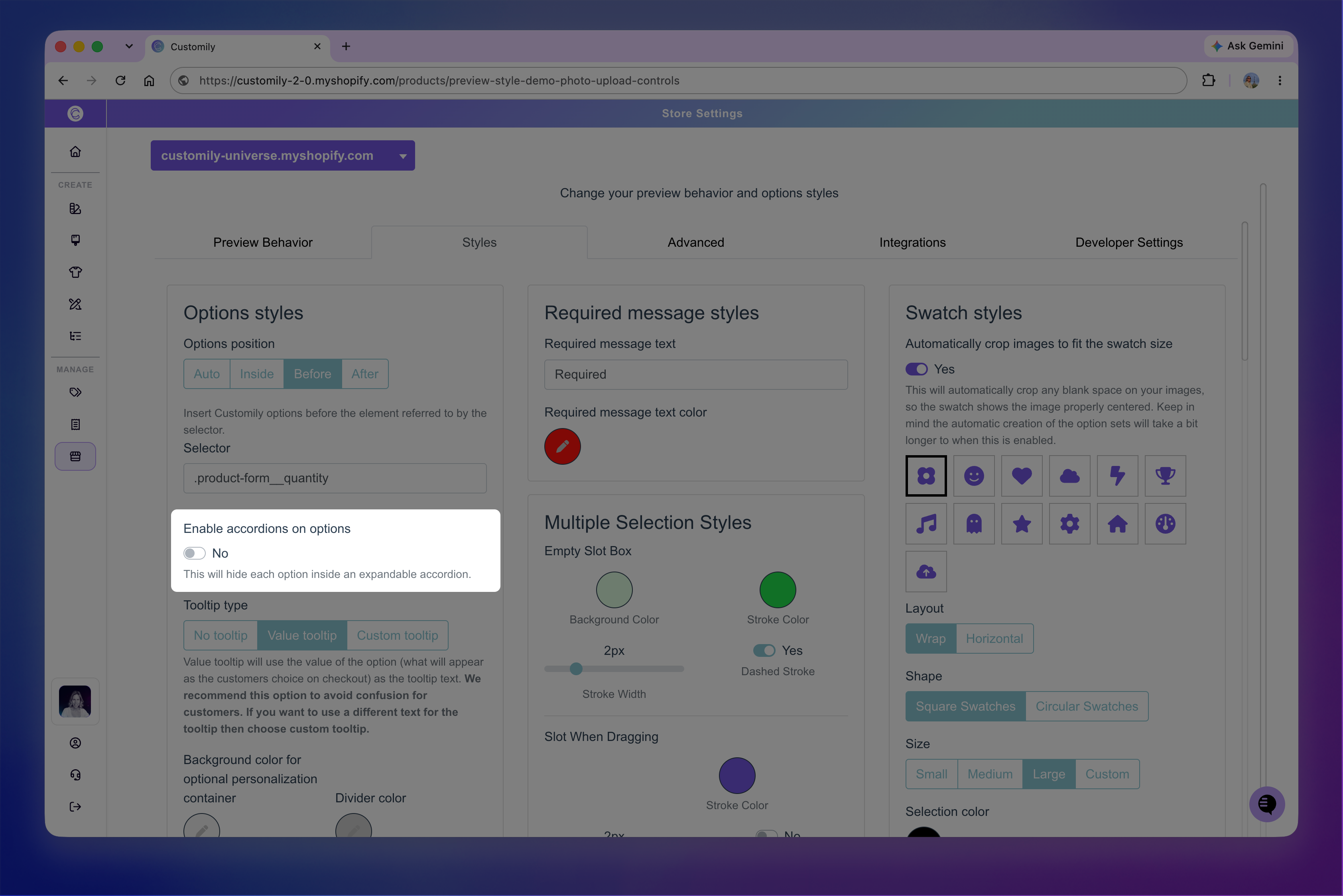
Go to Store Settings > Styles, then turn on Enable accordions on options to make each personalization option individually collapsible.
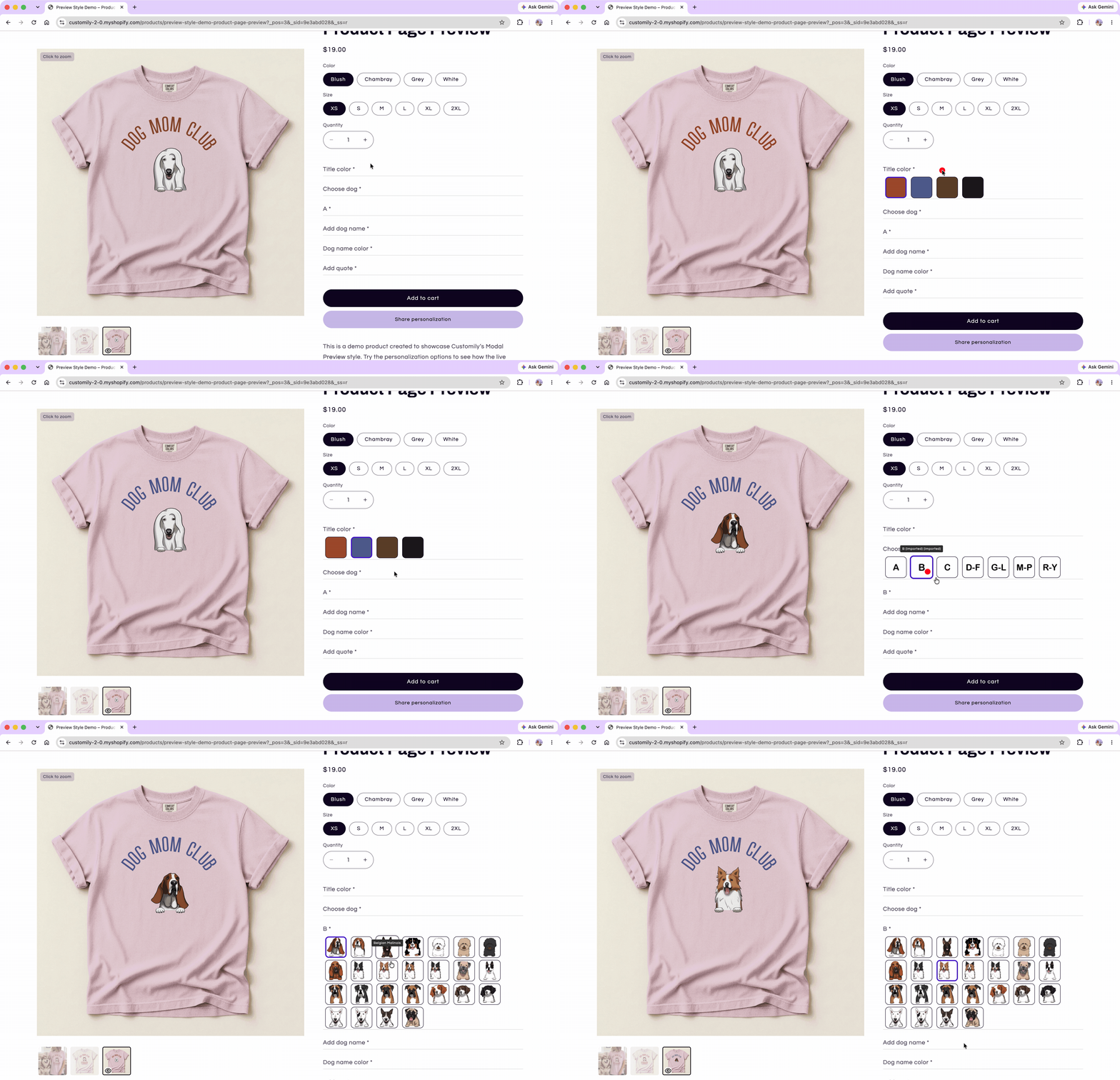
Options start collapsed, showing only their label. When a shopper selects an option, it expands to display its input, swatches, dropdown, or other available choices.
Only one option remains expanded at a time. Opening another option automatically collapses the previous one, helping keep longer personalization forms compact.
Note
Enable accordions on options is different from Enable Accordions for Sections, which organizes entire sections of the personalization form into accordions.
Add a background to the personalization form
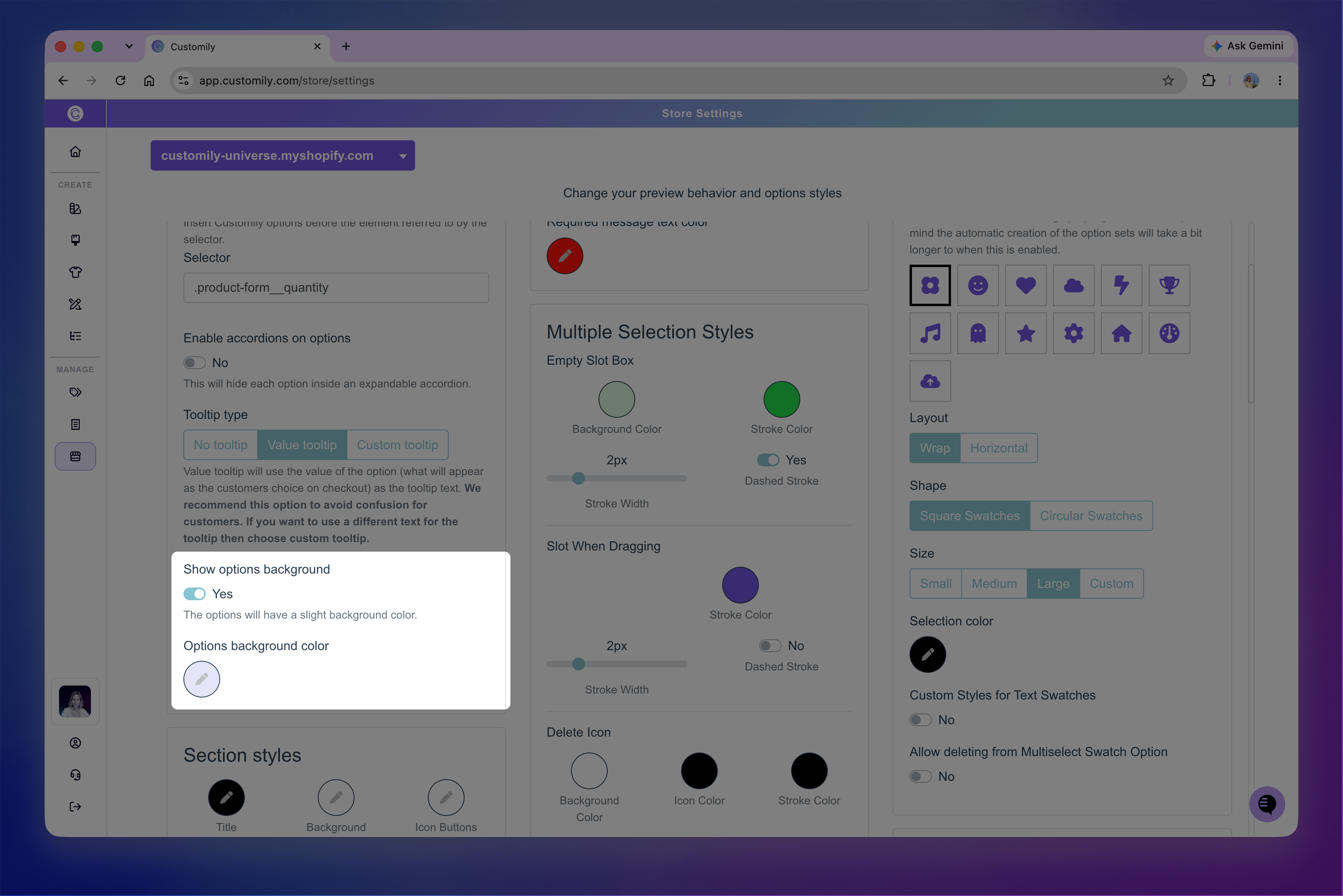
Go to Store Settings > Styles, then turn on Show options background to display a background behind the entire personalization form. Then use Options background color to choose its color.
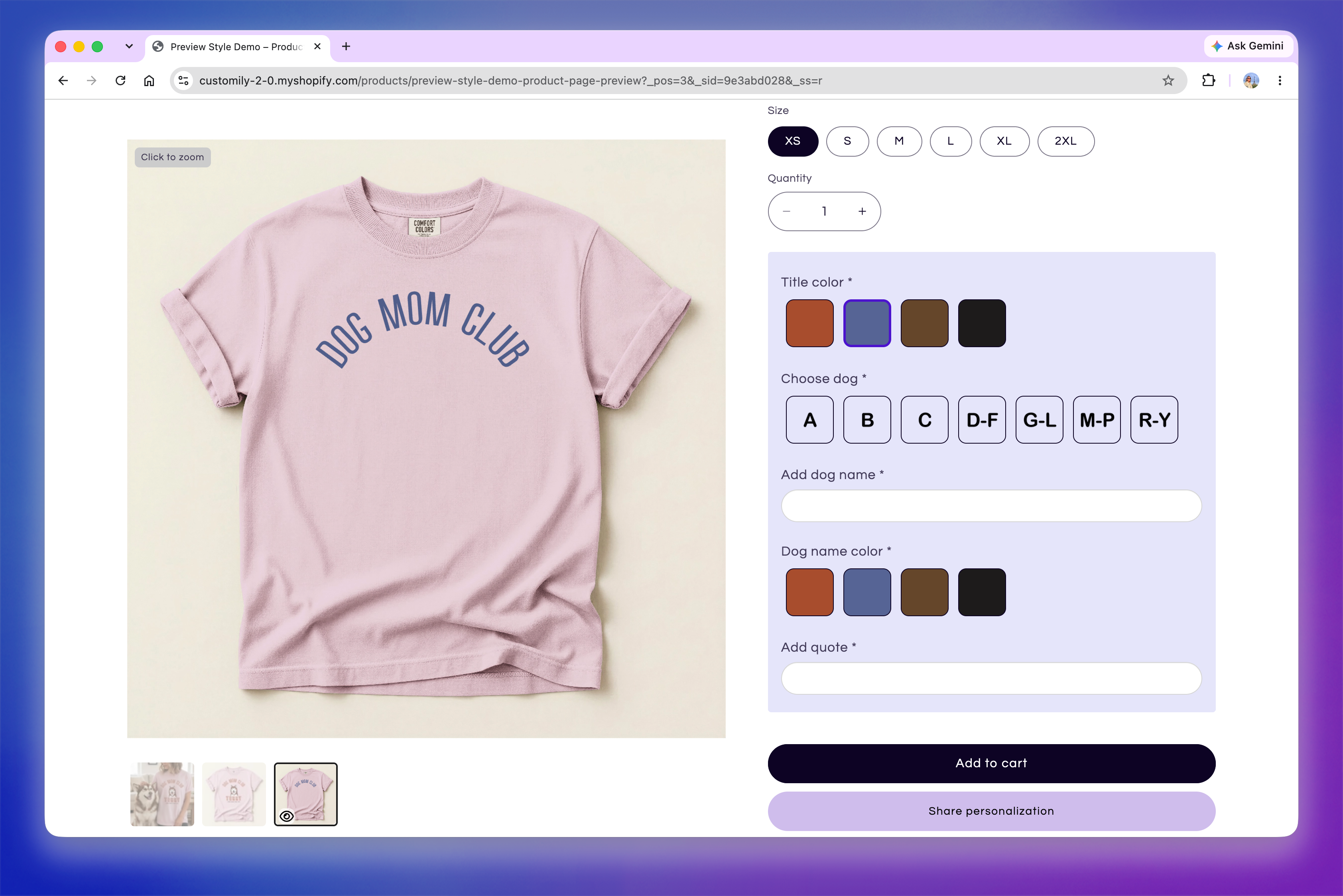
The selected background color is applied to the entirety of the personalization form.
Note
The options background only affects products using Product Page Preview. The setting has no effect when using Modal Preview or Show Preview Button.
Customilze the optional personalization form
If you're using Make personalization optional, additional Style settings let you customize how the personalization form looks after a shopper chooses to personalize the product. These settings only appear when Make personalization optional is turned on.
Go to Store Settings > Styles to customize:
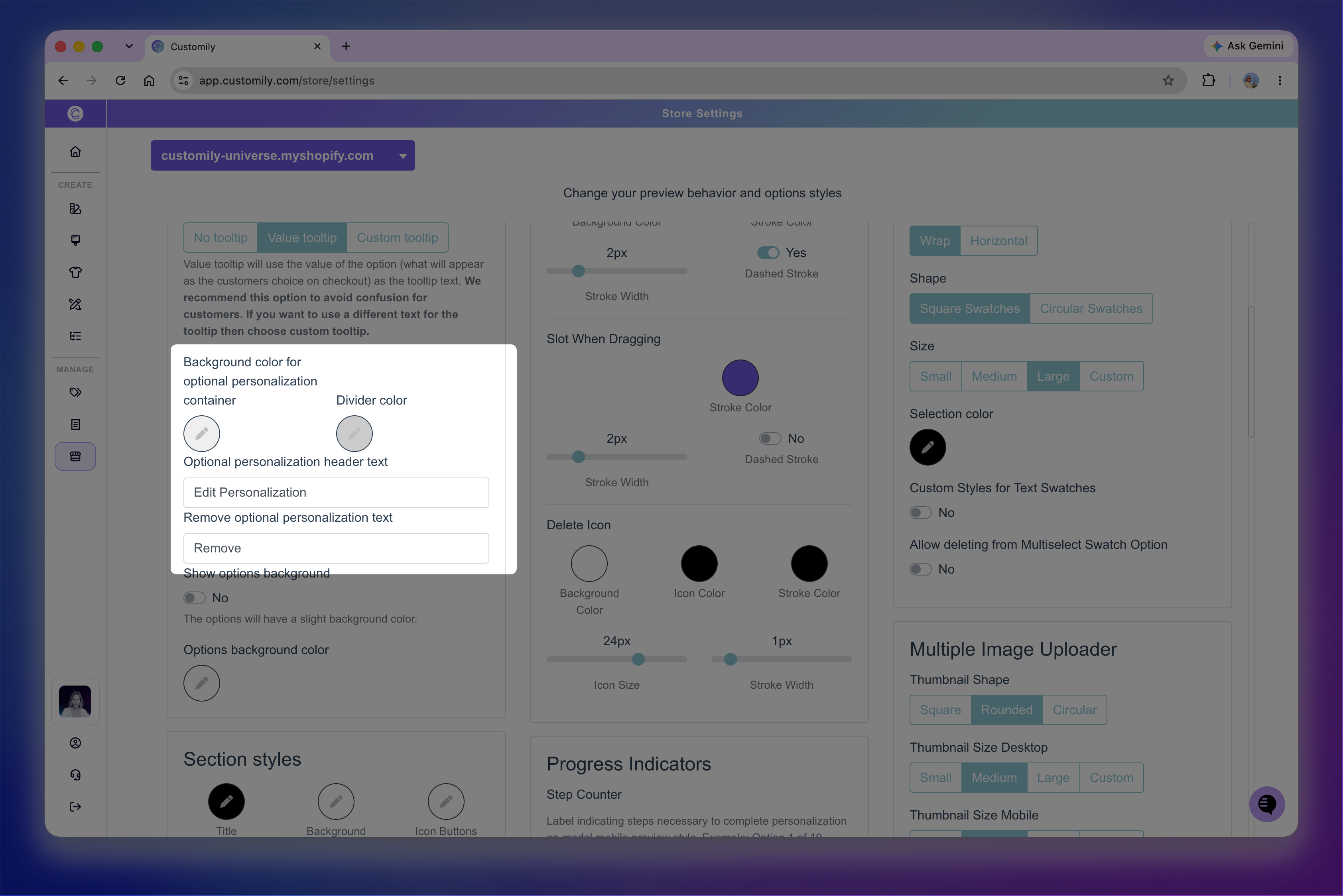
Background color for optional personalization container: Sets the background color displayed behind the personalization form.
Divider color: Sets the color of the divider displayed at the top of the form.
Header text: Changes the text displayed at the top of the personalization form.
Remove text: Changes the text shoppers use to remove their personalization and return to the non-personalized product.
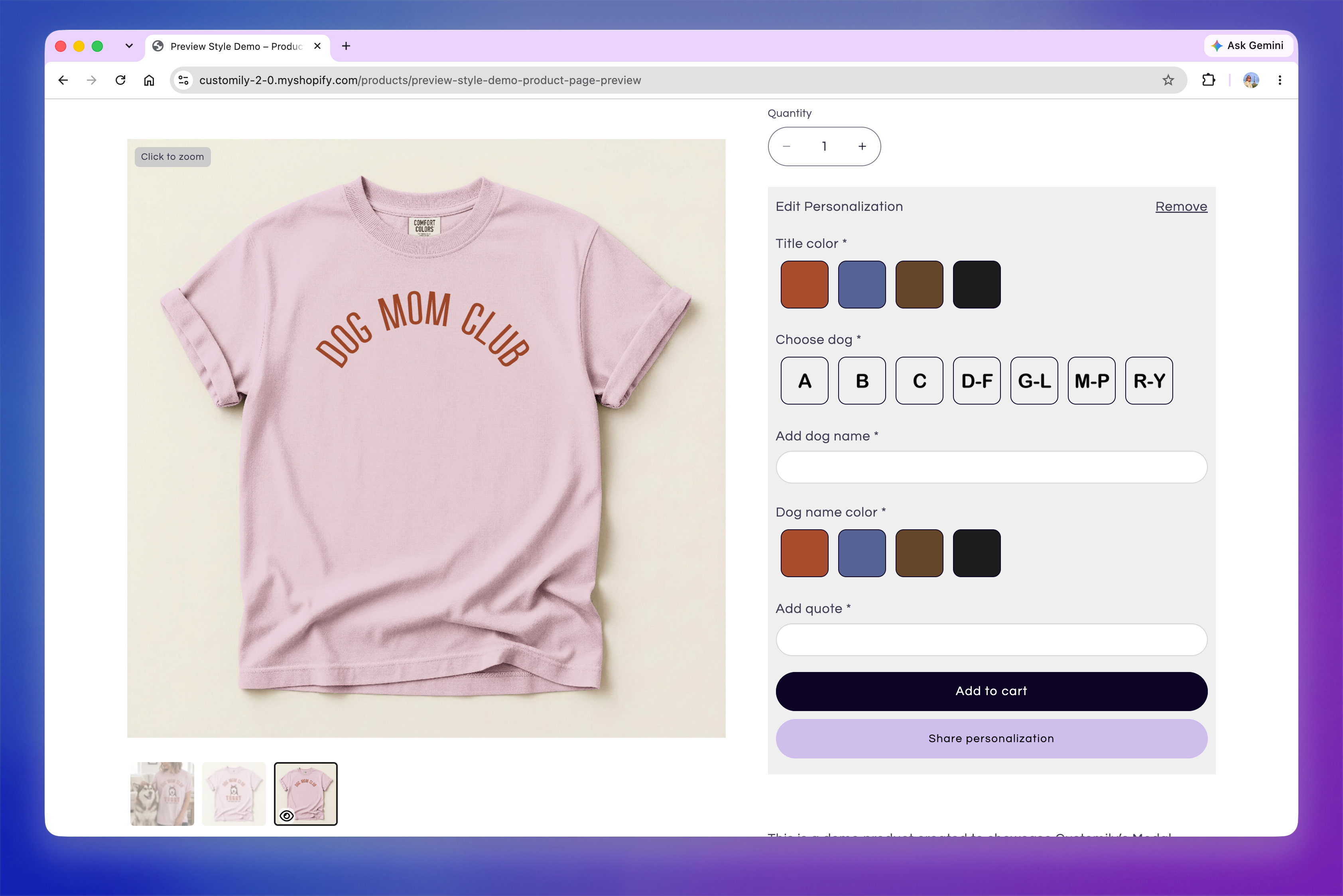
The background surrounds the full set of personalization options, with the header and divider displayed at the top. Shoppers can use Remove to return to the non-personalized product.
Note
These settings are only available if you're using Make personalization optional. If you're not using optional personalization, use Show options background and Options background color explained above to customize the personalization form background.
to learn how to let shoppers choose between purchasing a product as-is or personalizing it see 📄 Make personalization optional